Setting Alarm and Recording Limits
19
Setting Alarm and Recording Limits
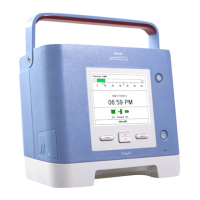
The SmartMonitor 2 has the ability to program alarm and recording limits as prescribed by the physician.
There are two methods, including direct connect via serial link to a computer or manually through the
display on the bottom of the monitor.
Manual Set-Up
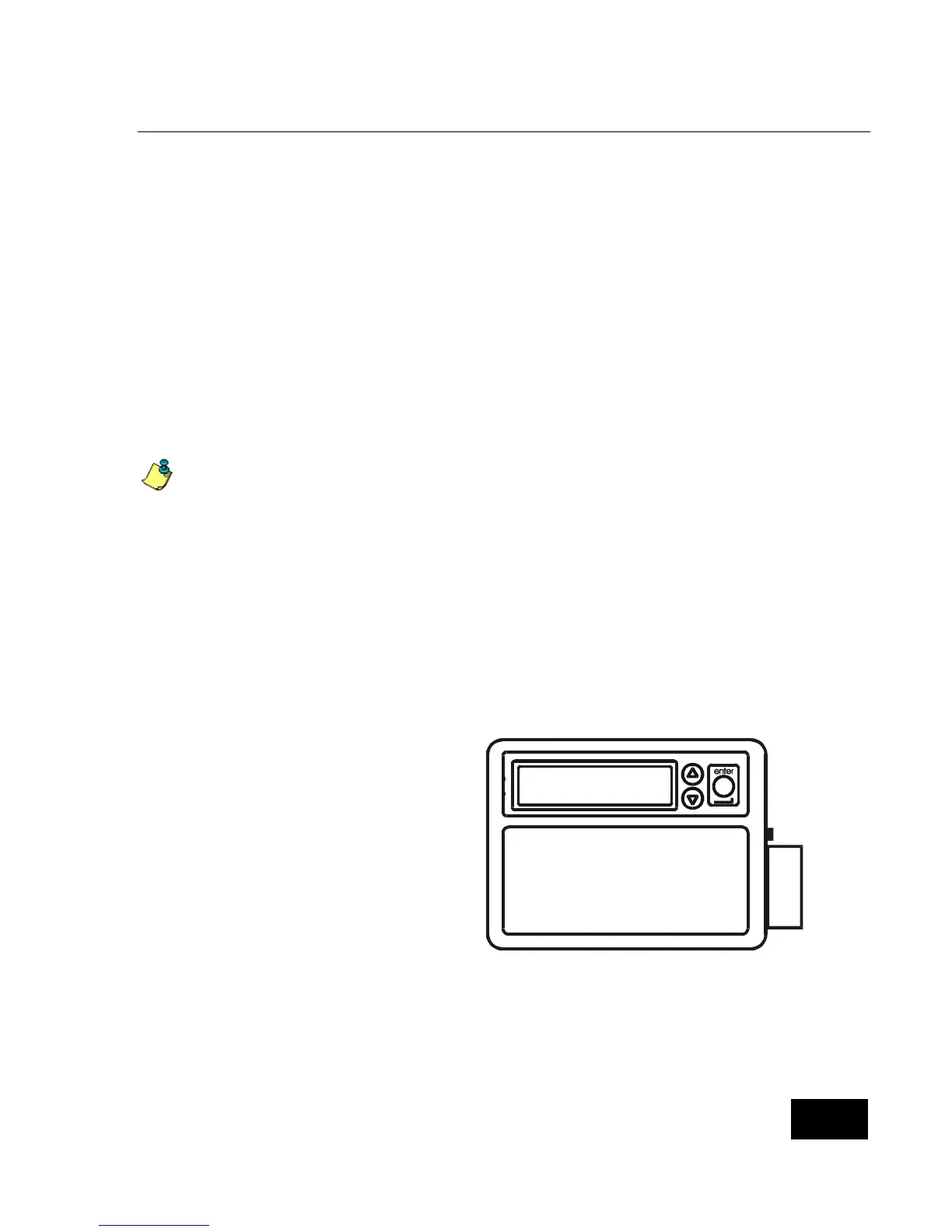
Remove the display door from the bottom of the monitor. Beneath the display door you will find the
display or LCD and 3 buttons. These buttons are used to key in a “Password” into the monitor. The
menu system has 3 passwords. Each password allows access to a different level of options. These 3
levels are: Monitor Set-Up, System Set-Up, and view only. The following discusses these in detail.
The Monitor Set-Up Menu is used to select all alarm and recording settings. You can adjust settings
manually, by modem, or by direct communication. When you access the Monitor Set-Up Menu, the
SmartMonitor 2 is in Menu mode.
The SmartMonitor 2 will beep once every 10 seconds to signal that it is powered on and in Menu
mode.
To Set or Modify Parameters Manually, Enter Menu Mode
Press the POWER button to turn the monitor ON. After a short delay, the display will read:
INITIALIZING PLEASE WAIT
Then,
MENU MODE? ENTER PROPER KEY SEQUENCE
Press the keys in the following sequence within 10 seconds:
Down arrow, Up arrow, Up arrow, ENTER, ENTER, ENTER
The display will read SMARTMONITOR 2
MENU SELECTION.
The SmartMonitor 2 menu has 34 entries
that are presented in a continuous loop.
Use the up arrow key to display the next
menu entry.
Use the down arrow key to display the
preceding menu entry.
When the parameter you want to change is
displayed, press the ENTER button. The
current value for the parameter displayed
will flash.
M
e
m
o
r
y
C
a
r
d
INITIALIZING
PLEASE WAIT
Use the or key to change the parameter to the desired value.
When the desired value is displayed, press the ENTER button to accept the value.
Press the up arrow to choose the menu path you want to review.
There are 4 menu paths to choose from:
All Menus
Alarm Menu



 To Next Page