Using the Touch Screen
You can use your finger to control a Windows PC or Mac with touch by connecting the USB cable
between the USB port of this machine and the USB port of your computer, which supports the touch
module.
For supported operating systems, see page 147 "Specifications".
Important Instructions for Using the Touch Screen
• For details about connecting devices for touch operation, see "Connecting the Touch Module",
Read This First.
• Depending on the operating system, multi-point touch operations may also be supported in
addition to single-point touch operations.
• For details on multi-point touch operations, see the Windows PC’s operating manual and other
similar documents.
• Touch operation behavior may differ depending on the app. See the app’s operating manual.
• When the machine and another monitor are connected to the Windows PC at the same time, the
touch entry signals may become mixed up. (For example, the cursor on the other monitor may
move when the touch screen of the machine is touched.)
• With the machine connected to the Windows PC, set up “Tablet PC Settings” for Windows.
• Keep the touch screen out of direct sunlight or spotlights.
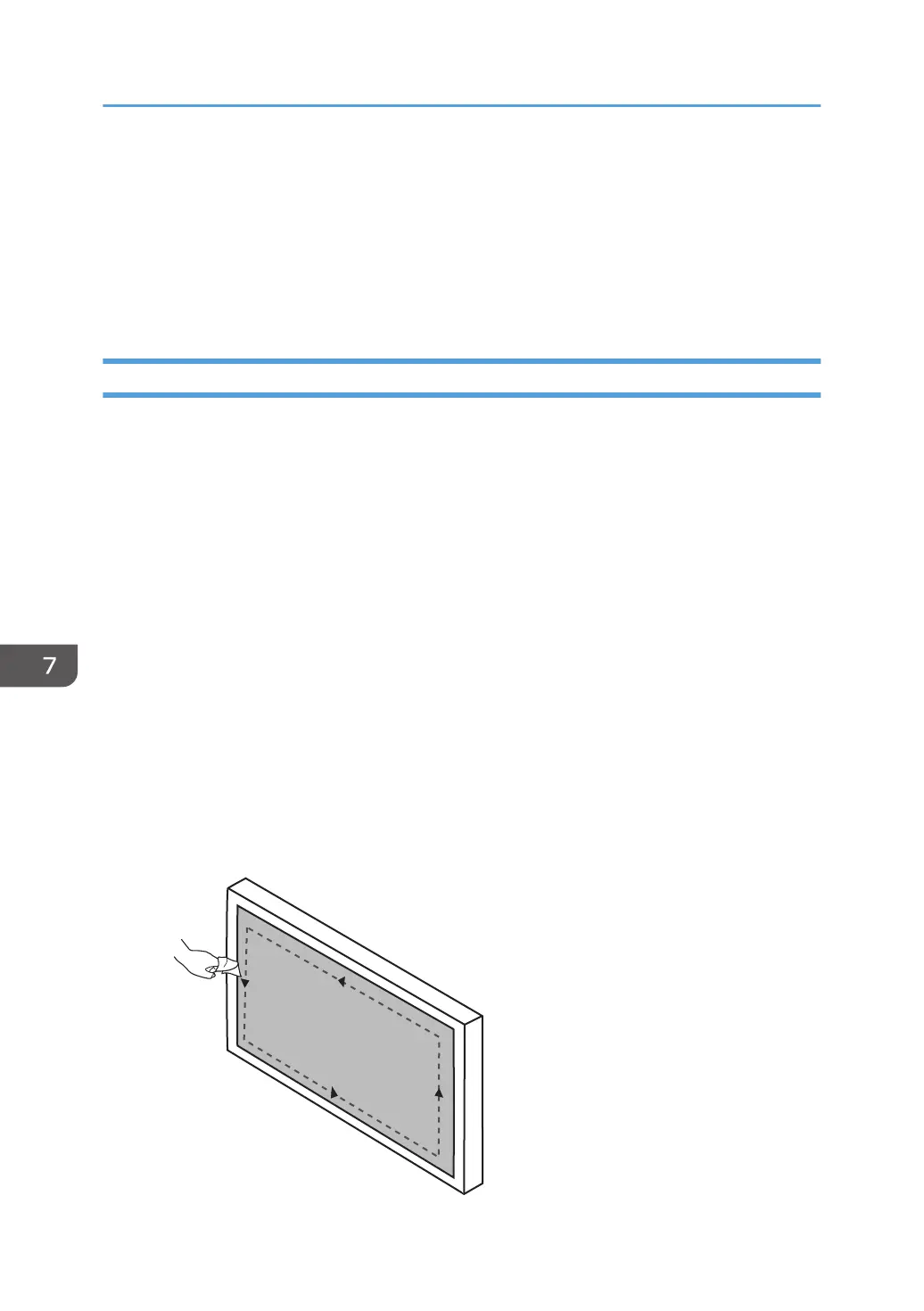
• If the touch screen shows signs of malfunction, clean the screen and inside the bezel.
• Before you clean the screen, make sure the machine is turned off, and unplug the power cord.
• Remove dust and dirt on the screen and inside the bezel periodically. Use a clean and soft
cloth for cleaning.
7. Connecting Devices
108


 To Next Page