24
12.Programming mode
12.1.Creating a scene
Scene consists of various effect created by the lights (colours,figures and positions)
You can create up to 750 scenes.
1.Press <ESC> several times until the display shows the initial screen.
2.Press <MENU> and use <UP>,<DOWN> to scroll to the "Make Scene" menu and press <ENTER>.The following
message appears:
Scene: 001 Scene number (1-750)
FREE Scene status:FREE or USED
FREE......scene was not edited (it contains data of the scene No.000 )
USED......scene was edited
The scene 000 (its all DMX values are setted onto 0 but you can edit them,its mask included a maximum of
assigned projectors and can´t be changed,scene status is still FREE) is used in this cases:
1.After switching the controller on (data of the scene 000 is transmited to the DMX outputs).
2.After deleting the current scene (data of the scene 000 is copied to the deleted scene).
3.Use <UP>,<DOWN> or Pan wheel to select desired free scene.All LEDs of the PROJECTOR
SELECTbuttons,which have been assigned to the projectors, shine.
Now you have to determine the projectors, which will be used in the scene - the mask.Press the PROJECTOR
SELECT buttons matched to the projectors ,which you don´t want to use in the scene(their LEDs become off).
Only those projectors will be active in the scene where the PROJECTOR SELECT button LEDS shine.
If you wish to create scene for previously defined group of projectors,press <NEXT/GROUP>,select desired
group (1-20) by pressing the respective PROJECTOR SELECT button.If you select more than one group,the last
selected group will be active only.The selected group of projectors can be expanded/reduced by pressing the
respective PROJECTOR SELECT buttons.
Note:The scene should be created with a maximum of active projectors (in run mode,you can simply reduce the
number of active projectors).
Press <ENTER> and the following screen appears:
MAKE SCENE: 001 Scene number (1-750)
NO DEVICE Name of assigned projector (after pressing PROJECTOR button)
CH: 01-08 Sld:001 Channel range and slider
------------- Val:000 Matching effect name , Effect DMX value (0-255)
4.Press the first PROJECTOR SELECT button whose projector is defined in the mask and adjust DMX values for
all projector´s effects.You can use the 3 ways:
1.DMX CHANEL/FUNCTION sliders:
After moving any slider ,the name of assigned effect appears on the 4th row of the screen and its current
DMX value.With CHANNEL RANGE button you can change the channel range (1-8, 9-16 ,17-24) for sliders.
2.UP/DOWN buttons and LEFT/RIGHT buttons:
<UP>,<Down> - the buttons for editing DMX values
<LEFT>,<RIGHT> - the buttons for selection of the channels/effects
CHANNEL RANGE button - the button for changing the channels range
3.Wheels (PAN/TILT button LED has to shine):
PAN wheel - for selecting the channels/effects
TILT wheel - for adjusting DMX values
Note :You can select more than one projectors - in this case the selected projectors are controlled together and
the displayed projector name flashes if selected projectors are not the same.This name (and displayed effect)
corresponding to the selected fixture with the highest DMX address.
If you adjust the DMX value for the channel,to which the dimmer is assigned and you want to use the dimmer
function ,make sure that the dimmer value is in the range as defined in "Config unit" menu for correct functions of
the sliders INT A and INT B.If adjusted value is out of the range ,the sign "DIMMER" flashes.
Example:
MAKE SCENE: 001
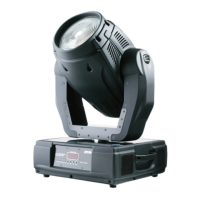
SPOT 150 XT
CH: 01-08 Sld:008
DIMMER Val:094 Sign "DIMMER" flashes, the dimmer value has to be between 0-64,because the
dimmer intensity for SPOT 150 XT is defined in "Config unit" menu as follows:
Intensity:000 Max:64


 To Next Page
 Loading...