value, and going top to bottom increasesthe Yvalue.
NOTICE
l
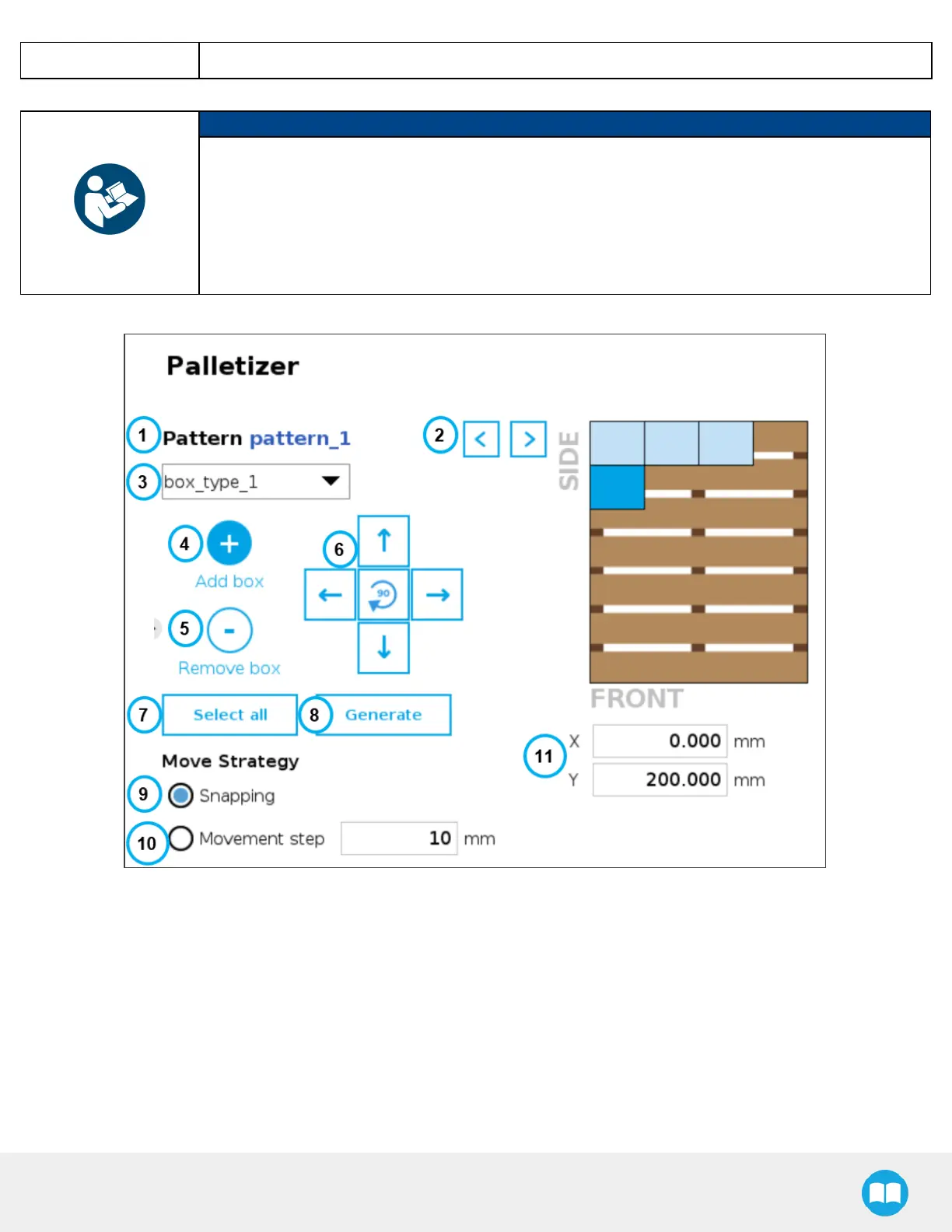
A light blue box is a boxthat hasbeen placed. It can be selected by tapping on it.
l
The dark blue box is the active box. It can be moved around using the arrowson the screen.
l
A red boxis an "overlapping box."
l
Multi-pickfeature: Boxesthat are part of the active box type are shown in light blue (including the
active box, in dark blue); boxesthat are not part of the active box type are shown in grey.
Fig. 5-23: Pattern Menu
1. Pattern name
This section displaysthe name of the layer pattern being edited.
2. Pattern toggle
Tap the left or right arrow to change the layer pattern being edited.
3. Boxtype dropdown menu (multi-pickfeature)
If the multi-pickfeature has been enabled in the Settingsmenu, and if more than one box type has been created in the BoxType
menu, the Pattern editing menu will allow the user to select the box type to palletize, and to toggle between box typeswhile
building the layer pattern.
95



 To Next Page