EasyManua.ls Logo

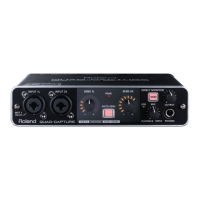
Roland Quad-Capture - User Manual

Roland Quad-Capture
60 pages
Print Icon
To Next Page IconTo Next Page
Loading...
+48V
Hi-SPEED USB
IN 1/2
MAIN
OUT 1/2
IN 3/4 OUT 3/4
IN OUT
MIDI
AUDIO
DIRECT MIXER
D/A
INPUT
OUTPUT
INPUT 1L
INPUT 2R
COAXIAL IN
(3/4)
MIDI IN
MIDI OUT
COAXIAL OUT
(3/4)
OUTPUT 1L
OUTPUT 2R
PHONES
DIGITAL
OUT
SELECTOR
MIXER
MONO/
STEREO
MIX
Hi-Z/
Lo-Z
COMP
PHASE
SENS
A/D
HPF
100Hz
COMP
PHASE
SENS
A/D
HPF
100Hz
For the following languages, a PDF version of the Owner’s Manual can be found on the CD-ROM.
Deutsch, Français, Italiano, Español, Português, Nederlands
* 5 1 0 0 0 4 2 9 9 1 - 0 5 *

Table of Contents

Questions and Answers

  • M
    Matthew ParkSep 16, 2025
    Why Roland Recording Equipment QUAD-CAPTURE cannot play or record 24-bit audio data?
    • A
      Anna CooperSep 16, 2025
      If you cannot play or record 24-bit audio data with Roland Recording Equipment QUAD-CAPTURE, check whether your software supports playback and recording of 24-bit audio data and make sure that your software is set to play and record 24-bit audio data.
  • G
    George GordonNov 24, 2025
    What to do if I cannot select or use Roland Recording Equipment QUAD-CAPTURE device?
    • D
      David JeffersonNov 25, 2025
      If you cannot select or use the Roland QUAD-CAPTURE device, consider the following: * Driver Installation: Ensure the driver is installed. * USB Indicator: Verify the QUAD-CAPTURE is correctly connected to the computer. If the USB indicator is off, try reinstalling the driver. * Device Name Display: Exit all programs using the QUAD-CAPTURE, disconnect and reconnect the USB cable. If unresolved, reinstall the driver. * Program Usage: Ensure no other program is using the QUAD-CAPTURE. Exit conflicting programs, disconnect and reconnect the USB cable, and reinstall the driver if necessary. * Standby/Sleep Mode: If the computer entered standby, hibernate, or sleep mode, exit all programs using the QUAD-CAPTURE, disconnect and reconnect the USB cable, and restart the computer if need...
  • M
    Michelle Bell DVMNov 27, 2025
    Why is sound interrupted during playback or recording on Roland Recording Equipment QUAD-CAPTURE?
    • M
      Melissa CollierNov 27, 2025
      If you experience interrupted sound during playback or recording, or if the sound drops out while using Roland Recording Equipment QUAD-CAPTURE, consider the following: * Close Unused Programs: Exit programs that are not in use. * Software's Audio Buffer Size: Adjust the audio buffer size in your software. Refer to the software's documentation for guidance. * Driver's Audio Buffer Size: Increase the driver's audio buffer size. * Recording Margin (Mac OS X): Increase the “Recording Margin” setting if audio drops out or noise is heard, even after adjusting the audio buffer size. * System Software Updates: Ensure your system software is up to date by running Windows Update or Microsoft Update (for Windows) or Software Update (for Mac OS X). * Chipset and Graphics Card Drivers: Up...
  • A
    Angela JohnsonDec 1, 2025
    Why Roland Recording Equipment QUAD-CAPTURE cannot play back or record?
    • J
      jacksonanthonyDec 1, 2025
      If you cannot play back or record with Roland Recording Equipment QUAD-CAPTURE, consider the following: * Driver Installation: Ensure the driver is installed. * Sampling Rate: If the QUAD-CAPTURE’s sampling rate is set to 192 kHz, the COAXIAL IN (3/4)/OUT (3/4) jacks cannot be used. * Software Configuration: Select the QUAD-CAPTURE as the input and output device in your software. * USB Connection: Ensure the QUAD-CAPTURE is correctly connected to the computer. Reinstall the driver if the problem persists. * Program Interference: Exit other programs using the QUAD-CAPTURE, disconnect and reconnect the USB cable, and reinstall the driver if necessary. * Standby/Sleep Mode: If the computer entered standby, hibernate, or sleep mode, exit programs, disconnect/reconnect the USB cabl...

Summary

USING THE UNIT SAFELY

Safety Instructions and Warnings

Essential safety instructions and warnings for operating the unit, including prevention of fire, electric shock, and injury.

About Warning and Caution Notices

Explains the meaning of warning and caution labels used in the manual for user safety.

About Symbols

Explains the meaning of various symbols used in the manual for warnings and instructions.

Additional Safety Precautions

Lists critical safety warnings and precautions for unit operation, handling, and environment.

IMPORTANT NOTES

Power Supply and Placement

Guidelines for power connection and unit placement to prevent malfunctions and interference.

Maintenance and Repairs

Instructions for unit cleaning, maintenance, and information regarding data loss during repairs.

Additional Precautions and CD Handling

Further precautions for safe usage, handling, and care of CDs.

Contents of the Package

Included Items Overview

Lists all items included in the product package, including the unit, manual, and accessories.

Panel Descriptions

Front Panel Overview

Describes the layout and functions of the front panel controls and jacks.

Front Panel Controls and Indicators

Details the functions of indicators, buttons, and knobs on the front panel.

Rear Panel Connectors

Explains the various input and output connectors on the rear panel.

Rear Panel Switches

Describes the function of switches located on the rear panel.

Driver Installation

Windows Driver Installation

Step-by-step guide for installing the device driver on Windows operating systems.

Mac OS X Driver Installation

Step-by-step guide for installing the device driver on Mac OS X.

Confirm that Sound can be Heard

Sound Verification Steps

Guides for confirming successful driver installation and audio output on Windows and Mac.

Basic Use

DAW Software Usage Precautions

Important notes and precautions before using Digital Audio Workstation software.

Setup for Playback

Instructions for connecting the device for audio playback from a computer.

Output Device Settings

How to select the device as the audio and MIDI output device in DAW software.

Setup for Recording

Instructions for connecting and setting up the device for audio recording.

Adjusting Input Level

How to adjust input signal levels using the physical knobs on the device.

Automatic Input Level Adjustment

Using the AUTO-SENS feature for automatic input level optimization.

Input Device Settings

How to select the device as the audio and MIDI input device in DAW software.

Setting from the Control Panel

Starting the Control Panel

Instructions for launching and accessing the device's control panel software.

Setting the Preamp

Adjusting preamp settings like low-cut, phase, and input gain via the control panel.

Setting the Compressor

Configuring compressor parameters such as gate, threshold, ratio, and attack/release.

Setting the Input Mixer

Adjusting monitor levels for input signals via the control panel.

Setting the Sampling Rate

Manually changing the audio sampling rate of the device through the control panel.

Selecting Coaxial Output

Choosing the audio source to be output from the coaxial jack via the control panel.

Saving and Loading Settings

How to save current device configurations and load previously saved settings.

Initializing Settings

Resetting all settings to their default values through the control panel.

Checking Signal Flow

Displaying a block diagram to visualize signal routing within the device.

Setting Coaxial Input

Configuring the digital coaxial input signal reception via the control panel.

Changing AUTO-SENS Method

Customizing the AUTO-SENS behavior and recording level margin.

Checking Synchronization

Verifying the clock synchronization status with other digital equipment.

Checking Driver Settings

How to view or modify driver configuration options.

Viewing Control Panel Foreground

Setting the control panel to always stay on top of other windows.

Checking Control Panel Version

How to find the version number of the control panel software.

Troubleshooting

Problems Installing the Driver

Solutions for issues encountered during device driver installation.

Problems When Using the QUAD-CAPTURE

Solutions for common problems encountered during device operation.

Low Audio Volume Issues

Troubleshooting steps for low or inaudible computer playback volume.

Low Input Level and Distorted Sound

Addressing low input signal levels and fixing distorted input audio.

Sound Interruption and Dropouts

Resolving issues with intermittent audio playback or recording.

Noise, Distortion, and Volume Adjustments

Identifying and fixing noise, distortion, and adjusting recording levels.

Cannot Play Back or Record

Comprehensive troubleshooting for playback and recording failures.

Sampling Rate and 24-bit Audio Issues

Troubleshooting problems with changing sampling rates and 24-bit audio.

Limitations When Using the 192 kHz Setting

Explains operational limits when the device is set to a 192 kHz sampling rate.

Changing Computer Settings to Avoid Problems

Adjusting computer settings to prevent operational issues.

Driver Signing Options Setting (Windows XP)

How to configure driver signing options on Windows XP to allow installation.

Power Management Settings

Adjusting computer power management settings to improve audio performance.

System Performance Settings (Windows)

Optimizing Windows system performance settings for audio tasks.

Setting the System Volume

Adjusting the overall system volume for audio playback.

Voice Communication Software Settings

Disabling automatic volume adjustment for communication software.

Monitoring Function Settings

Disabling Windows monitoring function to prevent audio issues.

Reinstalling the Driver

Steps to remove and reinstall the device driver to resolve issues.

Deleting the Driver

Procedure to completely remove the device driver from Windows.

Mac OS X Driver Deletion

Steps to uninstall the device driver on Mac OS X.

Advanced Driver Settings

Advanced configuration options for the device driver.

Windows Driver Settings

Detailed driver settings and options for Windows users.

Mac OS X Driver Settings

Detailed driver settings and options for Mac OS X users.

Main Specifications

Channel Count and Signal Processing

Details on audio channel support and internal signal processing capabilities.

Sampling Rate and Levels

Specifications for supported sampling rates and nominal input/output levels.

Impedance, Frequency Response, and Noise

Specifications for input/output impedance, frequency response, and noise levels.

Dynamic Range

Specifications for the dynamic range of the AD and DA conversion blocks.

Connectors and Interface

Details on the physical connectors and interface types.

Power, Dimensions, Weight, and Accessories

Information on power supply, physical dimensions, weight, and included accessories.

Information

Roland Service Center Contacts

Contact information for Roland service centers and authorized distributors worldwide.

Roland Quad-Capture Specifications

General IconGeneral
Audio Resolution24-bit/192 kHz
USBUSB 2.0
MIDIIn/Out
Direct MonitoringYes
TypeAudio Interface
Preamps2x VS Preamps
OS CompatibilityWindows, macOS
Inputs2x XLR/TRS combo
Phantom PowerYes (48V, switchable on inputs 1-2)
Channels4
DriverASIO, Core Audio
Dimensions185 mm x 134 mm x 44 mm / 7-5/16 inches x 5-5/16 inches x 1-3/4 inches

Related product manuals