Editing a Sample (SAMPLE EDIT)
47
Making Fade-in/Fade-out Settings (ENVELOPE)
This shows how to set the changes in volume when playing back a sample.
You can use fade-in settings (making the volume gradually get louder) and fade-out settings (making the volume gradually get
softer).
1.
Hold down the [SHIFT] button and press the [PITCH/SPEED] button.
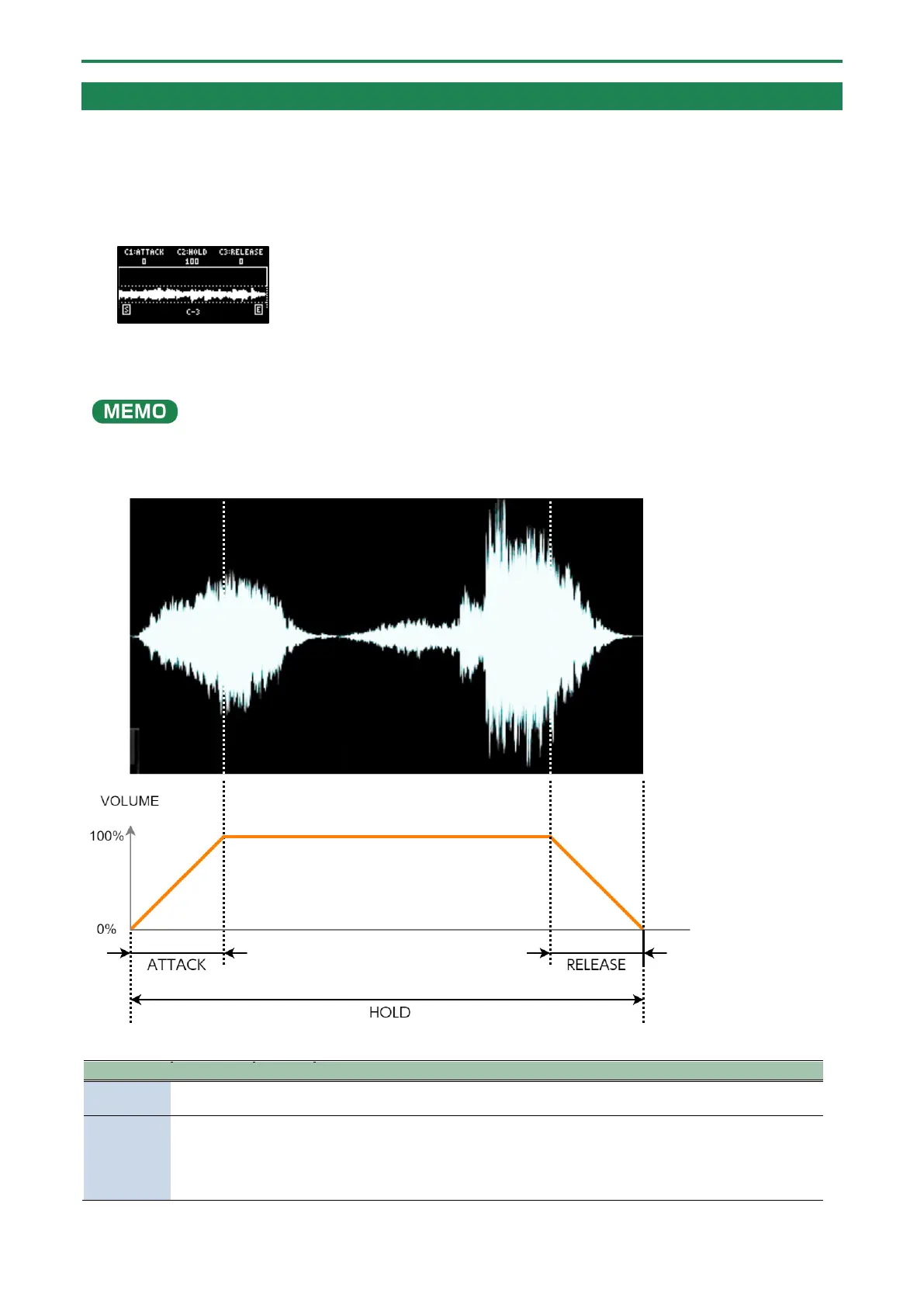
The envelope setting screen appears.
2.
Press pads [1]–[16] to select the sample you want to edit.
Press pads [1]–[16] while holding down the [MARK] button to select a sample without playing it back.
3.
Use the [CTRL 1]–[CTRL 3] knobs to set the fade-in and fade-out.
Sets the fade-in time. When you set this to 127, the fade-in time is three seconds.
[CTRL 2]
knob
(%)
The time from fade-in to fade-out is determined by its ratio to the overall sample
time.
For instance, when this is set to 100, fade-in and fade-out are applied to the entire
sample. When this is set to 50, fade-in and fade-out are applied from the beginning
of the sample to the middle.


 To Next Page