Importing Audio Files
39
Importing Audio Files
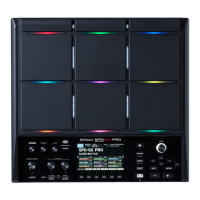
Audio les (WAV/AIFF) can be imported from a USB ash drive or your computer into the SPD-SX as waves, and played.
Audio les that can be imported into the SPD-SX
File format Files with a le name extension of WAV or AIF/AIFF
Bit rate 16-bit
Sampling rate 44.1 kHz
Caution when importing audio les
Importing Audio Files from a USB Flash Drive (WAVE IMPORT)
Here’s how to import an audio le from a USB ash drive into the SPD-SX.
* Use USB Flash Memory sold by Roland. We cannot guarantee operation if other products are used.
1. Copy the audio le you want to import into the root level (the top level) of your USB ash drive.
2. Connect your USB ash drive to the SPD-SX’s USB MEMORY connector (p. 18).
3. Choose MENU UTILITY WAVE IMPORT.
The WAVE IMPORT screen will appear.
4. Use the cursor [ ] [ ] buttons and the [-] [+] buttons to select the audio le that you want to import.
Use the cursor [ ] [ ] buttons to
select the audio le that you want
to import.
Use the [-] [+] buttons to add a
check mark to the audio le that
you want to import.
5. Press the [ENTER] button.
• File names that have more than twelve characters will not appear properly.
• Loop points set in AIFF les are disabled.
• If you try to import any WAV/AIFF le in a format that is not supported by the SPD-SX, an error message of
“UNSUPPORTED FORMAT.” is displayed as that le can not be imported.
• No compressed audio les (WAV/AIFF) can be imported.
• Audio les shorter than 10 ms might not play correctly.


 To Next Page