Editing a Wave
52
Organizing the Waves
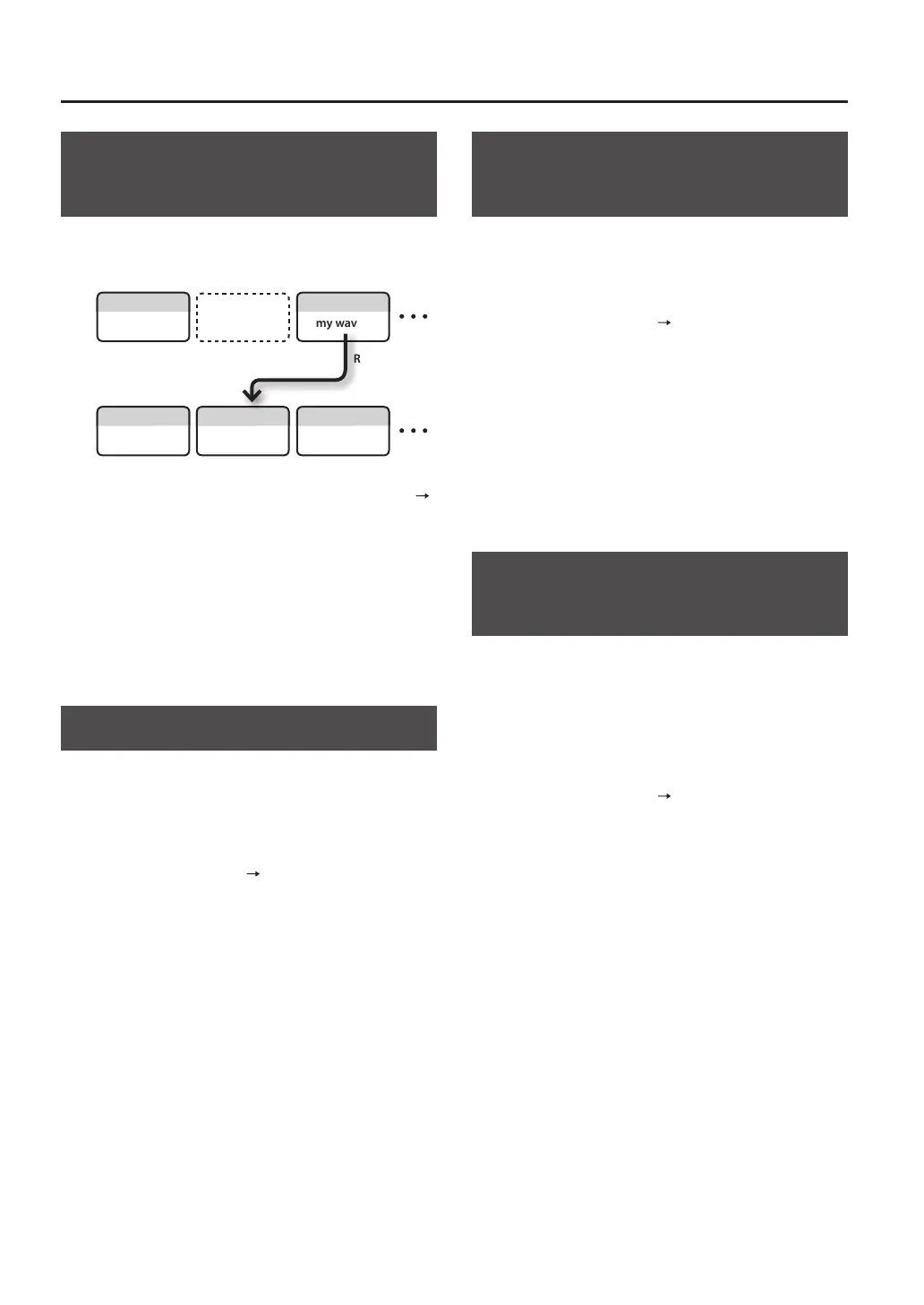
(RENUMBER)
If there are wave numbers that do not contain a wave,
executing this operation will reassign the subsequent
wave numbers so that they are consecutive.
WAVE01001
WAVE01001 WAVE01002
WAVE01003
WAVE01003
RENUMBER
my wave3
Empty wave
my wave1
my wave1
my wave3
my wave4
1. In the WAVE LIST screen, choose QUICK MENU
RENUMBER (p. 64).
2. Press the [ENTER] button.
A conrmation message will appear.
If you decide to cancel the operation, press the [EXIT]
button.
3. Press the [ENTER] button.
The RENUMBER operation will be carried out.
Copying a Wave (WAVE COPY)
Here’s how to copy one wave in order to create a new
wave.
1. In the WAVE LIST screen, select the wave that you
want to copy (p. 64).
2. Choose QUICK MENU WAVE COPY.
3. Press the [ENTER] button.
The wave will be copied.
Deleting a Wave (WAVE
DELETE)
Here’s how to delete a wave.
1. In the WAVE LIST screen, select the wave that you
want to delete (p. 64).
2. Choose QUICK MENU WAVE DELETE.
3. Use the cursor buttons to select the wave that
you want to delete, and press the [ENTER]
button.
A conrmation message will appear.
If you decide to cancel the operation, press the [EXIT]
button.
4. Press the [ENTER] button.
The wave will be deleted.
Saving a Wave to USB Memory
(WAVE EXPORT)
Here’s how to save a wave to a USB ash drive.
1. Connect your USB ash drive to the USB
MEMORY connector (p. 18).
2. In the WAVE LIST screen, select the wave that you
want to save (p. 64).
3. Choose QUICK MENU WAVE EXPORT.
4. Press the [ENTER] button.
The wave will be saved to a USB ash drive.


 To Next Page