Customizing a Kit
Customizing a Kit
47
Copying Parameter Settings to All Pads (SET ALL PAD)
Here’s how to copy the value of the selected parameter to all pads of the same kit.
1. In any of the KIT PAD screens, move the cursor to the parameter that you want to copy.
2. Choose QUICK MENU SET ALL PAD.
3. Press the [ENTER] button.
A conrmation message will appear.
If you decide to cancel the operation, press the [EXIT] button.
4. Press the [ENTER] button once again.
The value will be copied to all pads of the same kit.
Assigning a Name (NAME)
Here’s how to assign a name to a kit or wave.
1. In the KIT screen (or the top screen, etc.), choose QUICK MENU KIT NAME.
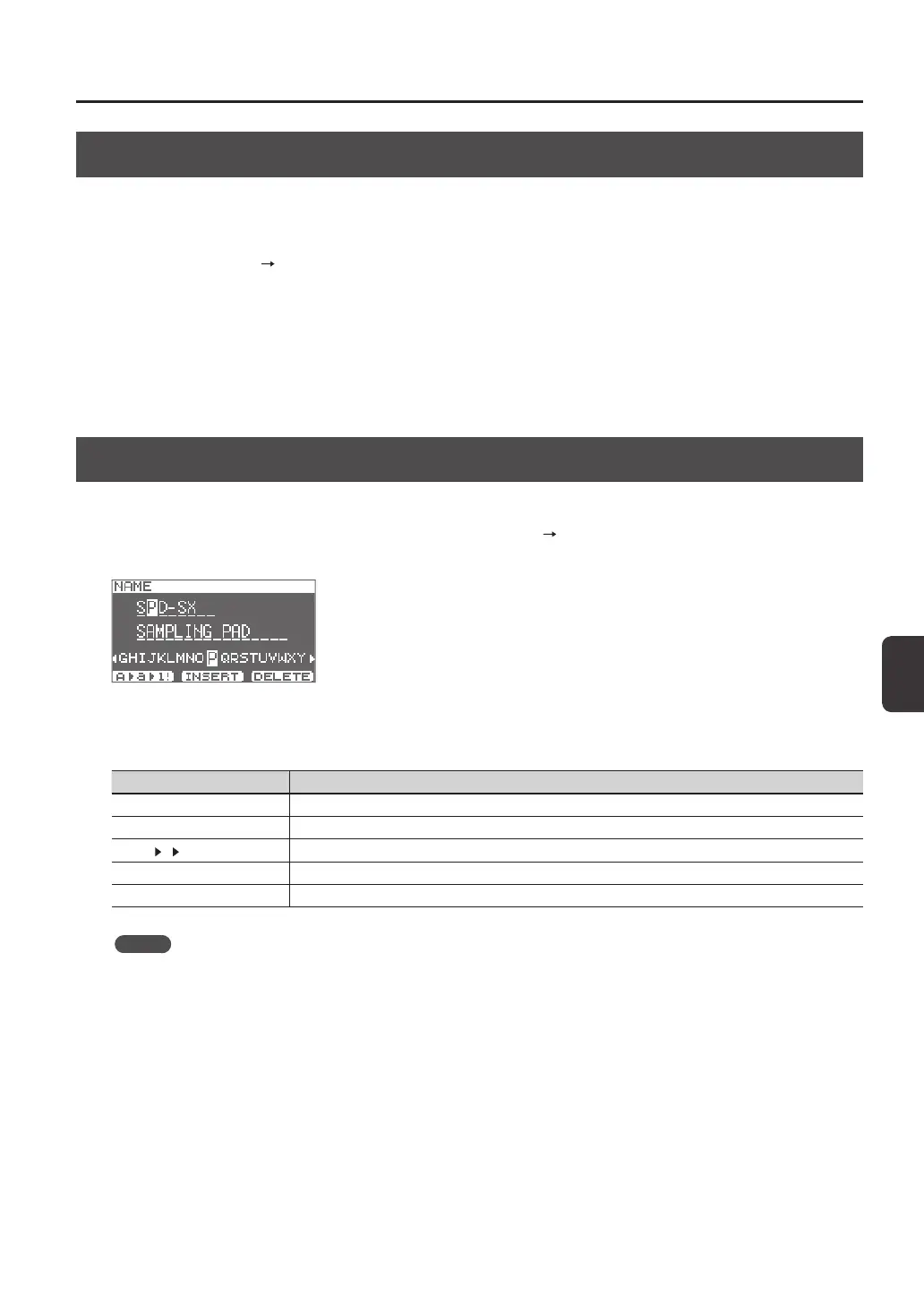
The NAME screen will appear.
* The NAME screen will also appear for other quick Menu items (WAVE NAME (p. 64), CHAIN NAME (p. 56)).
2. Enter the name.
Button Explanation
[-] [+] buttons Change characters.
Cursor buttons Move the cursor to the character you want to change.
[F1] (A
a 1!) button
Switches the type of character at the cursor location between uppercase, lowercase, and numerals/symbols.
[F2] (INSERT) button Inserts a space at the cursor location, moving subsequent characters one space to the right.
[F3] (DELETE) button Deletes the character at the cursor location, moving subsequent characters one space to the left.
MEMO
A kit can be given a sub name (SUB NAME) in addition to the kit name.
The sub name can be used as a reminder about the kit, such as date of creation, the name of the song you are using it in,
etc.
If DISP MODE (p. 59) is set to “SUB NAME,” the sub name will be shown in the top screen.
3. Press the [ENTER] button to nalize the name.


 To Next Page