95
Managing the Wireless Bridge
Sending a Copy of the Log File to Ruckus Wireless Support
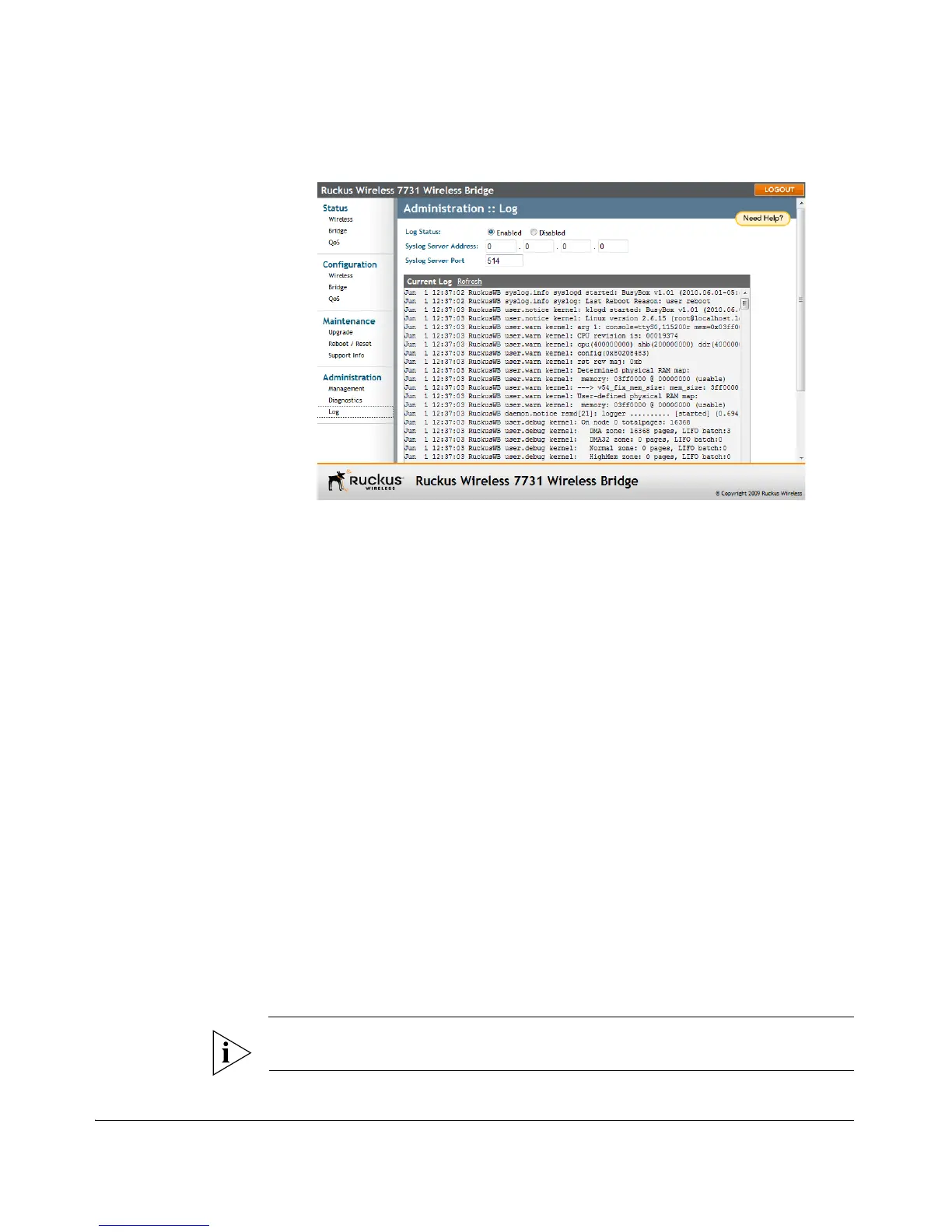
Figure 75. The Administration > Log page
Sending a Copy of the Log File to Ruckus
Wireless Support
The Support Info log consists of the configuration and run-time status of the bridge
and can be useful for troubleshooting. You have three options for sending a copy of
the current log file to Ruckus Wireless Support:
■ Save a copy to your local PC, then attach it to an e-mail message and send it to
support
■ Set up a connection to an FTP site
■ Set up a connection to a TFTP site
To upload a log file to Support using FTP/TFTP
1. Go to Maintenance > Support Info. The Maintenance :: Support Info page
appears.
2. Review the Transfer Method options.
3. To upload a copy of the support info file to an FTP or TFTP server, click the TFTP
or FTP option. Clicking the FTP option prompts you to enter a User ID and
Password.
4. In Server Address, enter the FTP or TFTP server IP address.
5. In Filename, enter a name for this file that you are saving.
NOTE: Remember to add a TXT file extension to the file name, especially if you are
using Internet Explorer as your Web Admin “host”.


 To Next Page