86
Managing the Wireless Bridge
Managing Firmware Upgrades
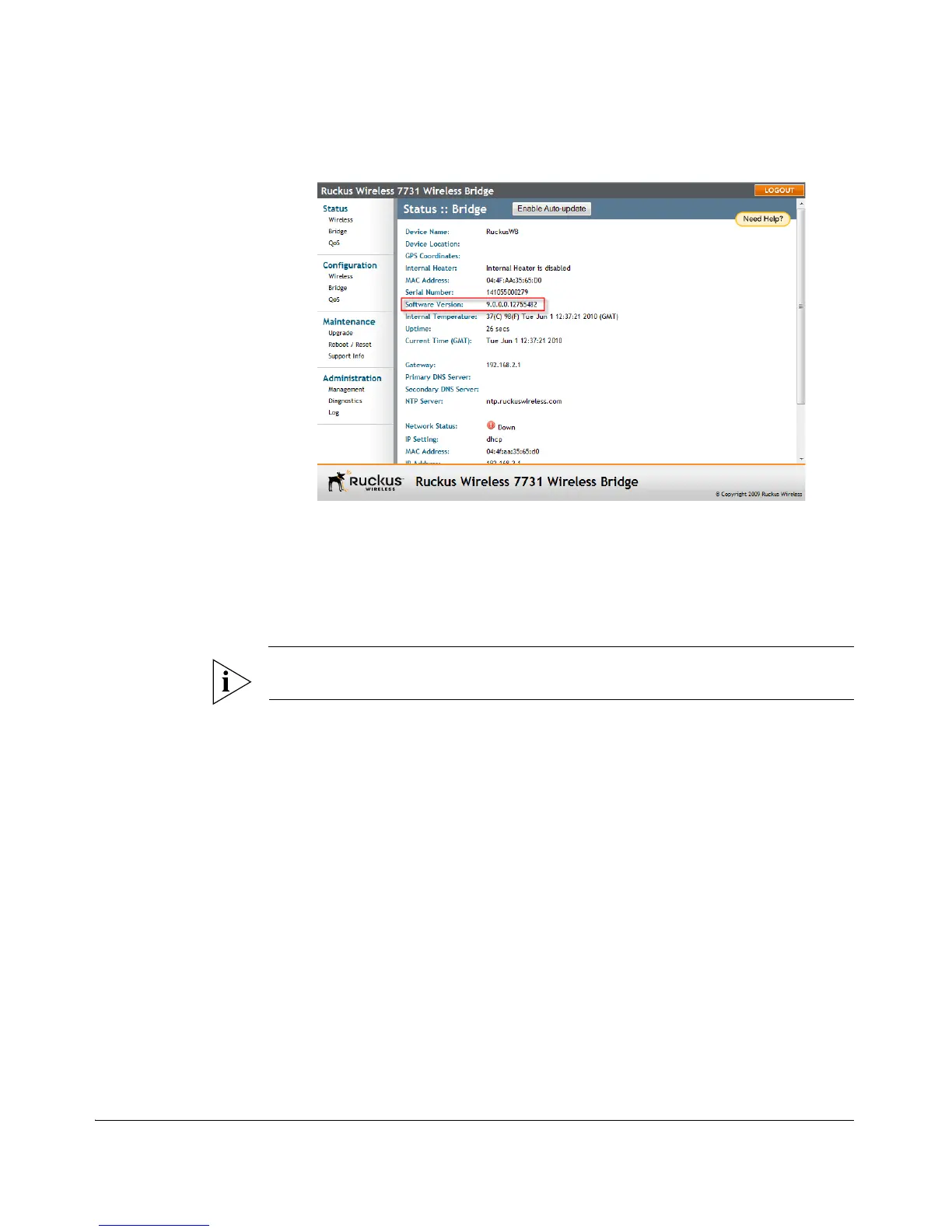
Figure 70. Viewing the current firmware version
Upgrading Manually via FTP or TFTP
1. In the Upgrade Method options, click FTP or TFTP.
2. Click the Firmware Server field, and then type the URL or IP address of the server.
CAUTION: Do not change any of the Image Control File, Username, or Password
entries.
3. Click Perform Upgrade. A status bar appears during the upgrade process.
4. After the upgrade is completed, the bridge will reboot automatically.
Upgrading Manually Using a Local File
If you have downloaded or received an updated firmware image file from Ruckus
Support and saved the file to your local disk, you can use this option to upgrade the
bridge directly using that file.
1. In the Upgrade Method options, click Local.
2. Type in the path and file name or click Browse to locate the file on your local
computer.
3. Click Perform Upgrade. A status bar appears during the upgrade process.
4. After the upgrade is completed, the bridge will reboot automatically.


 To Next Page