Upgrading the Firmware Image
You can use the web interface to check for software updates/upgrades for the firmware
image built into the AP.
You can then apply these updates to the device in one of two ways: manual updating
on an as-needed basis, or automating a regularly scheduled update.
Before starting, decide which option you want to take:
• Automate a regularly scheduled update
• Run a one-time manual update right now
By default, the automatic upgrade option is disabled.
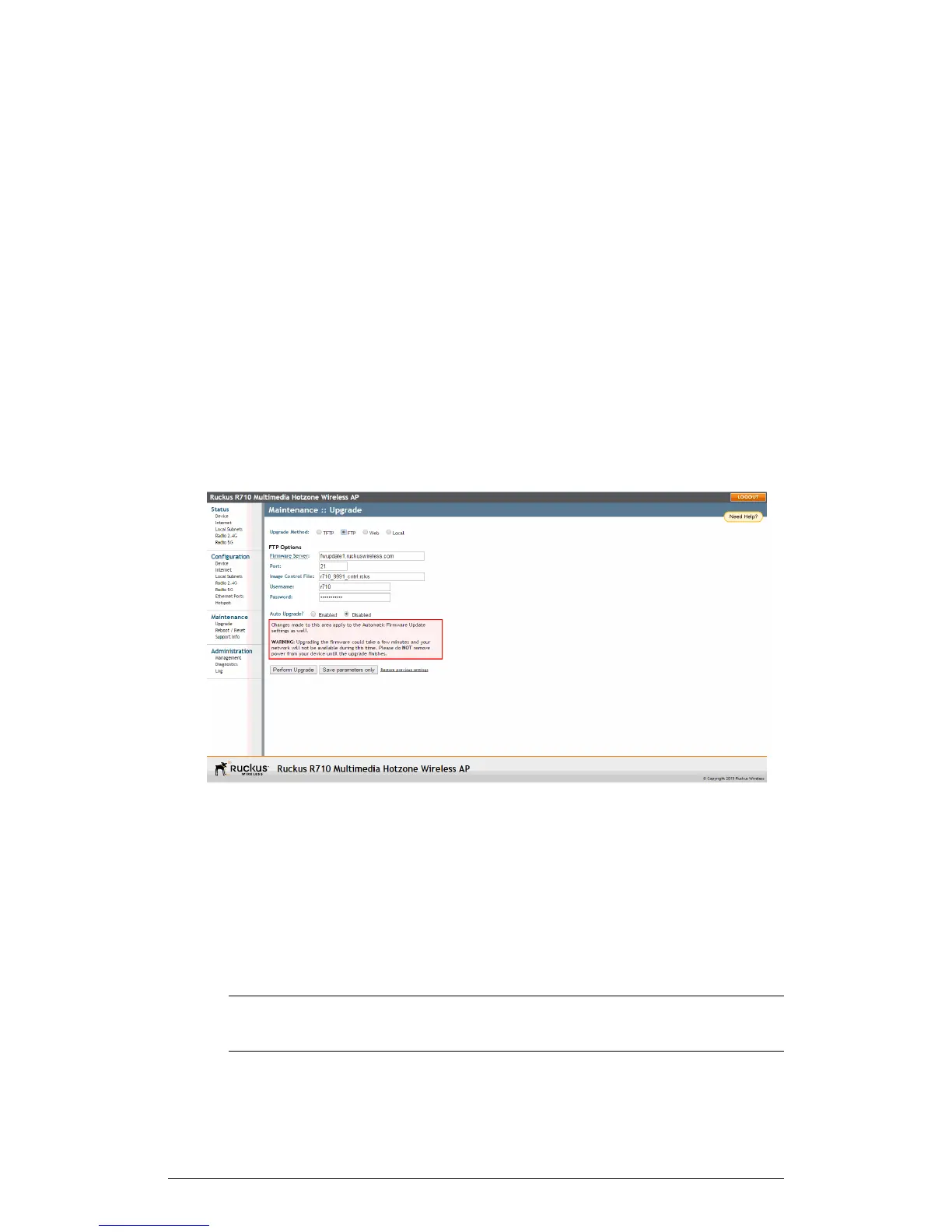
To upgrade the firmware image, go to Maintenance > Upgrade. When the Upgrade
Method options appear, decide which upgrade method to use. Each of the upgrade
options listed on the Upgrade page are discussed in the succeeding sections.
Figure 75: The Maintenance > Upgrade page
Upgrading Manually via FTP or TFTP
Use the following procedure to upgrade the AP manually using FTP or TFTP.
1. In the Upgrade Method options, click FTP or TFTP.
2. Click the host name field, and then type the URL of the server. Or click the IP address
field, and then type the IP address of the server. Remember to start the URL with
ftp://.
CAUTION! Do not change any of the Image Control File, Username, or Password
entries.
142
ZoneFlex Indoor Access Point Release 104.0 User Guide
Administration
Upgrading the Firmware Image








 To Next Page