VDR-100G2/G2S Operation User Manual 43
RUT-UM-02-002_Rev. 2.0
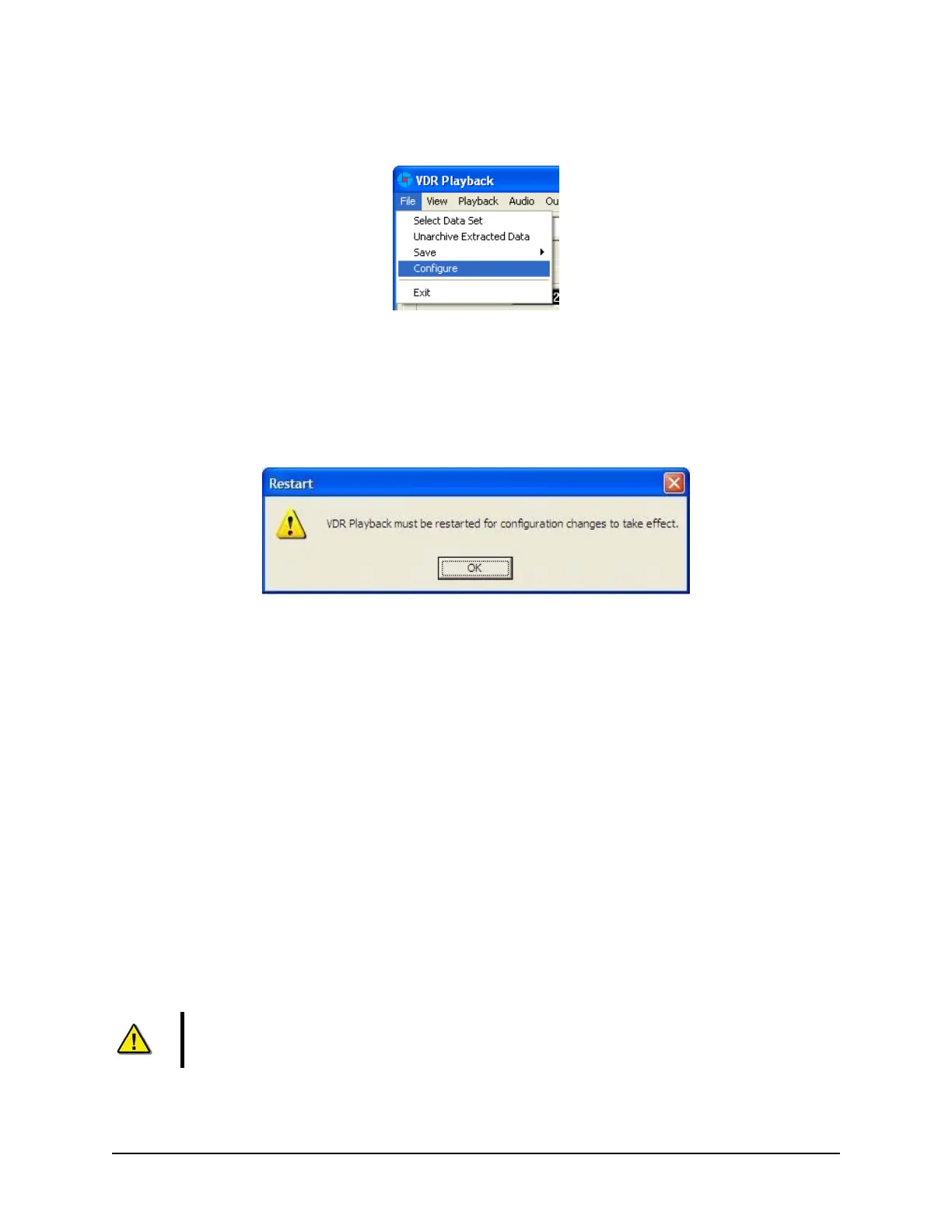
Upon start-up of the Playback application, the configuration file can be loaded using the File > Configure
menu item.
Figure 6-5 - Configuration File Selection - Menu Item
A dialog window will appear allowing the user to select the applicable file. Once the file has been selected
the Playback application will shut down momentarily and restart automatically. Upon restart the chosen
configuration file will load automatically. To change the configuration file, select the File > Configure menu
item, as above, and choose the newly desired file.
Figure 6-6 - Restart Warning
With the VDR-100G2, the ship’s configuration file will accompany every available data set. When a data
set is selected the configuration file will be automatically reloaded as necessary.
6.3 Choosing Data for Playback
To select a data set for playback:
1. Choose the ‘Open’ icon located directly underneath the ‘File’ menu
2. A dialog box will appear. Use the dialog box to locate a folder containing downloaded data and
select one of the three (3) .vdr files. Ensure “All Files” is selected in the “Files of Type” drop
down box.
3. The .vdr files accompany every download and act as an “index” to the actual data files. They are
named according to the data items they reference: AudioDir.vdr for audio, NMEADir.vdr for
NMEA data and VideoDir.vdr for video data. Selecting any one of these three files will open a
data set for playback.
Note! If the download directory does not display three (3) files with extensions of “.vdr”, it is
possible that the Microsoft operating system is treating them as hidden files.



 To Next Page