VDR-100G2/G2S Operation User Manual 52
RUT-UM-02-002_Rev. 2.0
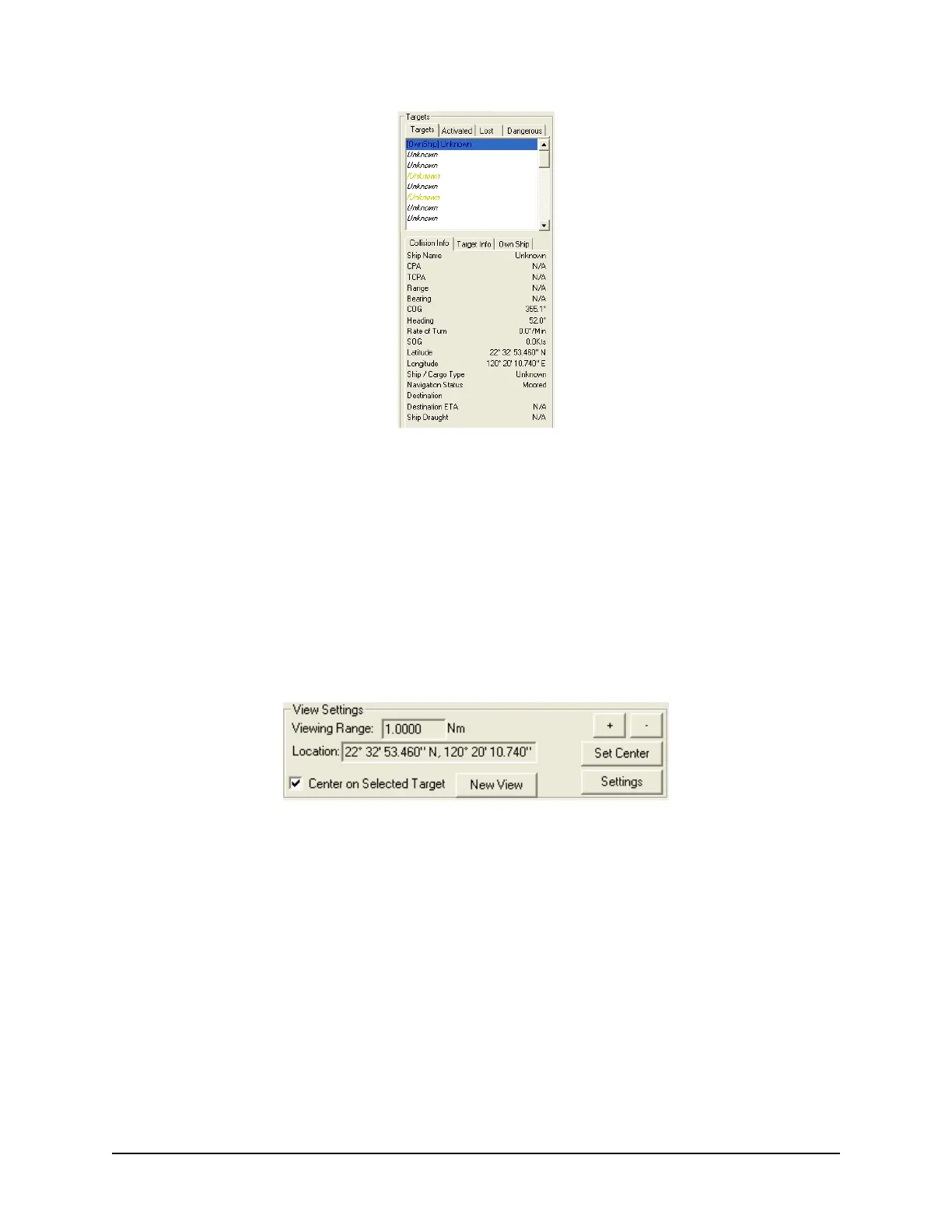
Figure 6-21 - Targets Information Section
Specific ship information is also available in the following tabs (located below the above mentioned tabs):
Collision Info – provides information specific to a selected ship’s navigational course.
Target Info – provides registered information (e.g., MMSI, IMO, etc.) specific to a selected ship.
Own Ship – provides registered and navigational information for the user’s ship regardless of
what target is selected.
6.10.2 View Settings
The View Settings section allows a user a high level of control over the AIS playback view screen.
Figure 6-22 - View Settings Section
Viewing Range – It is possible to increase or decrease the viewing range of the AIS playback
view screen by pressing the “+” and “-“ buttons located in the upper right of the View Settings
section. Note that if using a wheel mouse the viewing range can also be increased/decreased
by moving the wheel while the pointer is located in the view screen. The viewing range is listed
in nautical miles.
Location – The latitude and longitude of the selected target is listed.
Center on Selected Target – If this checkbox is selected the view screen will center on the
selected target.
Set Center Button – To set the center point of the view screen, press the “Set Center” button,
position the mouse pointer on a location on the view screen and left-click. This point will now be
the center point of the view screen. Turning on the “Center on Selected Target” checkbox
overrides this control.
New View – Opens a dedicated AIS Playback window.



 To Next Page