English
8
39
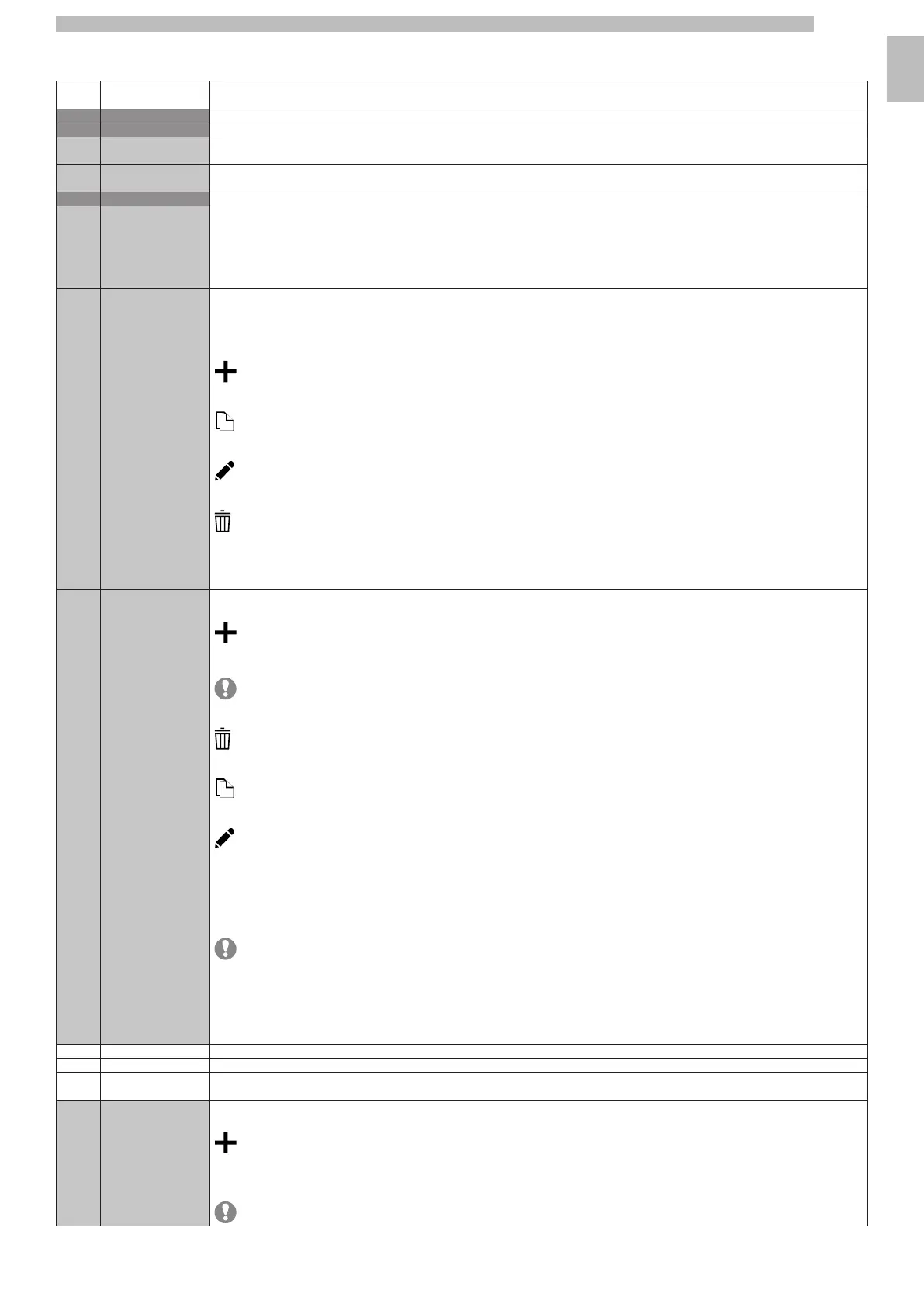
8.4.2Items description of the programming menu
888
OPTIO
N NO.
MENU ITEM
Description
0MenuThis menu makes it possible to access all the configuration parameters of the machine.
1Daily actionsGroups together all of the functions that are used on a daily or more frequent basis (washes, resetting the residue counters, etc.)
1.1Washing/rinsingAutomatic washing and rinsing functions of the appliance's functional units (Cappuccino maker).
Select the components that require washing.
1.2Emptying the residue
trays
Resets the counter that manages the "Residue full" warning when the solid residue tray is full.
2Beverage settingsSettings for recipes, enabling products, ingredients, pre-brewing, etc.
2.1Display
It is possible to change the order of the beverage categories and the layout of the beverages in the various categories.
To change the order of the categories click on the arrows (up and down) of the category that you want to move.
To change the layout of the beverages within a given category click on the "Change Beverage Layout" key of the category of beverages of which you want
to change the layout.
Select the layout of the selections from the default ones which are displayed in normal user mode (1x4, 2x4, 2x5,....).
To make a selection available or unavailable when the appliance is in normal user mode, drag the selection icon from the available selections and vice versa.
2.2CategoriesAllows the selection categories to be created, modified or deleted.
The selection categories are displayed during normal user mode and they allow the selections to be grouped by their beverage type (e.g.
"milk-based beverages")
The function allows:
- A new category to be created
- A category to be duplicated
- A category to be modified
- A category to be deleted
- The available categories to be enabled/disabled.
CREATING
/
MODIFYING
A
CATEGORY
The name, description and icon of a category can be assigned or modified.
2.3ProductsFrom the screen, it is possible to:
- Create new beverages and associate a recipe
The software checks that there is compatibility between the recipe and appliance configuration (layout). If an incompatibility has been detected it
us displayed
- Delete a beverage
- Duplicate a beverage
- Customise a beverage
CREATING
/
MODIFYING
A
BEVERAGE
It is possible to:
- Assign/modify the name of beverages displayed during normal user mode.
- Select which recipe to use for the preparation of the beverage.
By default, the appliance uses recipes for single drinks; for double selections (X2), recipes with adequate doses need to be created.
The software checks that there is compatibility between the recipe and appliance configuration (layout). If
is displayed, it means an incompatibility has been detected.
- Change the image associated with the beverage;
tap the image to choose a new image.
- Enable the option to prematurely stop a selection ("stop dispensing" function)
- Associate a multimedia content playlist to be displayed whilst dispensing.
- Dispense a test beverage.
2.3.1Beverages displayedMakes it possible to customise the beverages displayed.
2.3.2Beverages availableMakes it possible to customise the beverages available in the machine.
2.3.3Beverages not
available
Makes it possible to customise the beverages not available in the machine because of the configuration.
2.4RecipesIt is possible to:
- Create a new recipe
The new recipe is saved in the "not available" category.
Then associate the recipe with the beverage.
The software checks that there is compatibility between the recipe and appliance configuration (layout). If




 To Next Page