English
8
40
OPTIO
N NO.
MENU ITEM
Description
it means an incompatibility has been detected
- Delete a recipe
- Duplicate a recipe
- Customise a recipe
CREATING
A
NEW
RECIPE
The guided procedure allows a new recipe to be created.
A screen is displayed where:
- A name can be assigned to the new recipe
- Tap
and then "Add preparation" to add the products which make up the recipe (e.g. coffee, milk, etc.)
The parameter screens vary according to the product added (espresso coffee, fresh milk, etc.)
- To add customisations tap
and then "Add customisation"
For every customisation it is possible to set various parameters.
- Save the settings and return to the main screen.
On the main screen of the recipe with "Test the recipe" it is possible to dispense a test selection in order to check the recipe created.
After the test selection, the recipe can be modified.
MODIFYING
A
RECIPE
From the recipe screen, it is possible to:
- Change the name of a recipe
Other ingredients and/or customisations can be added to the recipe.
From the recipe screen tap
to add other ingredients and/or customisations.
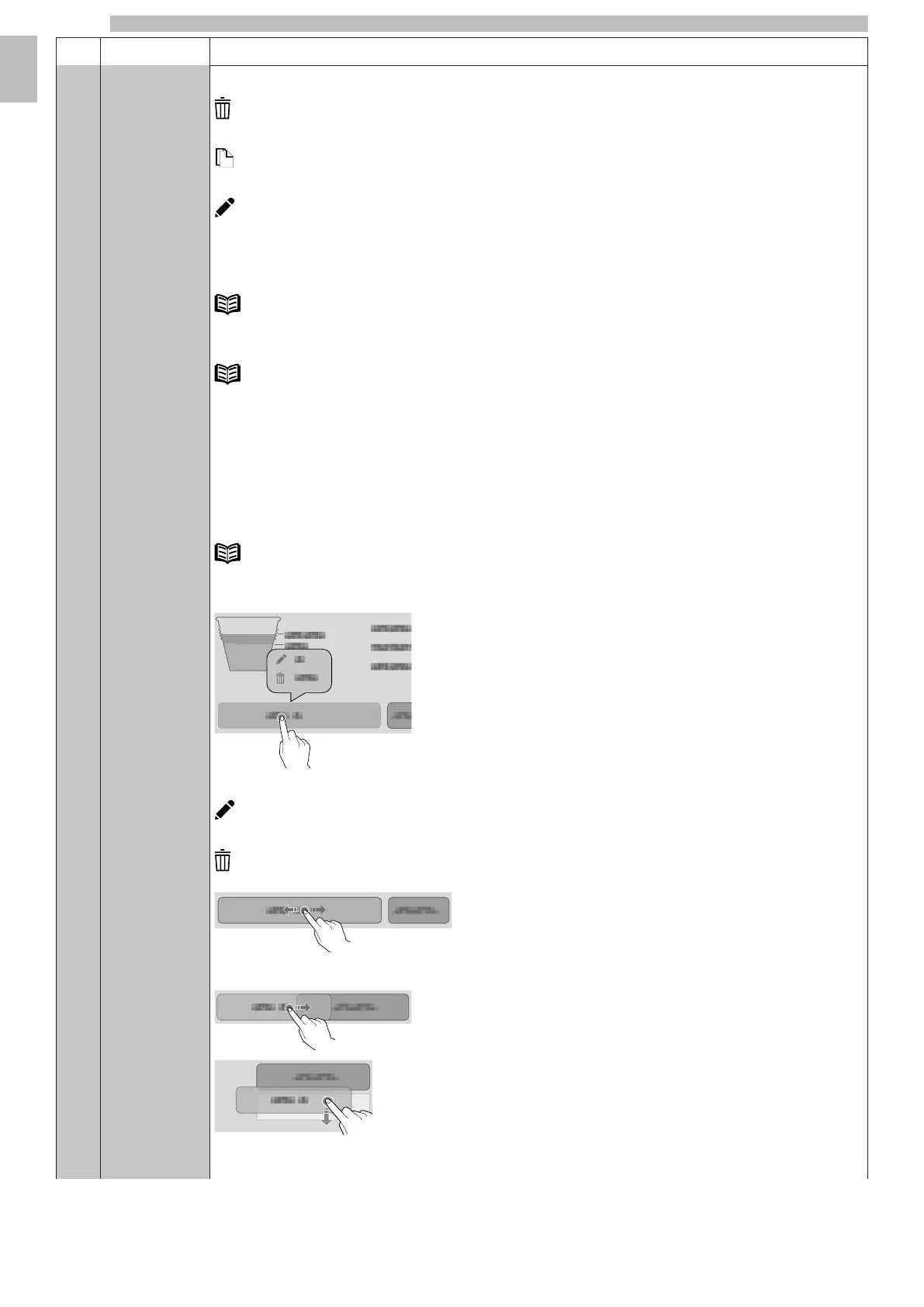
To change the settings of individual ingredients (e.g. the amount of water, powder, etc.), tap the ingredient bar to open the context menu.
- Tap "Modify" to change the parameters.
- Tap "Delete" to delete the ingredient.
To move an ingredient before or after another ingredient, simply drag the bar of the ingredient.
For some products (e.g. milk) it is possible to enter their delivery at the same time.
After changing the parameters, save the settings and return to the main screen.
"Test the recipe" on the main screen allows a test selection to be dispensed in order to check the modified recipe.




 To Next Page