EasyManua.ls Logo

Samsung DVD-HD950 - User Manual

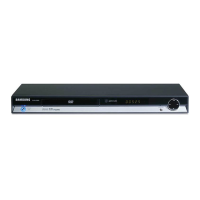
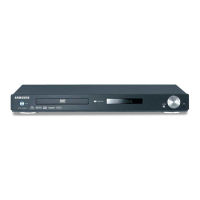
Samsung DVD-HD950
162 pages
Print Icon
To Next Page IconTo Next Page
Loading...
THA
ENG
%Ùj}nvdkiB(h'ko
DVD Player
DVD-HD950

Table of Contents

Other manuals for Samsung DVD-HD950

Questions and Answers

  • M
    murphyamandaSep 23, 2025
    What to do if Samsung DVD Player HDMI/DVI output has poor resolution?
    • M
      Michael GonzalezSep 23, 2025
      If the HDMI/DVI output on your Samsung DVD player provides a poor or no resolution, make sure the DVD tray is empty. Then, press the fast forward button on the DVD player itself (not the remote control) for at least 5 seconds. This will reset the DVD player to the default 576P HDMI output mode.
  • M
    Michael TerryAug 23, 2025
    What to do if my Samsung DVD-HD950 DVD Player disc does not play?
    • J
      jaymcleanAug 23, 2025
      First, make sure that the disc is installed with the label side facing up. Also, check the region number of the DVD to ensure it is compatible with your player.
  • M
    Matthew DavisAug 25, 2025
    How to reset a locked screen on a Samsung DVD-HD950?
    • V
      Vincent HarrisAug 26, 2025
      Press the button for more than 5 seconds with no disc inside and the tray closed. All settings will revert to the factory settings.
  • J
    Jon CraigAug 26, 2025
    How to fix no HDMI output on Samsung DVD-HD950 DVD Player?
    • L
      louisalexanderAug 26, 2025
      First, ensure that the Video output is HDMI enabled. Then, verify the connection between your TV and the HDMI jack on the DVD player. Finally, confirm that your TV supports the DVD player's output resolution (480p/576p/720p/768p/1080i).
  • A
    Amanda MurrayAug 27, 2025
    What to do if Samsung DVD-HD950 remote control not working?
    • J
      jonesbradleyAug 27, 2025
      First, check and replace the batteries in the remote control. Ensure you are within 20 feet of the DVD player when operating the remote. If it still fails, remove the batteries, press and hold any button for several minutes to reset the remote's microprocessor. Then, reinstall the batteries and try again.
  • A
    aprilhardinSep 16, 2025
    Why is the picture noisy or distorted on my Samsung DVD Player?
    • J
      jonathon69Sep 16, 2025
      If the picture on your Samsung DVD Player is noisy or distorted, make sure the disc is not dirty or scratched. If it is, clean the disc.
  • A
    Andrew Porter DDSSep 13, 2025
    How to unblock the screen on a Samsung DVD Player?
    • B
      bfosterSep 13, 2025
      Press and hold the button for more than 5 seconds while there is no disc inside the player. This will revert all settings to the factory defaults.
  • V
    Valerie GarciaSep 14, 2025
    Why does play mode differ from Setup Menu selection on Samsung DVD Player?
    • N
      ncobbSep 15, 2025
      Some functions selected in the Setup Menu may not function correctly if the disc is not encoded with the corresponding function.
  • K
    Kevin JohnsonSep 5, 2025
    What to do if there is no sound when connecting Samsung DVD Player to TV via DVI?
    • J
      Jessica HornSep 5, 2025
      When using an HDMI-DVI cable, remember it only carries video. To get sound, you need to connect separate left and right audio cables from your Samsung DVD player to the DVI audio inputs on your TV.
  • B
    Bradley BrownSep 3, 2025
    How to restore factory settings on a Samsung DVD-HD950 DVD Player?
    • A
      Austin MartinezSep 3, 2025
      If the screen is blocked, press the button for more than 5 seconds with no disc inside the player. This will revert all settings to the factory defaults.

Summary

Precautions

Setting Up

Proper placement and ventilation for the player, refer to identification label for voltage.

For Your Safety

Utilizes a laser; do not open covers or repair yourself. Refer servicing to qualified personnel.

Caution

Product for domestic use only; avoid liquids/objects on player; protect from electrical influences.

Disc Handling

Guidelines for handling and cleaning discs to prevent damage to the surface.

Chapter 1 Setup

General Features

Overview of key player capabilities like sound quality, screen modes, and motion.

Connections

Information on connecting the player to TVs and other audio/video devices.

Basic Functions

Core operations for playing discs and navigating content.

Changing Setup Menu

How to customize player settings like language, display, and parental controls.

Setup

Rear Panel Connection Jacks

Details on all available input and output ports on the rear panel for connectivity.

Setup

Tour of the Remote Control

Identification and function of all buttons on the remote control.

Chapter 2 Connections

Choosing a Connection

Guidance on selecting the appropriate connection method for your setup.

Connection to a TV (Video)

Instructions for connecting the player to a TV using video/audio cables.

Connections

Connections

Connection to a TV (Progressive)

Instructions for connecting the player to a TV using component video for progressive scan output.

Connecting to TV with DVI Jack

Instructions for connecting the player to a TV using a DVI cable.

Connection to Audio System (2 Channel Amplifier)

Instructions for connecting the player to a 2-channel analog audio system.

Connection to Audio System (Dolby, MPEG2, DTS Amplifier)

Instructions for connecting to audio systems with Dolby, MPEG2, or DTS digital outputs.

Connection to 5.1 CH Analog Amplifier

Instructions for connecting the player to a 5.1 channel analog audio system.

Connecting to TV with HDMI Jack

Instructions for connecting the player to a TV using an HDMI cable.

Chapter 3 Basic Functions

Playing a Disc

Step-by-step guide on how to insert and play a disc.

Basic Functions

Basic Functions

Repeat Play

How to repeat playback of tracks, chapters, titles, or the entire disc.

Chapter 4 Advanced Functions

Adjusting Aspect Ratio (EZ View)

How to adjust picture aspect ratio to match your TV screen size.

Advanced Functions

Advanced Functions

DVD AUDIO Playback

How to play DVD AUDIO discs and navigate their menus.

Super Audio CD Playback

How to play Super Audio CDs and navigate their menus.

MP3;WMA Playback

How to play MP3 and WMA files from discs.

MPEG4 Playback

How to play MPEG4 (AVI) files.

Picture CD Playback for HD-JPEG

How to play HD-JPEG files from a CD, requiring HDMI/DVI connection.

Chapter 5 Changing Setup Menu

Using the Setup Menu

How to access and navigate the player's setup menu for customization.

Changing Setup Menu

Setting up EZ-Setup

Step-by-step guide to configure language, TV aspect, and PCM settings.

Surround Sound Speaker Setup

Detailed setup for surround sound speaker configuration.

HDMI Settings

Configuring HDMI resolution, format, and DVI output.

Changing Setup Menu

Chapter 5 Changing Setup Menu

Setting Up Parental Control

How to set parental level to restrict movie viewing.

Changing Setup Menu

Setting Up Rating Level

How to set the parental rating level to control disc playback.

Changing the Password

How to set or change the parental control password.

Chapter 6 Reference

Controlling TV with Remote Control

How to program the remote control to operate TVs.

Reference

Reference

Troubleshooting

Common problems and their solutions for the DVD player.

Reference

HDMI Output Issues

Troubleshooting steps for HDMI output problems like no signal or judder.

Reference

Specifications

Technical details and specifications of the DVD player.

Samsung DVD-HD950 Specifications

General IconGeneral
I/O portsCoaxial Digital out Optical Digital out L/R Stereo out 5.1 Channel Audio Out Composite Video out Component Video out S-Video out
Dimensions (WxDxH)430 x 251 x 58 mm
Disc types supportedCD-R, CD-RW
Number of optical discs1 discs
Product colorBlack
Weight and Dimensions IconWeight and Dimensions
Weight2100 g

Related product manuals