English - 27
Customizing the Picture Settings
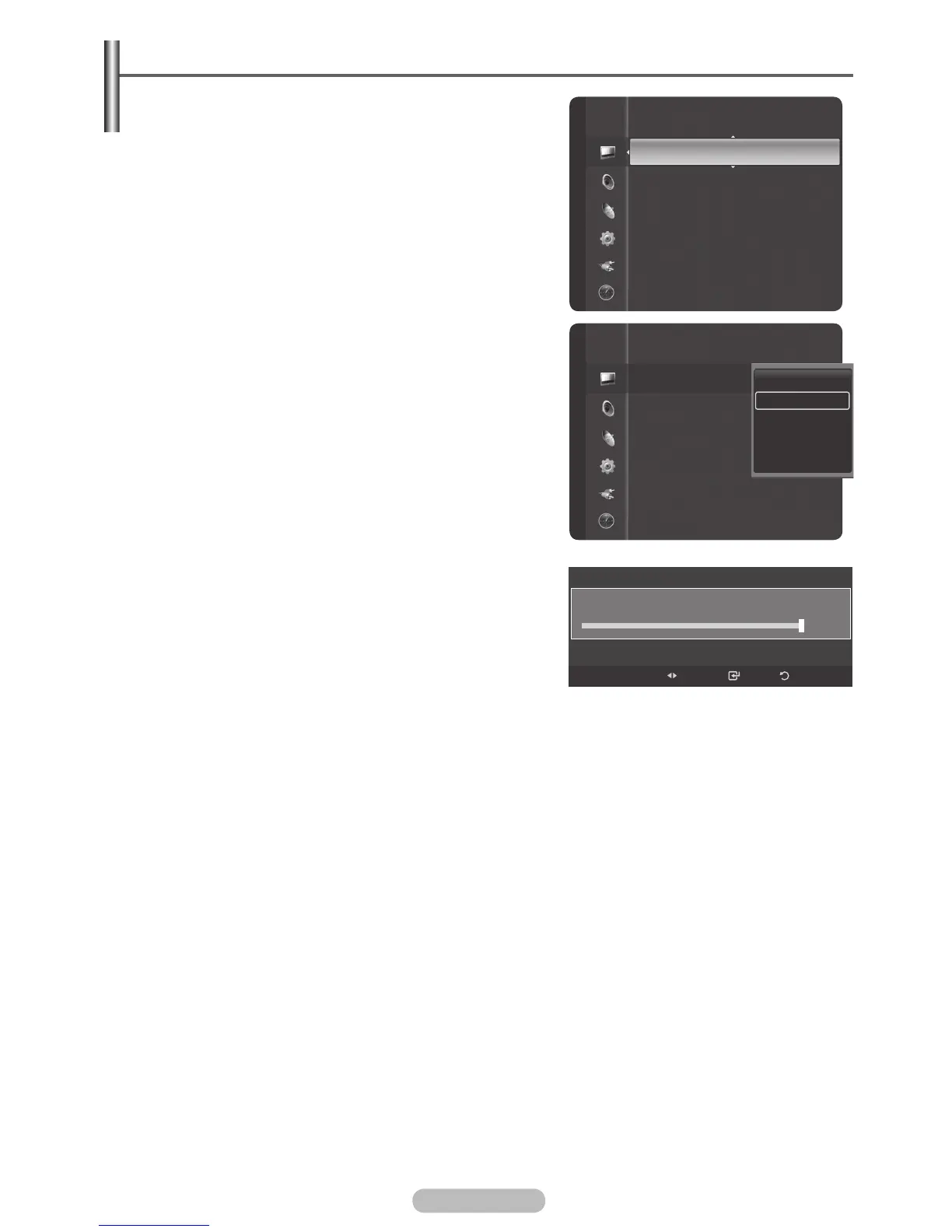
Your television has several setting options that allow you
to control the picture quality.
1 To select the desired picture effect, follow the “Changing
the Picture Standard” instructions number 1 to 3 on page
26.
2 Press the ▲ or ▼ button to select a particular item. Press
the ENTER/OK button.
3 Press the ◄ or ► button to decrease or increase the
value of a particular item. Press the ENTER/OK button.
4 Press the EXIT button to exit.
Contrast: Adjusts the lightness and darkness between
objects and the background.
Brightness: Adjusts the brightness of the whole screen.
Sharpness: Adjusts the outline of objects to either
sharpen them or make them more dull.
Colour: Adjusts the colours, making them lighter or darker.
Tint: Use this function to adjust the colour of
objects,making them more red or green for a more natural
look when RF(60Hz),AV(60Hz),S-Video(60Hz),compone
nt,HDMI signals are input.
Colour Tone: Cool2/Cool1/Normal/Warm1/Warm2
➢
When the picture mode is set to Dynamic or
Standard, Warm1 and Warm2 cannot be selected.
Picture Reset: Reset All/Reset Picture Mode
Reset All: All the picture values return to default settings.
Reset Picture Mode: Current picture values return to
default settings.
Backlight: you can adjust the screen brightness by chang-
ing the LCD backlight brightness.(0-10)
Cool2
Cool1
Normal
Warm1
Warm2
Picture
BN68-01314A-00Eng.indd 27 2007-07-26 ¿ÀÈÄ 11:40:22
erutciP
Colour : 55
Tint (G/R)
:
G50/R50
Colour Tone : Cool1
Detailed Settings
Size : 16:9
Digital NR : Auto
Active Colour : On
DNIe : On
Backlight : 10
Auto Motion Plus 100Hz : Low
Colour : 55
Tint (G/R)
:
G50/R50
Colour Tone
Detailed Settings
Size
Digital NR
Active Colour
DNIe : On
Backlight
Auto Motion Plus 100Hz : Low
Backlight
Enter
0
10



 To Next Page