English - 28
ReturnEnter
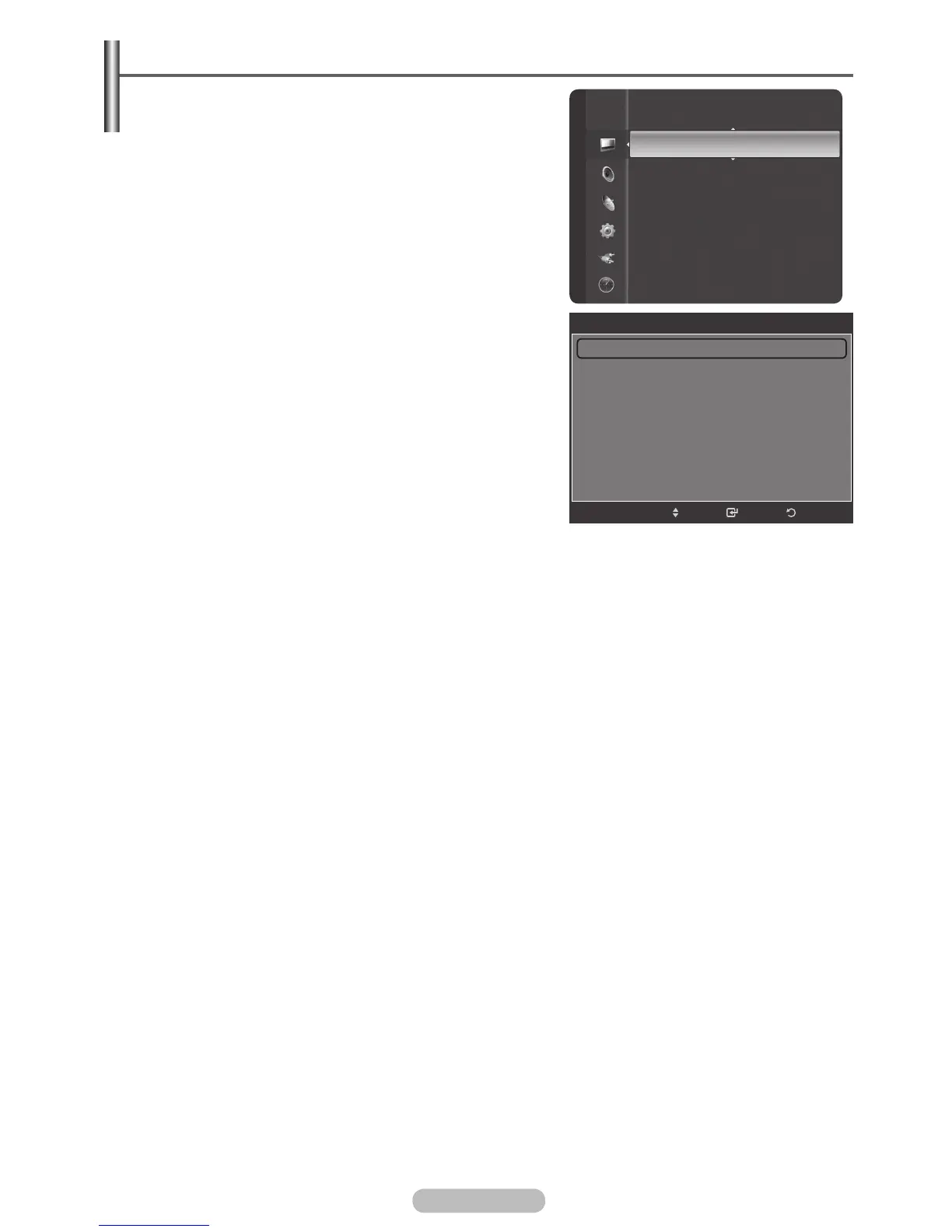
Detailed Settings
Black Adjust : Medium
Dynamic Contrast : Medium
Gamma : +1
Colour Space : Wide
White Balance
My Colo
ur Control
Edge Enhancement : On
Move
BN68-01314A-00Eng.indd 28 2007-07-26 ¿ÀÈÄ 11:40:22
Picture
Colour Tone
:
Cool1
Detailed Settings
Size : 16:9
Digital NR : Auto
Active Colour : On
DNIe : On
Auto Motion Plus 100Hz :Low
Backlight : 10
Picture Reset
Configuring Detailed Settings on the Picture
You can set detailed picture settings.
1 Press the MENU button to display the menu.
2 Press the ENTER/OK button to select Picture.
3 Press the ▲ or ▼ button to select Detailed Settings,
then press the ENTER/OK button.
4 Select the required option by pressing the ▲ or ▼ button,
then press the ENTER/OK button.
Available options: Black Adjust, Dynamic Contrast,
Gamma, Colour Space, White Balance, My Colour
Control, Edge Enhancement, xvYCC
5 When you are satisfied with your setting, press the
ENTER/OK button.
6 Press the EXIT button to exit.
➢
When the picture mode is set to Standard or Movie,
Detailed Settings can be selected.
➢
If DNIe is set to Off and the picture mode is in Dynamic
or Standard mode, the Detailed Settings cannot be
selected.
Black
Adjust: Off/Low/Medium/High
You can directly select the black level on the screen to
adjust the screen depth.
Dynamic Contrast: Off/Low/Medium/High
You can adjust the screen contrast so that the optimal contrast is provided.
Gamma: -3 ~ +3
You can adjust the middle brightness of pictures.
Press the ◄ or ► button until you reach the optimal setting.
Colour Space
You can set the colour reproduction space for the input signal to Auto or Wide.
White Balance: R-Offset/G-Offset/B-Offset/R-Gain/G-Gain/B-Gain/Reset
You can adjust the colour temperature for more natural picture colours.
R-Offset/G-Offset/B-Offset/R-Gain/G-Gain/B-Gain: Changing the adjustment value will refresh the
adjusted screen.
Select the required option by pressing the ▲ or ▼ button, then press the ENTER/OK button.
Press the ◄ or ► button until you reach the optimal setting.
Reset
: The previously adjusted white balance will be reset to the factory defaults.
My Colour Control: Pink/Green/Blue/White/Reset
This setting can be adjusted to suit your personal preferences.
Select the Pink, Green, Blue or White by pressing the ▲ or ▼ button, then press the ENTER/OK
button.
Press the ◄ or ► button until you reach the optimal setting.
Reset
: The previously adjusted colours will be reset to the factory defaults.
Edge Enhancement: Off/On
You can emphasize object boundaries.
xvYCC: Off/ On
Setting the xvYCC mode to “ On ” increases detail and colour space when watching movies from an
external devices(ie. DVD player) connected to HDMI or Component IN jacks. You must set the
Picture Mode to Movie to enjoy this feature.
➢
Only available in “ HDMI1.3(Y Pb Pr format)” and “Component ” on Movie mode.
➢
If xvYCC function is active, PIP can not be selected.



 To Next Page