English - 49
Setting the Home theatre PC
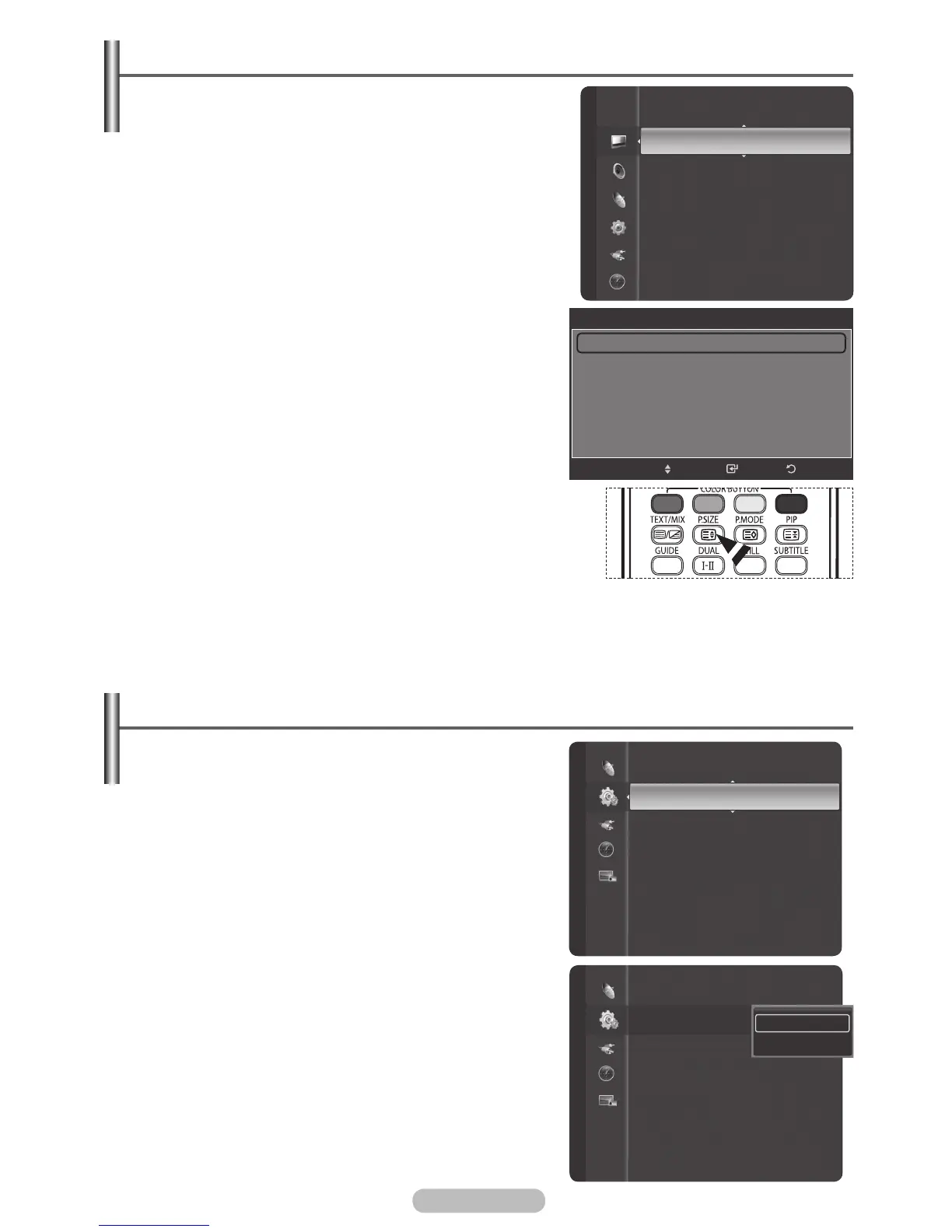
You can view higher quality pictures by configuring the
screen settings in PC Mode.
If you set the Home Theatre PC function to On, you can
configure the Detailed Settings (when Picture Mode is set
to Standard or Movie) as in PC Mode.
1 Press the MENU button to display the menu.
2 Press the ▲ or ▼ button to select Setup, then press the
ENTER/OK button.
3 Press the ▲ or ▼ button to select Home theatre PC,
then press the ENTER/OK button.
4 Select Off or On by pressing the ▲ or ▼ button, then
press the ENTER/OK button.
5 Press the EXIT button to exit.
➢
This function is available only in PC mode.
Changing the Picture Size (PC Mode)
You can select the picture size which best corresponds to
your viewing requirements.
1 Press the MENU button to display the menu.
2 Press the ENTER/OK button to select Picture.
3 Press the ▲ or ▼ button to select Size, then press the
ENTER/OK button.
4 Press the ▲ or ▼ button to select the screen format you
want, then press the ENTER/OK button.
5 Press the EXIT button to exit.
16:9: Sets the picture to 16:9 wide mode.
4:3: Set the picture in 4:3 format.
➢
You can change the picture size simply by pressing the P.SIZE
button on the remote control.
Setup
Energy Saving : Off
PC
Home theatre PC : Off
HDMI Black Level : Normal
Film Mode
: Off
Wall-Mount Adjustment
Light Effect
: Always
Blue Screen
: On
Melody : Medium
Anynet + (HDMI-CEC) Setup
Energy Saving : Off
PC
Home theatre PC : Off
HDMI Black Level : Normal
Film Mode
: Off
Wall-Mount Adjustment
Light Effect
: Always
Blue Screen
: On
Melody : Medium
Anynet + (HDMI-CEC) Setup
Off
On
Setup
Size
16:9
Zoom 1
Zoom 2
4:3
Just Scan
ReturnEnter
Move
BN68-01314A-02Eng.indd 50 2007-08-22 ¿ÀÀü 10:37:24
erutciP
Backlight : 10
Detailed Settings
Size : 16:9
Digital NR : Off
Active Colour : Off
DNIe : Off
Picture Reset
Auto Motion Plus 100Hz : Low



 To Next Page