Supplies and accessories_ 101
UPGRADING A MEMORY MODULE
Your machine supports DIMM (Dual Inline Memory Module). Use this
memory module slot to install additional memory.
When you are expanding the memory capacity, you can add a memory
mo
dule to the vacant memory slot (See "Available accessories" on
page 95).
We recommend the use of only genuine Samsung DIMM's. You may void
yo
ur warranty if it is determined that your machine problem is being caused
by third party DIMM's.
Installing a memory module
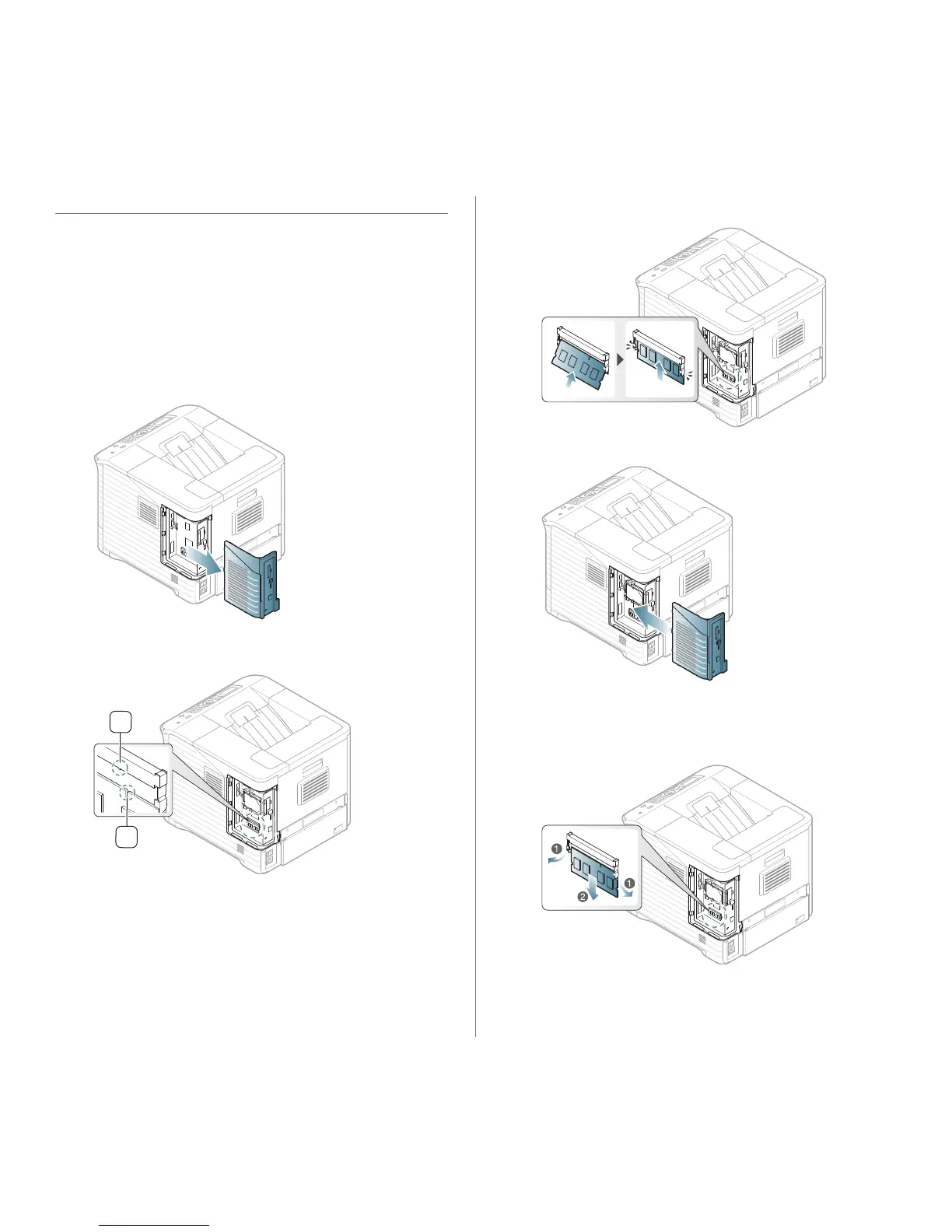
1. Turn the machine off and unplug all cables from the machine.
2. Grasp
the control board cover and remove it.
3. Take out a new DIMM from its plastic bag.
4. Locate the DMM
slot and align the notch on the DIMM with the groove at
the DIMM slot, holding the DIMM by its edges.
5. Push the DIMM into the machine until it snaps into place. Make sure that
the latches fit over the notches located on either side of the DIMM.
6. Close the control board cover by aligning the groove on it with the notch
on the machine and sliding it.
7. Reconnect the power cord and printer cable, and turn the machine on.
Removing a memory
Push the latches at both ends of the DIMM slot away to remove the DIMM
and pull out the DIMM.


 To Next Page