Getting started_ 28
2.getting started
This chapter gives you step-by-step instructions for setting up the USB connected machine and software.
This chapter includes:
• Setting up the hardware
• Printing a demo page
• Supplied software
• System requirements
• Installing locally connected machine’s driver
Supported optional devices and features may differ according to your
model. Please check your model name (See "Features by Models" on
page 23).
SETTING UP THE HARDWARE
This section shows the steps to set up the hardware, as is explained in the
Quick Installation Guide. Make sure you read the Quick Installation Guide
first and follow the steps below:
1. Select a stab
le location.
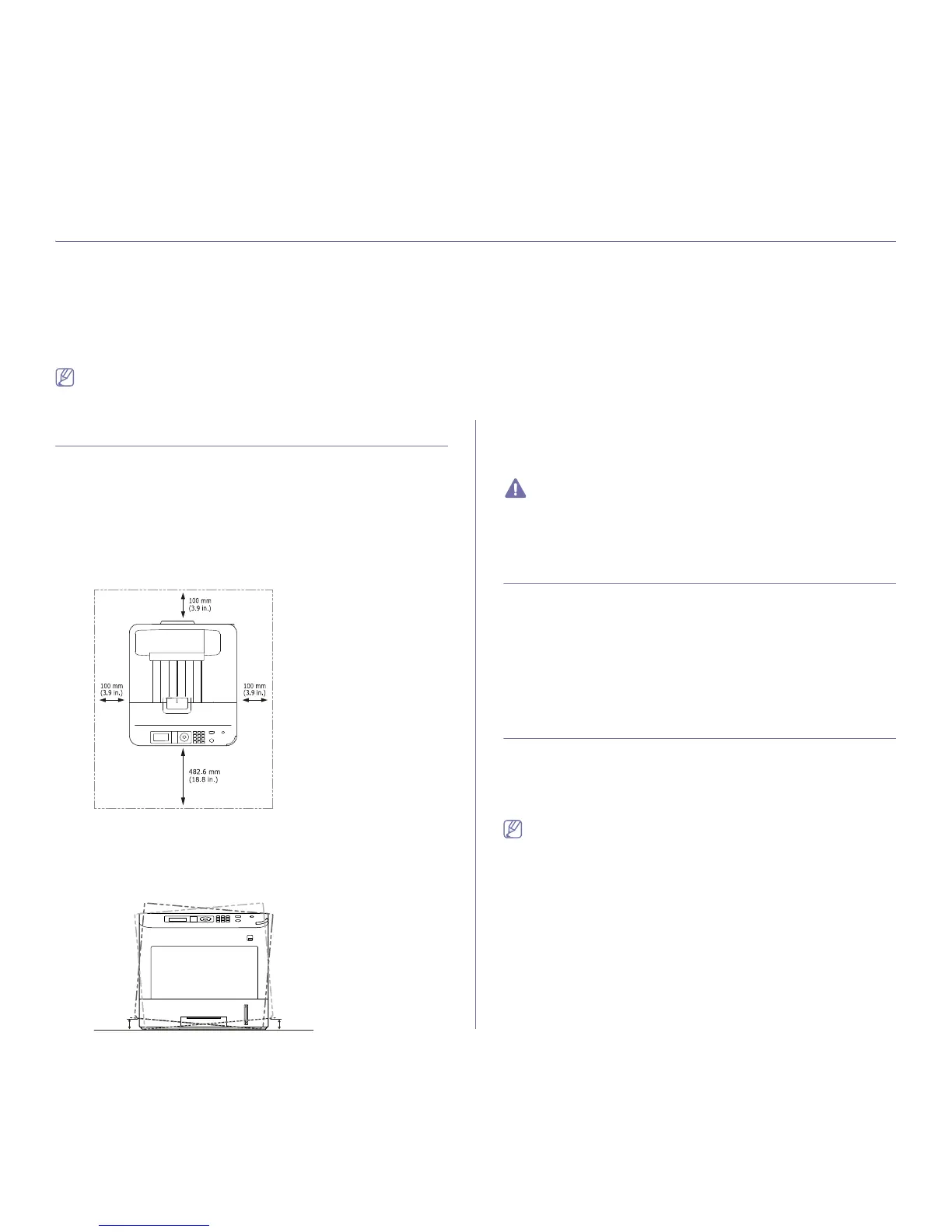
Select a level, stable place with adequate sp
ace for air circulation. Allow
extra space to open covers and trays.
The area should be well ventilated and away from direct sunlight or
sources of
heat, cold, and humidity. Do not set the machine close to the
edge of your desk or table.
Printing is suitable for altitudes under 1,000 m (3,281 ft.). Refer to the
altitude setting to optimize your printing (See "Altitude adjustment" on
page 40).
Place the machine on a flat, stable surface so th
at there is no incline
greater than 2 cm (0.79 inch). Otherwise, printing quality may be
affected.
2. Unpack the machine and check all the enclosed items.
3. R
emove the tape.
4. Install
all the necessary items such as toner cartridge and optional
goods. (See "Supplies and accessories" on page 95).
5. Load paper (See "Loading paper in tray" on page 44).
6. Make
sure that all cables are connected to the machine.
7. T
urn the machine on.
• This equipment will be inoperable when mains power fails.
• W
hen you move the machine, do not tilt or turn it upside down.
Otherwise, the inside of the machine may be contaminated by
toner, which can cause damage to the machine or bad printing
quality.
PRINTING A DEMO PAGE
Print a demo page to make sure that the machine is operating properly.
1. Pres
s Menu on the control panel.
2. Pre
ss the up/down arrow to highlight Information and press OK.
3. Pre
ss the up/down arrow to highlight Demo Page appears and press
OK.
4. W
hen Print? appears, press OK.
The machine starts to print a demo page.
SUPPLIED SOFTWARE
After you have set up your machine and connected it to your computer, you
must install the printer software. If you are a Windows or Macintosh OS,
install the software from the supplied CD and if you are a Linux or a UNIX
OS user, download the software from the Samsung website (www.sam-
sung.com/printer) and install.
Machine software are occasionally updated due to release of new
operating system and etc. If needed, download the latest version from
the Samsung website. (www.samsung.com/printer)


 To Next Page