Printing_ 56
Changing printer settings
You can use advanced printing features provided by your machine.
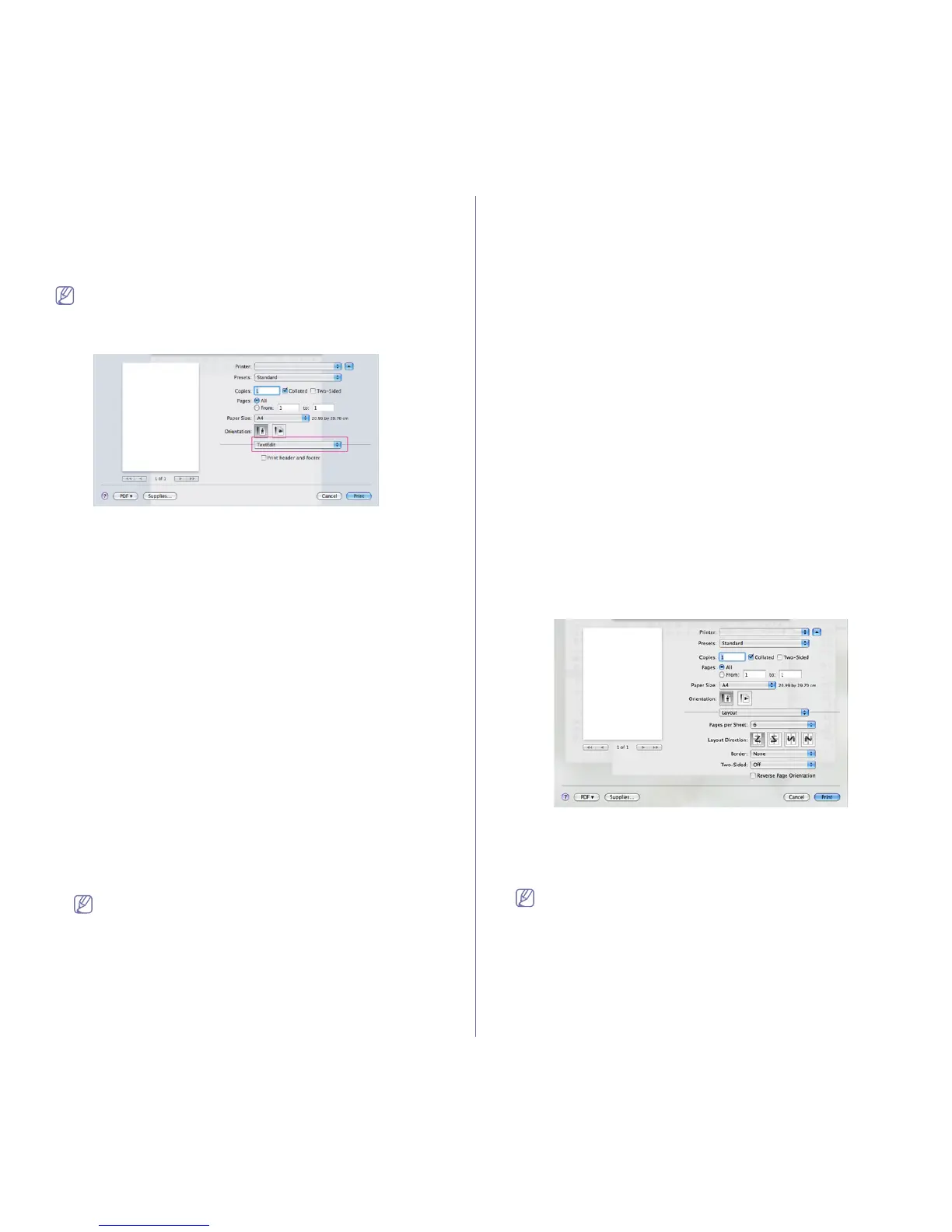
Open an application and select Print from the Fi
le menu. The machine name,
which appears in the printer properties pane may differ depending on the
machine in use. Except for the name, the composition of the printer properties
pane is similar to the following.
The setting options and following panes may differ depending on printers
and Macintosh OS version.
The following pane is the first pane you will see when you open the printer
properties pane. Select other advanced features from the drop down list.
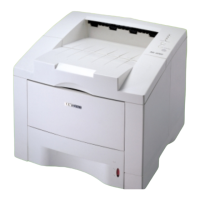
Layout
The Layout tab provides options to adjust how the document appears on
the printed page. You can print multiple pages on one sheet of paper.
• Pages Per Sheet: This option determines how many pages to be
prin
ted on one page (See "Printing multiple pages on one sheet of
paper" on page 56).
• La
yout Direction: This option allows you to select the printing direc-
tion on a page similar to the examples on UI.
• Borde
r: This option allows you to print a border around each page on
the sheet.
• Tw
o-Sided: This option allows you to print on both sides of a paper
(See "Printing on both sides of paper" on page 56).
• Reverse Page Orientation: This option allows you to rotate paper
180 degrees.
Graphics
The Graphics tab provides options for selecting Quality.
Paper
Set Paper Type to correspond to the paper loaded in the tray from which
you want to print. This will let you get the best quality printout. If you load a
different type of print material, select the corresponding paper type.
Printer Settings
Set toner save option to save toner.
Job Setting
• You can only use this option if you have enabled RAM disk or
installed an optional hard disk drive (HDD).
• Store, Store and Print, and Print Schedule mode is available
only if you have installed the optional hard disk drive (HDD).
• Print Mode
- Norma
l: This mode prints without storing your document in the
RAM disk or the optional hard disk.
- Confide
ntial: This mode is used for printing confidential docu-
ment. You need to enter a password to print.
- Store: Select this setting to save a document in the hard disk with-
out printing.
- Stor
e and Print: Select this setting to save a document in the
RAM disk or the optional hard disk and print it.
- Print Schedule: Select this setting to print the document at a
specified time.
• Use
r ID: This option is used when you need to find a saved file using
the control panel.
• Jo
b Name: This option is used when you need to find a saved file
using the control panel.
Printer Features
• Reverse Duplex Printing: This option allows you to select general
print order compared to duplex print order. If this option does not
appear, your machine does not have this feature.
• Skip Blan
k Pages: Check not to print blank pages.
• Clear
Text: Select this option to print texts clearer than on a normal
document.
• Output Mode: Select the output mode. The printouts will be oriented
differently de
pending on the output mode you select.
• O
utput Bin: Select the output bin to use.
• Staple: Select to staple printouts.
• Sort Options(Of
fset): Select to shift the output position of eachset.
Printing multiple pages on one sheet of paper
You can print more than one page on a single sheet of paper. This feature pro-
vides a cost-effective way to print draft pages.
1. Open an application, and select Print from the File menu.
2. Select Lay
out. In the Pages per Sheet drop-down list, select the number
of pages you want to print on one sheet of paper.
3. Select the other options you want to use.
4. Click Print, then
machine prints the selected number of pages you want to
print on one sheet of paper.
Printing on both sides of paper
Some features may not be available depending on models or options. It
means that the features are not supported.
You can print on both sides of the paper. Before printing in the duplex mode,
decide on which edge you will be binding your finished document. The binding
options are, as follows:
• Lo
ng-Edge Binding: This option is the conventional layout used in book
binding.
• Sh
ort-Edge Binding: This option is the type often used with calendars.
1. From your Macintosh application, select Print from the File menu.
2. Select Lay
out from the drop-down list under Orientation.


 To Next Page