Supplies and accessories_ 103
From the printer driver
After installing the optional memory or HDD, you can use advanced printing
features, such as proofing a job and specifying of printing a private job in the
printer properties window.
1. Ope
n the document you want to print.
2. Select Print from
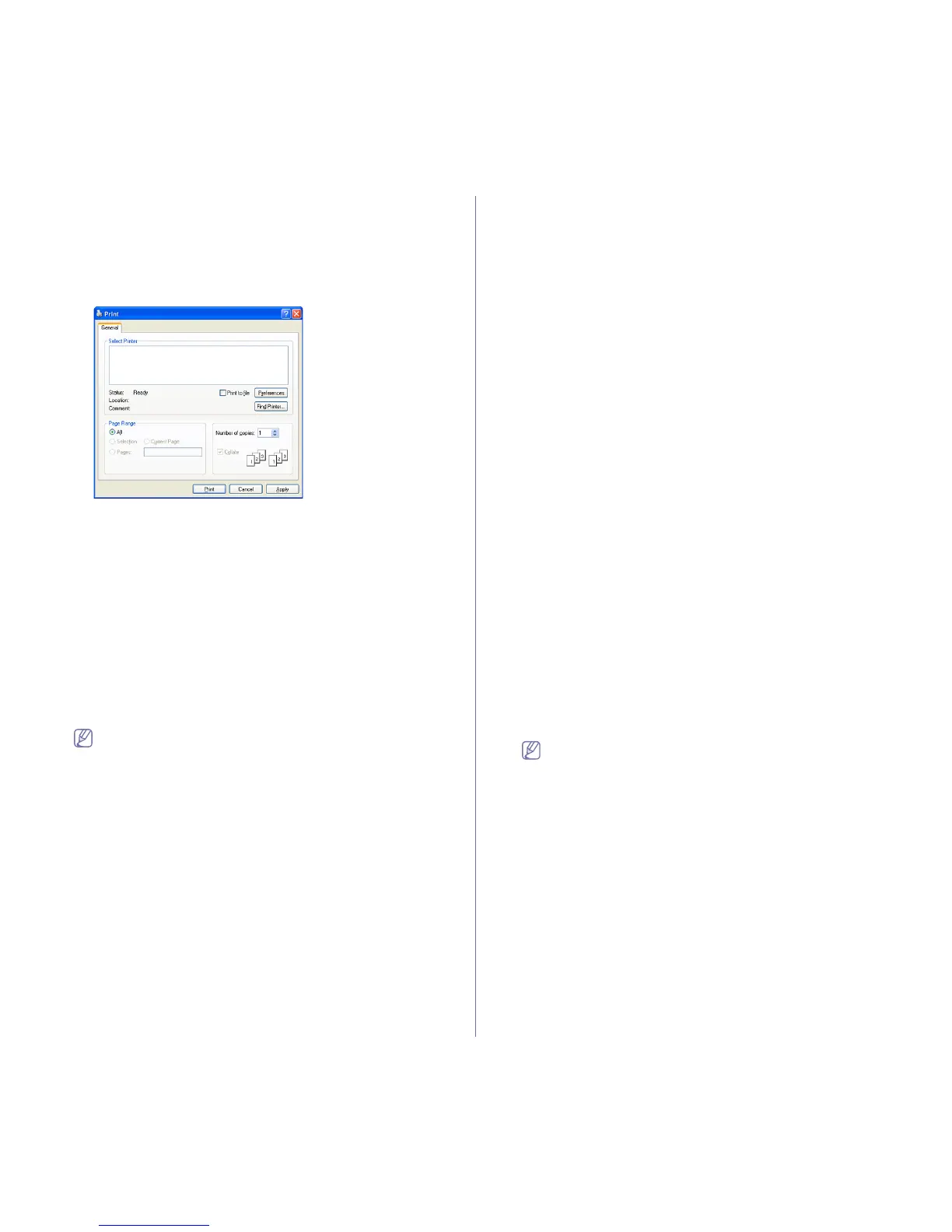
the File menu. The Print window appears.
3. Select yo
ur printer driver from the Select Printer list.
The basic print settings including the number of copies and print range
are selected within the Print window.
4. Ac
cess Printing Preferences (See "Opening printing preferences" on
page 50).
5. (S
ee "Print Mode" on page 54).
Controlling the active job queue
All of the print jobs waiting to be printed are listed in the active job queue in
the order you sent them to the printer. You can delete a job from the queue
before printing, or promote a job to print sooner.
1. Pr
ess Menu on the control panel.
2. Pre
ss the up/down arrow to highlight Job Management and press OK.
3. Pre
ss the up/down arrow to highlight Active Job and press OK.
4. Pr
ess the up/down arrow to highlight the user’s name and file name you
want to use appears and press OK.
If the select file is a confidential print job, enter the specified 4-digit
password.
Use the up/down arrow to enter digits. When you press OK, the
cursor
will move to the next character. When you finish entering
the password, press OK.
If you enter the incorrect password, In
valid Password appears.
Re-enter the correct password.
5. Pre
ss the up/down arrow to highlight the setting option you want
appears and press OK.
• Can
cel: You can delete a file from the queue.
• Promote: You can select a job waiting in the active job queue and
chan
ge its print order so that it can be printed sooner.
• Relea
se: You can print a job scheduled to be printed at a specified
time immediately. In this case, the job currently printing is stopped
and the selected job will be printed. This function is available when
the job is scheduled for later printing.
6. Whe
n Yes appears, press OK.
File Policy
You can choose the file policy for generating file name before you proceed
with the job through optional HDD or enabled Ram disk. If the optional mem-
ory or HDD already has the same name when you entered a new file name,
you can rename or overwrite it.
1. Press Menu on the control panel.
2. Pre
ss the up/down arrow to highlight Job Management and press OK.
3. Pre
ss the up/down arrow to highlight File Policy and press OK.
4. Pre
ss the up/down arrow to highlight the setting option you want
appears and press OK.
• Rename : If the optional memory already has the same name when
you enter a new file
name, the file will be saved as a different name
that is automatically programmed.
• Ove
rwrite : You can set the machine to delete previous job informa-
tion on optional memory as you store new job information.
Storing a job
You can store jobs on the optional HDD or enabled Ram disk.
1. Op
en the document you want to print.
2. Select Print from the file menu. The Print win
dow appears.
3. Se
lect your machine from Select Printer list.
4. Click Pr
operties or Preferences.
5. Se
lect the print mode you want from the drop-down list
(See "Using help" on page 51).
6. En
ter the user’s name and file name and click OK.
7. Click OK until
the Print window is displayed.
8. Click OK or Print to start pri
nting.
Printing or deleting a stored job
You can print or delete jobs stored on the optional HDD or enabled Ram
disk.
1. Press Menu on the control panel.
2. Pre
ss the up/down arrow to highlight Job Management and press OK.
3. Pre
ss the up/down arrow to highlight Stored Job and press OK.
4. Pre
ss the up/down arrow to highlight the user’s name and file name you
want to use and press OK.
If the select file is a confidential print job, enter the specified 4-digit
password.
Use the up/down arrow to enter digits. When you press OK, the
cursor will move to the next character. When you finish entering
the password, press OK.
If you enter the incorrect password, In
valid Password appears.
Re-enter the correct password.
5. Press the up/down arrow to highlight the setting option you want and
press OK.
• Print: You can print a stored job.
• Delete: You can delete a stored job.
6. W
hen Yes appears, press OK.
Form file
Form overlay are images stored in the printer hard disk drive (HDD) as a
special file format that can be printed in layers on any document.


 To Next Page