Machine status and advanced features_ 63
PAPER
ITEM DESCRIPTION
Copies You can select the amount of copies from 1 to
999.
MP Tray / [Tray<x>] • P
aper Size: You can select the default paper
size.
• Paper Type: You can select the default
paper type for the print media
Paper Source Using this menu, you can set which tray you
want to use.
If you select Au
to, the machine can automati-
cally determine the source.
Auto Tray Switch This is the option to set i
f the machine is to con-
tinue printing or not when any tray becomes
e
mpty. For example, if both tray 1 and tray 2 are
filled with the same size paper, the machine
automatically prints from tray 2 after the tray 1
runs out of paper.
This option does not appear if you selected
Auto for Paper Source.
Tray Confirm You can activate tray confirmation message. If
yo
u open and close a tray, a window asking you
whether to set the paper size and type for the
tray just opened appears.
GRAPHIC
ITEM DESCRIPTION
Resolution You can select the default resolution. If the reso-
lution is high, the clarity of the printouts is
sharper,
but the print time may take longer.
• 600
dpi-Normal: If your print jobs are
mostly text, select this option for the highest
quality output.
• 120
0 dpi-Best: Select this option when your
job contains bit mapped images, such as
scanned photos or certain business graph-
ics, that will benefit from
enhanced line
screening.
Clear Text You can print texts darker than on a normal doc-
ument, select On.
Darkness You can lighten or darken the print on the page
b
y changing the toner density setting. The Nor-
mal setting usually produces the best result.
SYSTEM SETUP
<Tray X> Set the margins for print materials. The margins
you set here will be applied when printing from
the tray1 and optional trays.
• Sim
plex Margin: Set the margin of print
materials for one-sided printing.
• Duplex
a
: Set the margins for double-sided
printing.
Emulation Margin When creating an emulation print page which
doe
s not include margin information, the
machine uses the margin value set here.
• To
p Margin: Set the top margin, from 0.0 to
250mm.
• Left Margin: Set the left margin, from 0.0 to
164mm.
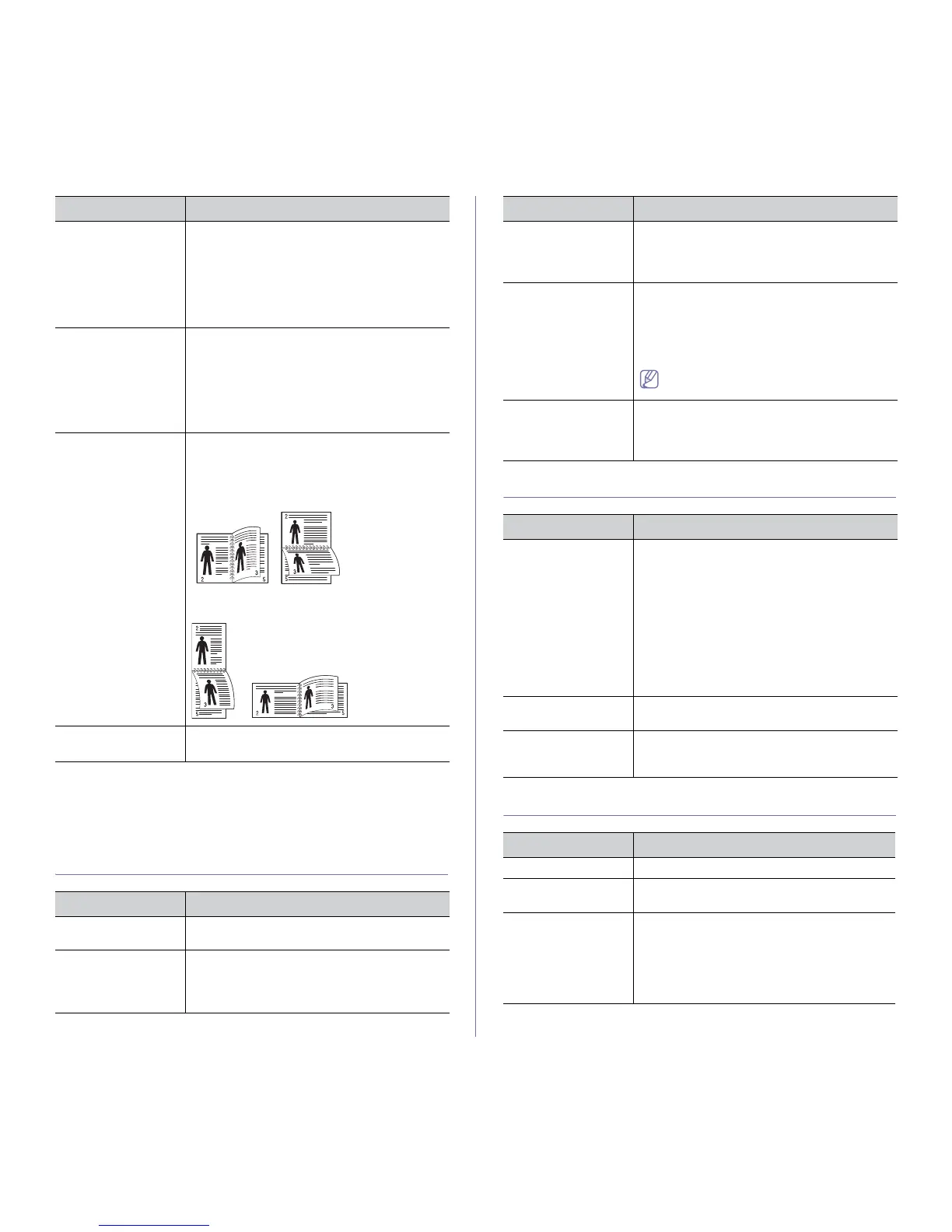
Duplex
a
To print on both sides of paper, choose the bind-
ing edge.
• Off: Set this option off.
• Lo
ng Edge: This item is the conventional
layout used in bookbinding.
• Short Edge: This item is the conventional
layout used in calendars.
Landscape Stapling
Position
b
Select the position for stapling.
a.This menu appears when duplex kit is installed (Some features and op-
tional goods may not be available depending on models or countries).
b.You can only use this menu if you have installed the optional finisher
and hard disk drive (HDD).
ITEM DESCRIPTION
ITEM DESCRIPTION
Date & Time You can set the date and time.
Clock Mode You can select the format for displaying time
between 12hr and 24hr.
Form Menu
a
• Off: Prints in normal mode.
• Single Form: Prints all page using the first
form.
• Doub
le Form: Prints the front page using
the first form and the back page using the
second form.
ITEM DESCRIPTION


 To Next Page