Network setup_ 36
3. Click the Firewall menu.
4. T
urn the firewall off.
The following instructions may vary for your model.
Perform the following to configure the IP address:
1. Con
nect your machine and the computer using network cable.
2. Insert
the Installation CD-ROM, and open the disk window. Open the
MAC_Installer > MAC_Printer > SetIP > SetIPApplet.html.
3. Double click the file and Safari will automatically open, then select
Trust. The browser will open the SetIPApplet.html page that shows
the printer’s name and IP address information.
4. Cli
ck on the icon (third from left) in the SetIP window to open the
TCP/IP configuration window.
5. Enter the printer’s new information into the configuration window as
follows. In a corporate intranet, you may need to have this informa-
tion assigned by a network manager before proceeding.
• MAC Addre
ss: Find the machine’s MAC address from the Con-
figuration Report and
enter it without the colons. For example,
00:15:99:29:51:A8 becomes 0015992951A8.
The MAC address is the hardware serial number of the
on-board network interface and can be found on the Con-
figuration Report.
• IP Addre
ss: Enter a new IP address for your printer.
For example, if your computer’s IP add
ress is 192.168.1.150,
enter 192.168.1.X. (X is number between 1 and 254 other than
the computer’s address.)
• Su
bnet Mask: Enter a new Subnet Mask for your machine.
• Def
ault Gateway: Enter a new Gateway for your machine.
6. Select Apply, then OK, and
OK again. The printer will automatically
print the configuration report. Confirm that all of the settings are cor-
rect. Qu
it Safari. You may close and eject the installation CD-ROM.
If necessary, restart the computer’s firewall. You have successfully
changed the IP address, subnet mask, and gateway.
IPv4 setting using SetIP Program (Linux)
The SetIP program should be automatically installed during the printer
driver installation.
The path and UIs may differ by Linux OS version. Refer to the
Linux OS manual to turn firewall off.
1. Print the machine’s configuration report to find your machine’s MAC
address.
2. Open the /opt/Samsung/mfp/share/utils/.
3. Dou
ble click the SetIPApplet.html file.
4. Cli
ck to open the TCP/IP configuration window.
5. Enter the
MAC address, IP address, subnet mask, default gateway,
and then click Apply.
When you enter the MAC address, enter it without a colon(:).
6. Th
e machine prints the network information. Confirm all of the set-
tings are correct.
7. C
lose the SetIP program.
Network parameter setting
You can also set up the various network settings through the network
administration programs such as SyncThru™ Web Admin Service and
SyncThru™ Web Service.
Restoring factory default settings using SyncThru™
Web Service
1. Start a web browser such as Internet Explorer, Safari or Firefox and
enter your machine’s new IP address in the browser window.
2. Click Go
to access the SyncThru™ Web Service.
3. Click Lo
gin on the upper right of the SyncThru™ Web Service web-
site.
A log-in page appears.
4. Type
in the ID and Password then click Login.
If it’s your first time logging into SyncT
hru™ Web Service, type in the
below default ID and password.
• ID: admin
• Pass
word: sec00000
5. W
hen the SyncThru™ Web Service window opens, click Settings
> Network Settings > Restore Default.
6. Click Clear for
network.
7. Turn
off and restart machine to apply settings.
INSTALLING NETWORK CONNECTED
MACHINE’S DRIVER
Windows
This is recommended for most users. All components necessary for
machine operations will be installed.
Follow the steps below:
1. Make
sure that the machine is connected to the network and powered
on.
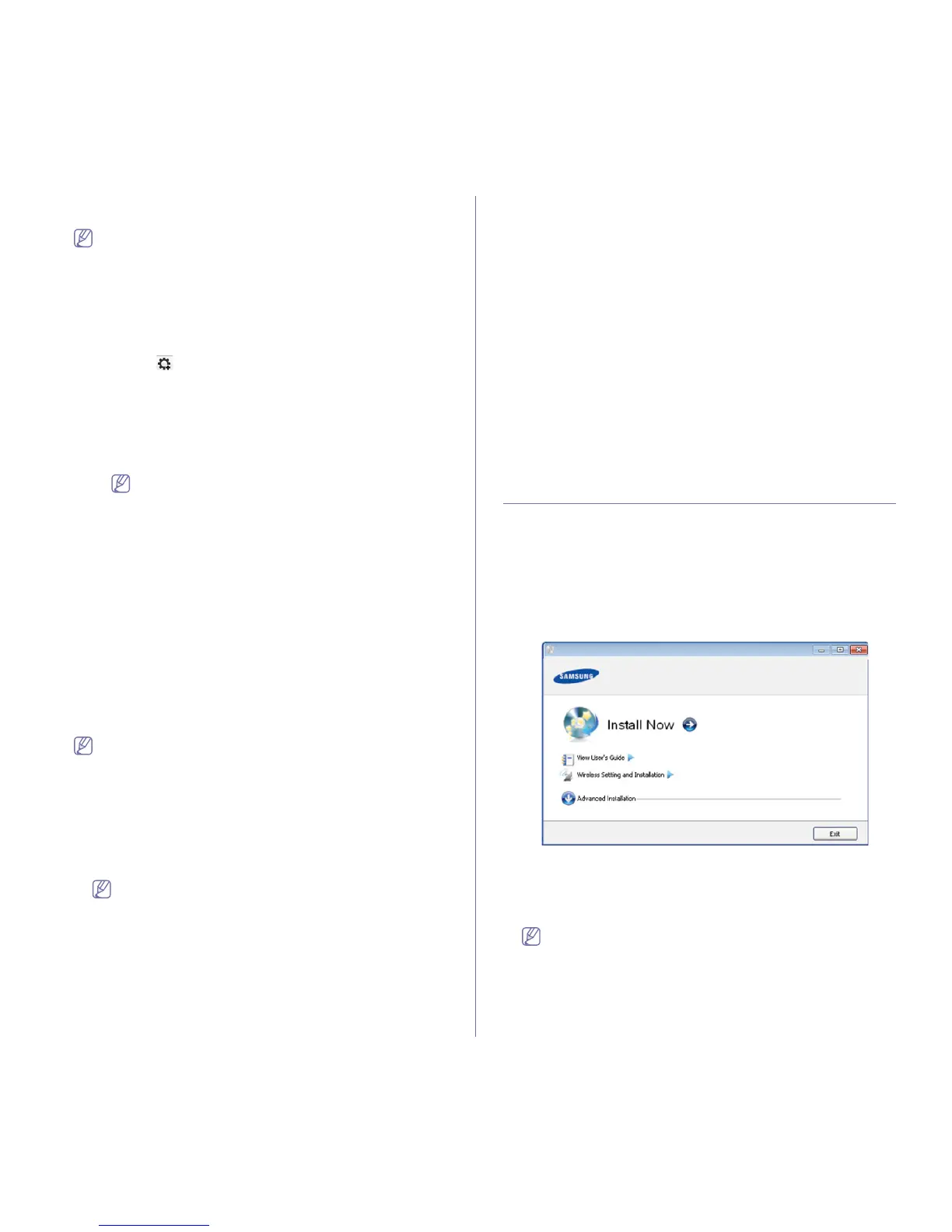
2. Insert the supplied software CD into your CD-ROM drive.
3. Select In
stall now.
4. Read License Agreement, and select I accept the terms of the
License Agreement. Then, click Next.
The program searches for the machine.
5. The
searched machines will be shown on the screen. Select the one you
wish to use and click Next.
If the driver searched only one machine, the confirmation window
appears.
6. After the installation is finished, a window asking you to print a test page
appears. If you want to print a test page, click Print a test page.
Otherwise, just click Next and
skip to step 8.
7. If
the test page prints out correctly, click Yes.
If not, click No to r
eprint it.


 To Next Page