Troubleshooting_ 88
Printing problems
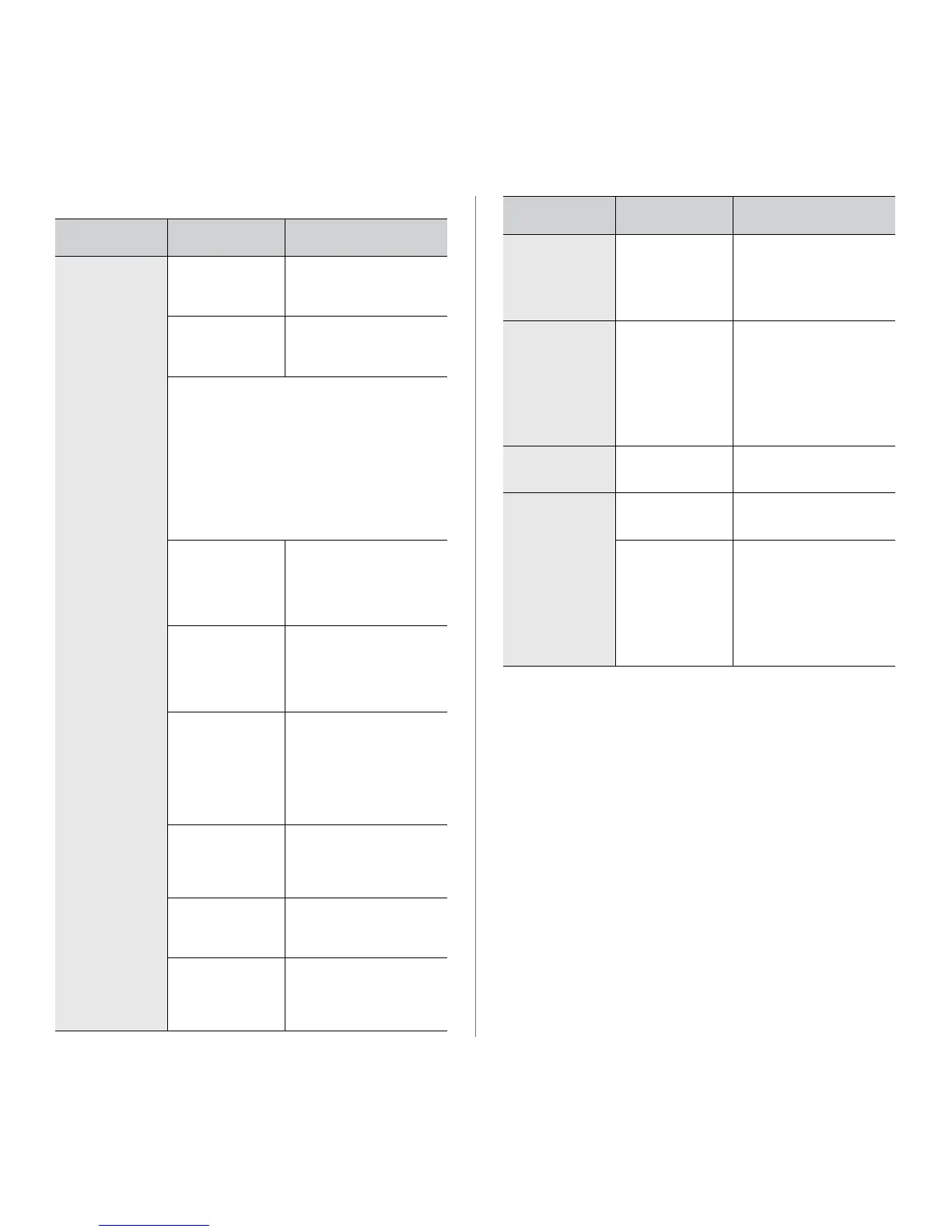
CONDITION
POSSIBLE
CAUSE
SUGGESTED SOLU-
TIONS
The machine
does not print.
The machine is not
receiving power.
Check the power cord con-
nections. Check both power
switches and the power
source.
The machine is not
selected from the
available printers
list.
Select this printers “Name”
from the available printers
drop-down list in the applica-
tion you are printing from
Check the machine for the following:
• The front door is not closed. Close the front
door.
• Paper is jammed. Clear the paper jam (See
"Clearing paper jams" on page 75).
• No paper is loaded. Load paper (See "Loading
paper in tray" on page 44).
• The toner cartridge is not installed. Install the
toner cartridge.
If a system error occurs, contact your service repre-
sentative.
The connection
printer cable
between the com-
puter and the
machine is not con
-
nected properly.
Disconnect the machine
printer cable and reconnect
it.
The connection
printer cable
between the com-
puter and the
machine is defec
-
tive.
If possible, attach the printer
cable to another computer
that is working properly and
print a job. You can also try
using a different machine
printer cable.
The port setting is
incorrect.
Check the Windows printer
settings to make sure that
the print job is sent to the
correct port. If the computer
has more than one port,
make sure that the machine
is attached to the correct
one.
The machine may
be configured incor
-
rectly.
Check the Printing Prefer-
ences to ensure that all of
the print settings are correct
(See "Opening printing pref-
erences" on page 50).
The printer driver
may be incorrectly
installed.
Repair the machine software
(See
"Installing locally con-
nected machine’s driver" on
page 30).
The machine is
malfunctioning.
Check the display message
on the control panel to see if
the machine is indicating a
system error. Contact a ser
-
vice representative.
The document size
is so big that the
hard disk space of
the computer is
insufficient to
access the print job.
Make available more hard
disk space and print the doc
-
ument again.
The machine
selects print
materials from
the wrong paper
source.
The paper option
that was selected in
the Printing Pref-
erences may be
incorrect.
For many software applica-
tions, the paper source
selection is found under the
Paper tab within the Print
-
ing Preferences. Select the
correct paper source. See
the printer driver help screen
(See
"Opening printing pref-
erences" on page 50).
A print job is
extremely slow.
The job may be
very complex.
Reduce the complexity of
the page or try adjusting the
print quality settings.
Half the page is
blank.
The page orienta-
tion setting may be
incorrect.
Change the page orientation
in your application. See the
printer driver help screen.
The paper size and
the paper size set
-
tings do not match.
Ensure that the paper size in
the printer driver settings
matches the paper in the
tray.
Or, ensure that the paper
size in the printer driver set
-
tings matches the paper
selection in the software
application settings you use.
CONDITION
POSSIBLE
CAUSE
SUGGESTED SOLU-
TIONS


 To Next Page