Troubleshooting_ 84
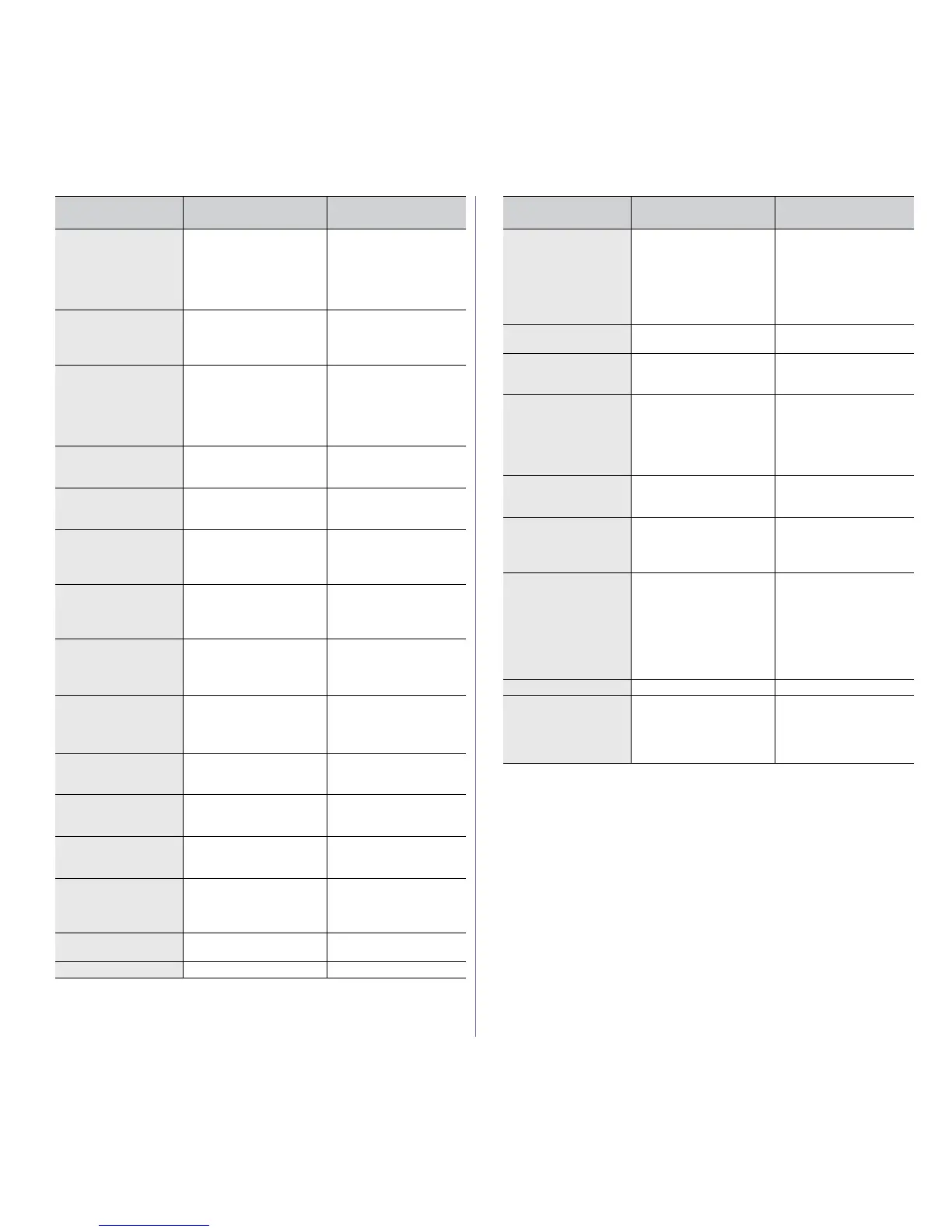
IMG. Not Installed The imaging unit is not
installed or the CRUM
(Consumer Replaceable
Unit Monitor) in the imag
-
ing unit is not properly
connected.
Reinstall the imaging
unit two or three times.
If the problem persists,
the imaging unit is not
being detected.Call for
service.
Install duplex unit Duplex unit is not
installed.
Installed the duplex unit.
Refer to the installation
guide that came with the
duplex unit.
Install waste toner The waste toner bottle is
not installed.
Install the waste toner
bottle. If the problem
persists, the waste
toner bottle is not being
detected. Call for ser
-
vice.
IP Conflict The IP address is used
elsewhere.
Check the IP address or
obtain a new IP
address.
Jam bottom of
duplex
Paper has jammed in the
duplex area.
Clear the jam (See "In
the duplex unit area" on
page 79).
Jam exit of Finisher Paper has jammed in the
finisher area.
Clear the jam (See
"Paper jam at the exit of
the finisher" on
page 81).
Jam at mailbox [bin
number]
Paper has jammed in the
mailbox area.
Clear the jam (See
"Paper jam at the exit of
the multi-bin mailbox"
on page 82).
Jam front of Fin-
isher
Paper has jammed in the
finisher area.
Pull the paper out. (See
"Paper jam in front of
the finisher" on
page 80).
• Jam front of mail-
box
• Jam front of [bin
number]
Paper has jammed in the
mailbox area.
Pull the paper out. (See
"Paper jam in front of
the multi-bin mailbox"
on page 81).
Jam in exit area Paper has jammed in the
exit area.
Clear the jam (See "In
the exit area" on
page 78).
Jam inside Finisher Paper has jammed in the
finisher area.
Clear the jam (See
"Paper jam inside the
finisher" on page 80).
Jam inside machine Paper has jammed
inside the machine.
Clear the jam (See
"Inside the machine" on
page 77).
Jam inside mailbox Paper has jammed in the
mailbox area.
Clear the jam (See
"Paper jam inside the
multi-bin mailbox" on
page 82).
Mailbox bin [num-
ber] full
Too much paper in mail-
box stacker.
Remove the printed
paper.
Mailbox door Open The mailbox door is open Close the mailbox door.
MESSAGE MEANING
SUGGESTED SOLU-
TIONS
Not Supply Toner The machine cannot
detect the toner car
-
tridge.
Reinstall the toner car-
tridge two or three
times, or check if the
imaging unit’s sealing
paper is removed.
Refer to the Quick
Installaton Guide.
Output bin full Too much paper in the
output tray.
Remove the printed
paper.
Paper Empty in [tray
type]
There is no paper in the
tray.
Load paper in the tray
(
"Loading paper in tray"
on page 44).
Paper Jam in [tray
type]
Paper has jammed in the
tray area.
Clear the jam (See "In
tray 1" on page 75 "In
optional tray 2" on
page 76, "In the optional
high capacity feeder" on
page 77).
Paper Jam in MP
tray
Paper has jammed in the
tray area.
Clear the jam (See "In
the multi-purpose tray"
on page 77).
Prepare IMG. unit Small amount of toner is
left in the imaging unit.
The estimated imaging
unit life is close.
Prepare a new imaging
unit for replacement.
Prepare new toner Small amount of toner is
left in the cartridge. The
estimated cartridge life of
toner is close.
Prepare a new cartridge
for replacement. You
may temporarily
increase the printing
quality by redistributing
the toner (See
"Redis-
tributing toner" on
page 74).
Rear Door Open The rear door is open. Close the rear door.
Replace Fuser unit The fuser unit has
reached the end of its
lifespan.
This message appears
when the fuser unit is
worn. Replace the fuser
unit with a new one. Call
for service.
MESSAGE MEANING
SUGGESTED SOLU-
TIONS


 To Next Page