Call W aiting ID Options Set to ON (see page 23)
I
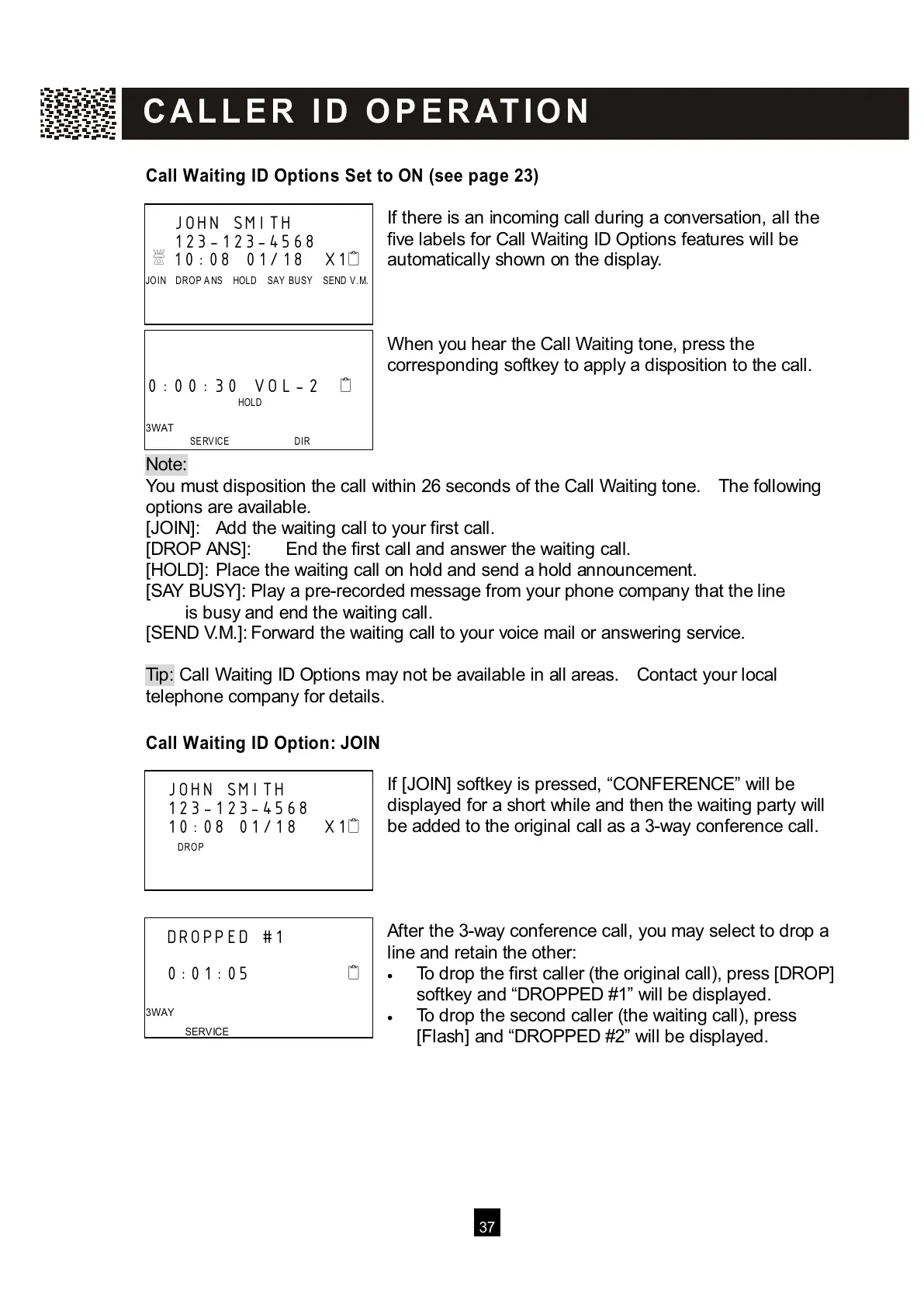
f there is an incoming call during a conversation, all the
five labels for Call W aiting ID Options features will be
automatically shown on the display.
W hen you hear the Call W aiting tone, press the
corresponding softkey to apply a disposition to the call.
Note:
Y
ou must disposition the call within 26 seconds of the Call W aiting tone. The following
options are available.
[JOIN]: Add the waiting call to your first call.
[DROP ANS]: End the first call and answer the waiting call.
[HOLD]: Place the waiting call on hold and send a hold announcement.
[SAY BUSY]: Play a pre-recorded message from your phone company that the line
is busy and end the waiting call.
[SEND V.M.]: Forward the waiting call to your voice mail or answering service.
Tip: Call W aiting ID Options may not be available in all areas. Contact your local
t
elephone company for details.
Call W aiting ID Option: JOIN
If [JOIN] softkey is pressed, “CONFERENCE” will be
displayed for a short while and then the waiting party will
be added to the original call as a 3-way conference call.
After the 3-way conference call, you may select to drop a
line and retain the other:
• To drop the first caller (the original call), press [DROP]
softkey and “DROPPED #1” will be displayed.
• To drop the second caller (the waiting call), press
[Flash] and “DROPPED #2” will be displayed.
JOHN SMITH
123-123-4568
10:08 01/18 X1
J
OIN DR OP A NS HOLD SAY BUSY SEND V.M.



 To Next Page