Configuring the device • 43
6.6 System data
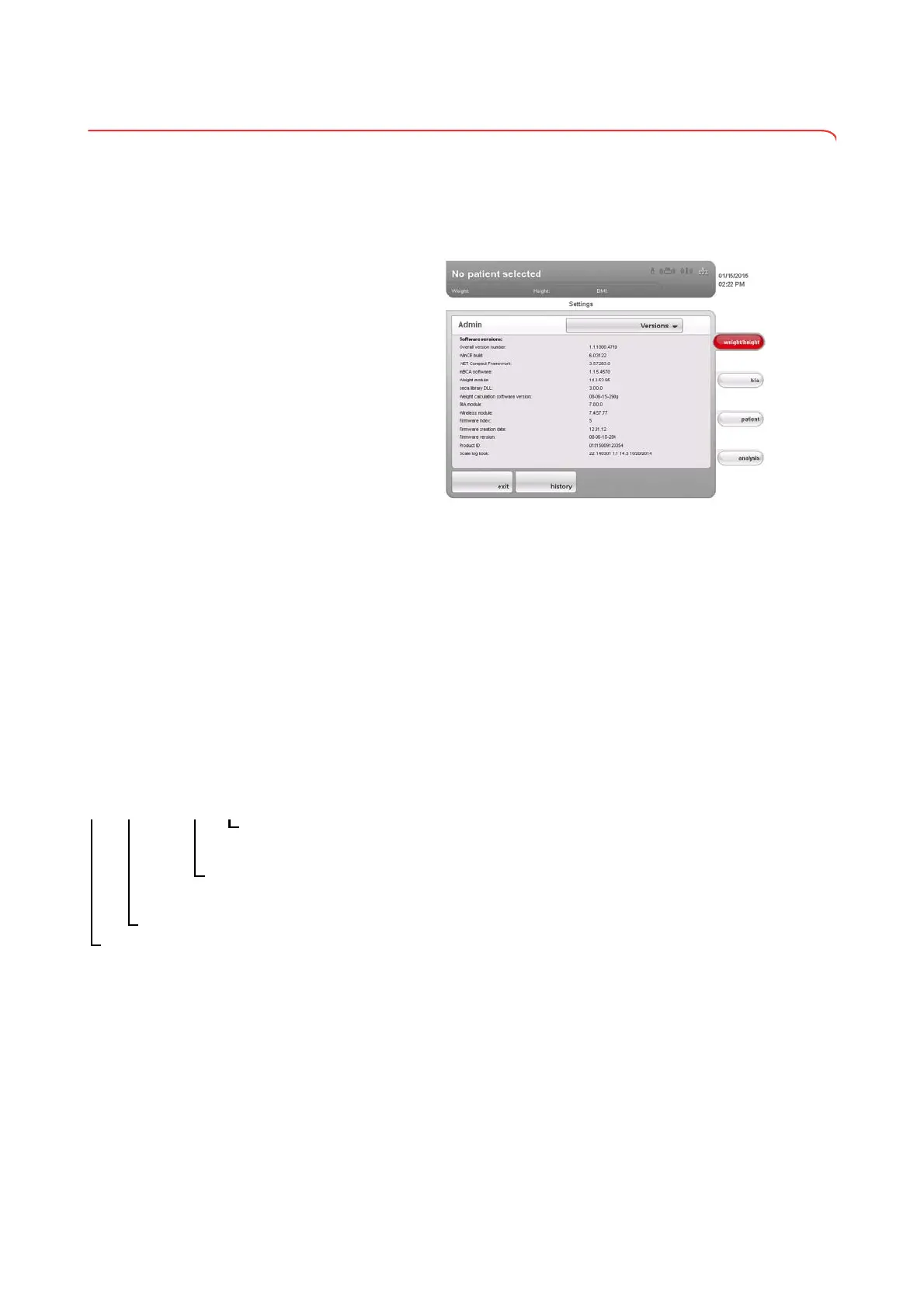
Viewing versions 1. Call up the Administrator menu.
2. Press the drop-down menu.
The drop-down menu opens.
3. Press the
versions menu element.
The
versions dialog window appears.
Viewing software versions
The versions of the individual software components active in the device are
displayed in the versions dialog window.
1. Read off the versions.
2. To exit the
versions dialog window, click on exit.
The
versions dialog window closes.
Viewing scale logbook
You can view versions for device software components which are relevant for
verification in the scale log book line of the versions dialog window. The
current entry is displayed as soon as the
versions dialog window opens.
1. Read off the current entry.
2. To view the sequence of versions, press the
history button.
– Press once: previous entry is displayed
– Press several times: all entries are displayed consecutively.
3. Read off the versions.
NOTE:
The
history function is purely for information. It is not possible to
reactivate older versions.
4. To exit the
versions dialog window, click on exit.
5. The
versions dialog window closes.
Making system settings 1. Call up the Administrator menu.
2. Press the drop-down menu.
The drop-down menu opens.
3. Press the
system menu element.
Entry in “scale log book” line
1. 140301 1.0 14.2 02.01.2005
Serial number
Software identification
Software versions of
parts of the program
which have to be verified
Date device was
updated


 To Next Page