30 •
6. Press the apply button.
The module selection is saved and will be available from the next
bioimpedance analysis.
NOTE:
To exit the dialog window without saving, press the
cancel button or
the most recently active tab (red, in this case
bia). The most recently
active tab is active again.
6.2 Administering user accounts and access rights
The device has no “on-board” user administration. User accounts can only be
set up and edited in the seca 115 PC software.
When setting up user accounts, different PINs and passwords must be
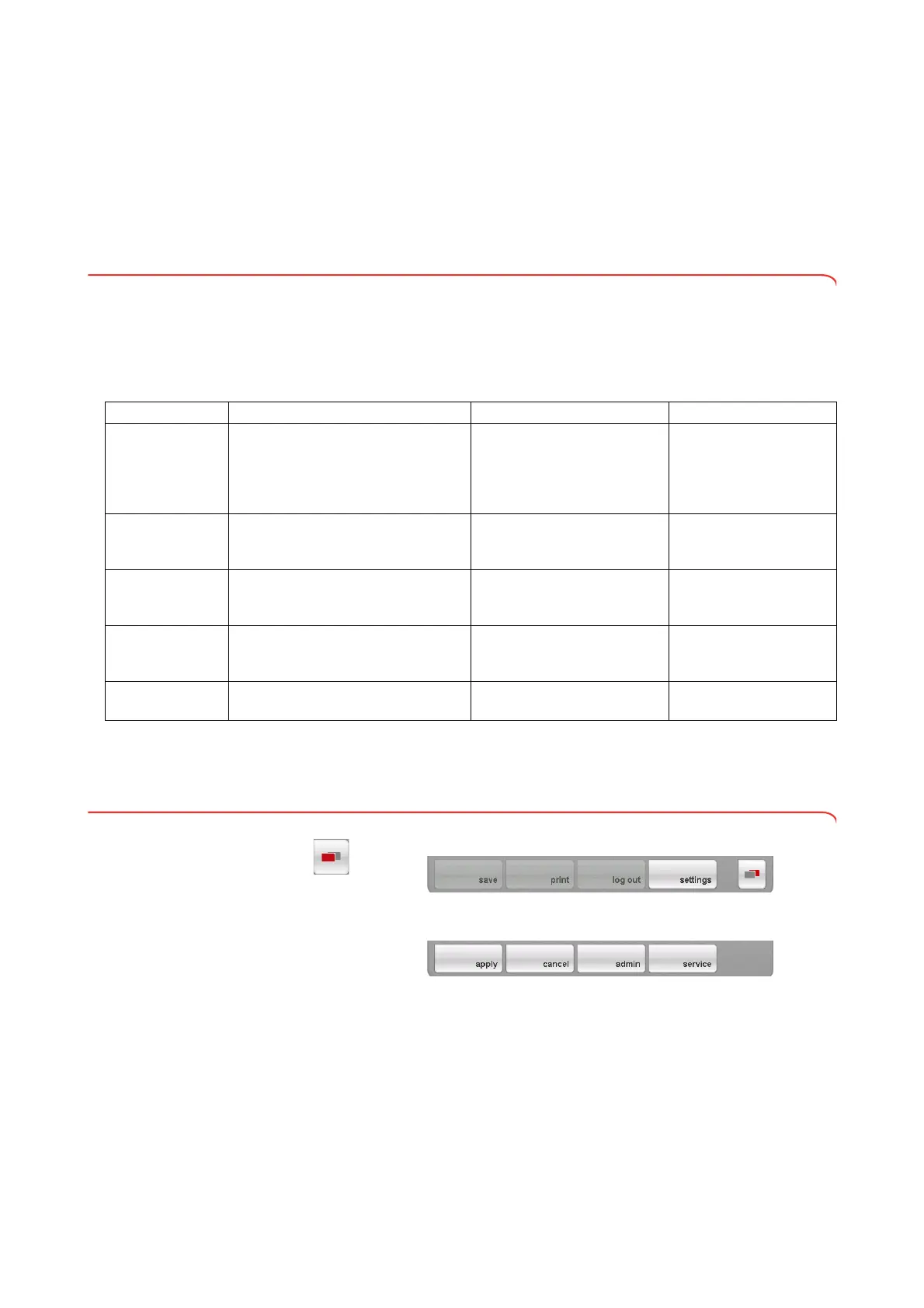
assigned for the usage and administration of the system. The table below
provides an overview.
Additional information on user administration and access rights can be found
in the Administrator Manual for the
seca analytics 115 PC software.
6.3 Calling up the Administrator menu
1. Press the menu changeover button.
The secondary menu is displayed.
2. Press the
settings button.
The secondary menu
settings is displayed.
3. Press the
admin button.
Password/PIN Use Source Change in
User PIN
seca 515/514:
access to seca 115 patient database:
•Ethernet
• seca wireless network
• USB memory stick
Automatic assignment by
admin when setting up a
seca 115 user account
seca 115
USB PIN
seca 515/514:
access to
seca 115 patient database:
• USB memory stick
Initial USB PIN (0000) is sup-
plied with the USB stick
seca 115
Admin PIN
seca 515/514:
device configuration
Initial admin PIN (00000) is
supplied with the
seca 515/
514
seca 515/514
User password
seca 115:
administering measurements and
patient data
Created by Admin in seca 115 seca 115
Admin password
seca 115:
administration of PC software
Initial Admin password is sup-
plied with the seca 115
seca 115


 To Next Page