10R
20
4.6 Sena Softwares
4.6.1 Sena Device Manager
4HE 3ENA $EVICE -ANAGER ALLOWS YOU TO UPGRADE THE lRMWARE AND
CONlGURE THE DEVICE SETTINGS DIRECTLY FROM YOUR 0# 5SING THIS
software, you can assign speed dial presets, FM radio frequency
presets and more. It is available for both Windows and Mac. For more
information on downloading the Device Manager, please visit www.
sena.com.
4.6.2 Sena Smartphone App
4HE 3ENA 3MARTPHONE !PP ALLOWS YOU TO CONlGURE DEVICE SETTINGS
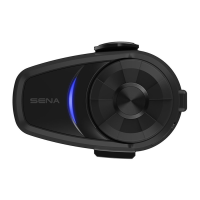
and read the User’s Guide and the Quick Start Guide. Pair your phone
with your 10R headset (please refer to
section 5.1, “Mobile Phone
Pairing - Mobile Phone, Bluetooth Stereo Device”
). Run the Sena
3MARTPHONE!PPANDYOUCANCONlGUREITSSETTINGSDIRECTLYFROMYOUR
smartphone. You can download the Sena Smartphone App for Android
or iPhone from www.sena.com/app.
5 PAIRING THE 10R WITH BLUETOOTH
DEVICES
Before using the 10R Bluetooth headset with any other Bluetooth
DEVICESFORTHElRSTTIMEYOUWILLNEEDTOPAIRTHEMTOGETHER9OUCAN
pair the 10R with Bluetooth mobile phones, Bluetooth stereo devices
SUCHAS-0PLAYERSORMOTORCYCLESPECIlC"LUETOOTH'03NAVIGATION
and with other Sena Bluetooth headsets. The pairing operation is
required only once for each Bluetooth device. The headset remains
paired with the devices and automatically reconnects to them when
they are within range. You will hear a high toned single beep and a
VOICEPROMPTWHENEVERTHEHEADSETRECONNECTSTOTHEPAIREDDEVICE
“Phone connected” to a mobile phone, “Media connected” to a
Bluetooth stereo device.


 To Next Page