On-Screen Display Menu
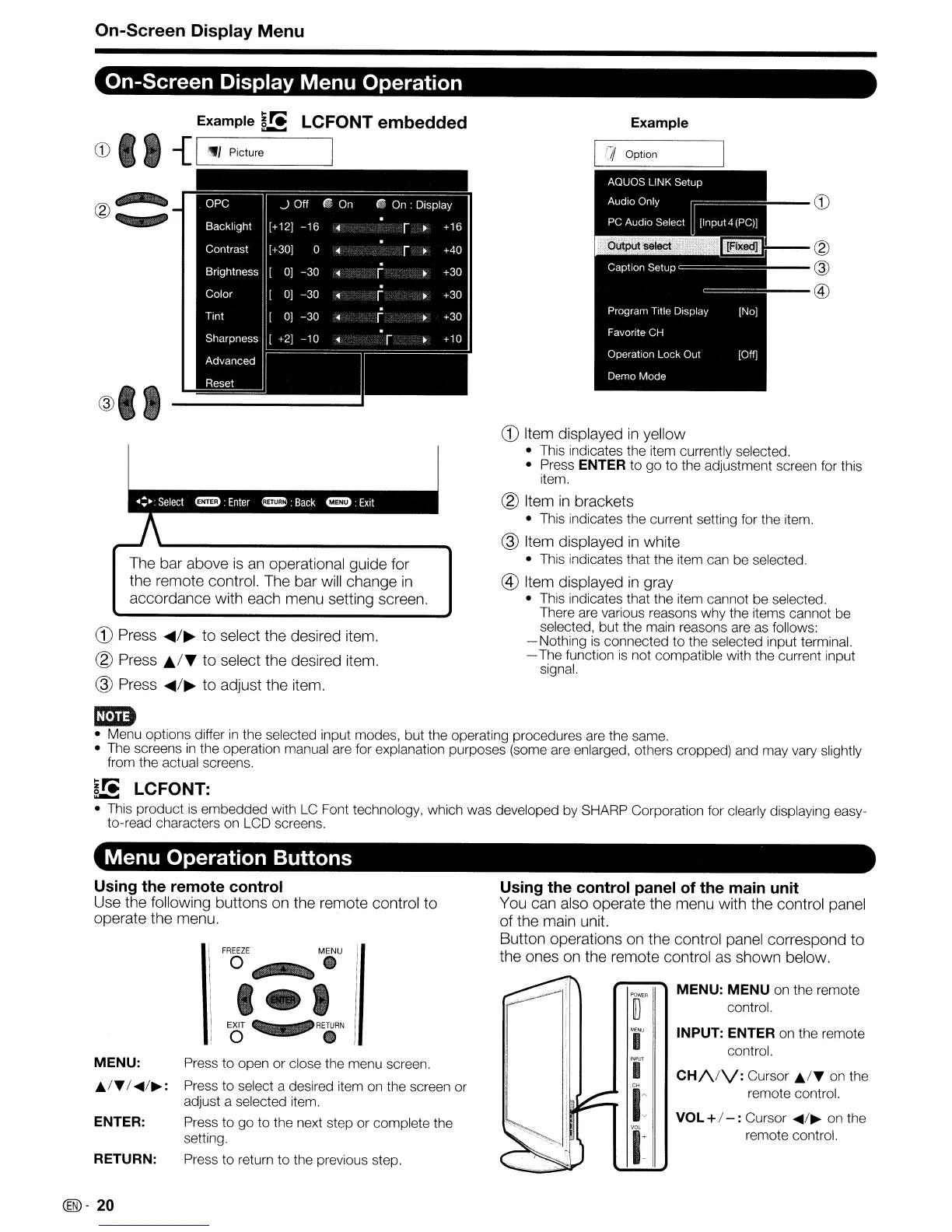
On-Screen Display Menu Operation
Example~"
LCFONT embedded
.-..
Example
CD
Press
~/~
to select the desired item.
® Press
."/T
to select the desired item.
@ Press
~/~
to adjust the item.
/7/
Option
CD
Item displayed
in
yellow
• This indicates the item currently selected.
• Press
ENTER to go to the adjustment screen for this
item.
® Item
in
brackets
• This indicates the current setting for the item.
@ Item displayed
in
white
• This indicates that the item can be selected.
@)
Item displayed
in
gray
• This indicates that the item cannot be selected.
There are various reasons why the items cannot be
selected, but the main reasons are as follows:
- Nothing
is
connected to the selected input terminal.
- The function
is
not compatible with the current input
signal.
{I., Picture
The bar above
is
an
operational guide for
the remote control. The bar
will
change
in
accordance with each menu setting screen.
®4111=_=_
CD
1mB
• Menu options differ
in
the selected input modes, but the operating procedures are the same.
• The screens
in
the operation manual are for explanation purposes (some are enlarged, others cropped) and may vary slightly
from the actual screens.
~!.iE
LCFONT:
• This product is embedded with LC Font technology, which was developed by SHARP Corporation for clearly displaying easy-
to-read characters on LCD screens.
Menu Operation Buttons
Using the remote control
Use the following buttons on the remote control to
operate the menu.
MENU:
..
/'Y/~/~:
ENTER:
RETURN:
Press to open or close the menu screen.
Press to select a desired item on the screen or
adjust a selected item.
Press to go to the next step or complete the
setting.
Press to return to the previous step.
Using the control panel of the main unit
You can also operate the menu with the control panel
of the main unit.
Button operations
on
the control panel correspond to
the ones
on
the remote control as shown below.
MENU: MENU on the remote
control.
INPUT: ENTER on the remote
control.
CH/VV:
Cursor
..
IT
on the
remote control.
VOL
+I - : Cursor
~/~
on the
remote control.
@-20



 To Next Page