EasyManua.ls Logo

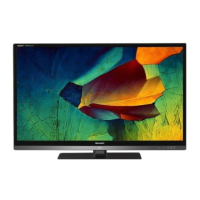
Sharp AQUOS LX959H - User Manual

Sharp AQUOS LX959H
100 pages
Print Icon
To Next Page IconTo Next Page
Loading...
1
Dear SHARP customer
Contents
Thank you for your purchase of the SHARP LCD colour TV product. To ensure safety and many years of
trouble-free operation of your product, please read the Important Safety Precautions carefully before
using this product.
OPERATION MANUAL
Introduction
Dear SHARP customer ................................................................................................................. 1
Contents ......................................................................................................................................... 1
Precautions for daily use .............................................................................................................. 5
Important safety precautions ....................................................................................................... 6
Trademarks .................................................................................................................................... 8
Accessories ................................................................................................................................. 10
Supplied accessories ..................................................................................................... 10
Optional accessories ..................................................................................................... 10
Preparation
Attaching the stand unit ............................................................................................................. 11
How to make a simple platform (For LC-70LX959H only) ....................................................... 12
Protection against overturning .................................................................................................. 13
Handling and precautions with the wall-mounted TV ............................................................. 13
Part names ................................................................................................................................... 14
TV (Side/Front) ............................................................................................................... 14
TV (Rear) ........................................................................................................................ 15
Remote control unit ....................................................................................................... 16
Before turning on the power ...................................................................................................... 17
Connecting external devices ..................................................................................................... 18
Connecting an AV amplier ........................................................................................... 19
Using digital audio output .............................................................................................. 19
Connecting a USB hard disk drive (HDD) ..................................................................... 19
Connecting to the Network ............................................................................................ 19
Insert a SD/SDHC memory card .................................................................................... 19
Inserting the batteries ................................................................................................................ 20
Using the remote control unit .................................................................................................... 20
Cautions regarding the remote control unit ................................................................... 20
Turning the TV on/off .................................................................................................................. 21
Turning on/off the power ............................................................................................... 21
Standby mode ............................................................................................................... 21
Initial auto installation................................................................................................................. 21
Supplying electric power to the antenna .................................................................................. 22
Checking signal strength and channel strength ...................................................................... 22
About Menu operations .............................................................................................................. 23
What is Menu? ............................................................................................................... 23
Basic menu operations .................................................................................................. 23
About guide display ....................................................................................................... 23
Watching TV
Setting channels automatically .................................................................................................. 24
Selecting programmes ............................................................................................................... 25
Adjusting the volume .................................................................................................................. 25
Setting channels to your preference ......................................................................................... 26
Digital settings ............................................................................................................... 26
Manual setting for each channel (Analogue) .................................................................. 27
Sorting programmes (Analogue) .................................................................................... 29
Erasing programmes (Analogue).................................................................................... 29


Table of Contents

Questions and Answers

  • J
    jonesstevenAug 20, 2025
    What to do if my Sharp TV has no power?
    • M
      Michelle RobinsonAug 20, 2025
      If your Sharp TV isn't turning on, check the following: ensure the AC cord is properly connected. If it is, verify that the power has been turned on. If the power switch isn't working, remove the power plug, wait at least five seconds, re-insert it, and then press the power button on the TV.
  • H
    hansonkelseyAug 22, 2025
    Why does my Sharp TV power suddenly turn off?
    • D
      Donald BarnettAug 22, 2025
      Your Sharp TV might be turning off due to a few reasons. The unit's internal temperature may have increased, so remove any obstructions from the vent or clean it. Alternatively, check the ECO setting. Also, verify the settings for the sleep timer, no signal off, or no operation off.
  • B
    Bethany CastroAug 25, 2025
    What to do if my Sharp AQUOS LX959H remote control does not operate?
    • R
      Ronald JonesAug 25, 2025
      If your Sharp TV remote isn't working, make sure the batteries are correctly inserted with the proper polarity. If they are, try replacing them with new ones. Also, avoid using the remote under strong or fluorescent lighting, and ensure that a fluorescent light isn't shining directly on the remote control sensor.
  • N
    nwongAug 27, 2025
    Why is there no picture on my Sharp AQUOS LX959H TV?
    • J
      John SmithAug 27, 2025
      If your Sharp TV screen is blank, check if the connection to external equipment is correct. Then, ensure the correct input is selected and the picture adjustment is correct. Also, verify that the antenna is connected properly and that "On" is not selected in "Audio only".
  • S
    Steven RussellAug 28, 2025
    What to do if my Sharp AQUOS LX959H has no sound?
    • J
      Julie FordAug 28, 2025
      If there is no sound coming from your Sharp TV, first ensure that the volume isn't too low. Also, check that headphones are not connected.
  • D
    Deanna DunnAug 29, 2025
    What to do if my Sharp AQUOS LX959H TV unit cannot be operated?
    • L
      Lisa RodriguezAug 29, 2025
      If your Sharp TV isn't responding, it might be due to external factors like lightning or static electricity. Turn the power off or unplug the AC cord, wait 1 to 2 minutes, and then plug it back in to operate the unit.
  • D
    Derrick WoodAug 31, 2025
    Why do I see block noise appears on the screen of my Sharp AQUOS LX959H TV?
    • P
      Patricia KnightAug 31, 2025
      If you're seeing block noise on your Sharp TV screen, check if the antenna is pointing in the correct direction. Also, check the “Signal strength” and “Quality”. Ensure there aren't any physical objects blocking the antenna, and verify if the antenna or antenna cable is compatible with DTV broadcast.
  • J
    Jessica WaltersSep 2, 2025
    What to do if the picture is cut off on my Sharp AQUOS LX959H?
    • M
      Mrs. Natalie SmithSep 2, 2025
      If the picture on your Sharp TV is cut off, check if the image position is correct. Also, make sure the screen mode adjustments, like picture size, are set correctly.
  • T
    tammywiseSep 4, 2025
    Why is the colour strange on my Sharp TV?
    • C
      Cheryl StewartSep 4, 2025
      If the colour on your Sharp TV appears strange, light, dark, or misaligned, try adjusting the picture tone. Also, consider whether the room is too bright, as this can make the picture look dark. Check the colour system setting and the HDMI auto view setting.
  • K
    Kenneth JonesSep 6, 2025
    What to do if I cannot receive DTV broadcasts on my Sharp AQUOS LX959H?
    • R
      Rebecca SuttonSep 6, 2025
      If you're unable to receive DTV broadcasts on your Sharp TV, first ensure that the DTV antenna is set up properly. Then, check that the antenna cable is connected correctly. Finally, verify that the channel settings are correct.

Summary

Introduction

Important safety precautions

Crucial safety instructions to prevent hazards.

Important safety precautions

Precautions when transporting the TV

Guidelines for safely moving the television set.

Important Safety Precautions

3 D glasses

Safety warnings and guidelines for using 3D glasses.

Preparation

Attaching the stand unit

Instructions for physically mounting the TV stand.

Connecting to the Network

Steps for connecting the TV to a network.

Protection against overturning

Anchoring the TV to the wall or a pillar

Steps to secure the TV to a wall for stability.

Remote control unit

Before turning on the power

Turning the TV on;off

Initial auto installation

Guide for the initial setup wizard upon first use.

Setting channels automatically

Selecting programmes

Setting channels to your preference

Digital settings

Configuring DTV service settings automatically or manually.

Manual setting for each channel (Analogue)

Manual setting for each channel (Analogue) (continued)

Setting the child lock

Blocking specific channels to prevent unauthorized viewing.

Useful viewing functions

Password setting for the child lock

Setting a password

Registering a 4-digit password for child lock functionality.

Parental rate

Miracast

Using the Miracast device

Instructions for connecting and using Miracast-compatible devices.

Energy conservation settings

Picture size settings

Selecting the picture size manually

Manual Selection

Manually choosing various picture size aspect ratios.

Selecting a preset AV mode

Using AV mode on the menu screen

Selecting preset AV modes via the menu.

Using AV MODE on the remote control unit

Selecting preset AV modes using the remote control.

Manual picture settings

Picture adjustment

Adjusting picture settings like contrast, brightness, and sharpness.

Advanced picture settings

Fine Motion

Other picture settings

Adjusting the image position

Adjusting the picture's horizontal and vertical position.

Audio adjustment

EPG

Basic settings

Setting up EPG for receiving broadcast data.

Selecting a programme using EPG

Selecting a programme

Choosing and tuning into a selected programme from the EPG.

Timer setting using EPG

Enjoying 3 D image

Display format for 3 D and 2 D images

How 3D and 2D images are displayed based on input signals.

Preparing for the 3 D glasses

Using the 3 D glasses

Turn on;off the power

Instructions for powering the 3D glasses on and off.

Selecting the 2 D and 3 D modes

Switching between 2D and 3D viewing modes.

Viewing 3 D images

Receiving a 3 D image signal that can be detected automatically

How the TV automatically detects and displays 3D image types.

Receiving a 3 D image signal that cannot be detected automatically

Selecting 3D/2D viewing when automatic detection fails.

Switching 3 D to 2 D mode

Changing from 3D viewing mode to 2D mode.

Watching 2 D images in 3 D

Configuring the TV settings to enhance 3 D image viewing

3 D picture adjustments

Making detailed adjustments to enhance 3D image viewing.

3 D setup

3 D auto change

Enabling automatic switching between 3D modes.

Settings when using HDMI output devices

Controlling HDMI devices

What you can do with CEC capable using HDMI devices

Overview of CEC capabilities for HDMI device control.

AQUOS LINK

What is AQUOS LINK?

Explanation of AQUOS LINK technology.

What you can do with AQUOS LINK

Features and capabilities of AQUOS LINK.

AQUOS LINK connection

AQUOS LINK setup

AQUOS LINK control

Enabling and controlling AQUOS LINK features.

Operating an AQUOS LINK device

Playback of titles using AQUOS LINK

Playing back titles from an AQUOS BD player via AQUOS LINK.

Using a Smartphone with the TV

Connecting a PC

Displaying a PC image on the screen

Selecting the picture size

Adjusting the picture size for PC display.

Adjusting the PC image automatically

Adjusting the PC image manually

PC control of the TV

IP Control

Controlling the TV via IP network.

RS-232 C Commands List

Network function

Connecting to the Network

Steps for connecting the TV to the internet or home network.

Manual setup

Wired installation

Detailed steps for wired network setup.

Wireless installation

Detailed steps for wireless network setup.

HOME UI

Select an item

Navigating and selecting items on the HOME screen.

Basic operation

General procedures for using the HOME screen.

Display the HOME screen

How to access and view the TV's HOME screen.

Selecting in the HOME

Other useful features

USB recording

Recording DTV programs to a USB HDD.

Multimedia;Home network

Enjoying media via USB or home network.

Connecting a USB HDD

Steps for connecting a USB HDD for recording.

Connecting the TV to a USB memory device...

Connecting USB devices for media playback and recording.

USB HDD registration

Necessary procedure to register a USB HDD for recording.

Multimedia

Accessing media files from USB devices.

Home network

Accessing media files from a home network server.

How to operate USB recording

USB recording

Starting USB recording

How to begin recording a program to USB.

Completing USB recording

How to stop and finish USB recording.

USB recording timer setting

Setting timers for future USB recording.

EPG timer setup

Manual timer setting

USB recording playback

USB recording playback (continued)

Playing back files on a media device

Photo mode

Viewing and managing photo files.

Slide show

Displaying photos as an automated slideshow.

Multimedia menu

Music mode

Video mode

Using the operation panel

DivX setup

Connecting a home network server

Playing back files on a home network server

Selecting the picture size for video mode in multimedia and home network

Playing back files from a portable device or PC

Appendix

Troubleshooting

Solutions for common TV problems and malfunctions.

Troubleshooting - Digital broadcasting

Specific troubleshooting for digital broadcast reception issues.

Troubleshooting - 3 D images

Reset

Updating your TV via USB;Network

Specifications

Clearing the password

Sharp AQUOS LX959H Specifications

General IconGeneral
BrandSharp
ModelAQUOS LX959H
CategoryTV
LanguageEnglish

Related product manuals