On-Screen Display Menu
Color System
Audio Only
Option Menu
PC Audio Select
Input Select
HDMI
Setup
To watch an HDMI or PC-IN equipment image, select
"INPUT5", "INPUT6", "INPUT7", "INPUT8" or "INPUT9"
from "INPUT SOURCE" menu using
INPUT on the
remote control unit or on the
lV.
Auto
View:
Enable: To use View Mode based on signal
recognition, including an HOMI signal.
Disable: No function.
Determines whether the AUDIO terminal
is
used for
INPUT 4 (PC-IN) or INPUT 6 (HDMI).
Input 4 (PC): Select this item when the audio signal
is
input via the INPUT 4 (PC-IN) terminal using
an
analog
RGB cable.
Input 6 (HDMI): Select this item when the audio signal
is
input
via
the INPUT 6
(HOMI)
terminal using
an
HOMI-
OVI
conversion cable.
If
the image does not come
in
clearly from the external
equipment connected to INPUT 1 or INPUT
2,
you
may need to change the input signal type setting on
the "Input Select" menu.
• INPUT 1
Select the input signal type from the list below:
Auto/COMPONENT
NIDEO
ImIB
• Refer
to
your external equipment operation manual for the
signal type.
• When connecting an HOMI-OVI conversion adapter/cable
to the HOMI terminal, the image may not come
in
clearly.
.INPUT2
Select the input signal type from the list below:
Auto/COMPONENT
/S-
TERMINAL
miD
•
If
the selected signal type
is
incorrect, images are not
displayed at
all
or are displayed without any color.
• Refer
to
your external equipment operation manual for the
signal type.
•
If
you set INPUT 1
or
2 to Auto, the TV will automatically
select the input signal.
• Setting INPUT 1 or 2 signal selection
to
"Auto" when
other equipment
is
connected will result
in
the following
connection priority.
INPUT
1:
CD
COMPONENT VIDEO
(g)VIDEO
INPUT
2:
CD
COMPONENT VIDEO
(g) S-VIOEO
INPUT
FlASHBACK
eo
REG
STOF'
OPTlON
FAVORITE
00
0
SLEEP AUDIO
AV
MODE
CC
0.00
SURROUND
•
EXIT q P
RETURN
• 0
- FAVORITE CH -
0®@@
FREEZE
MENU
• •
d
'
VOL
(JC:
POWER
SAVING
MUTE
@
v.
[No]
[Off]
[Off]
[Input 4 (PC)]
[Fixed]
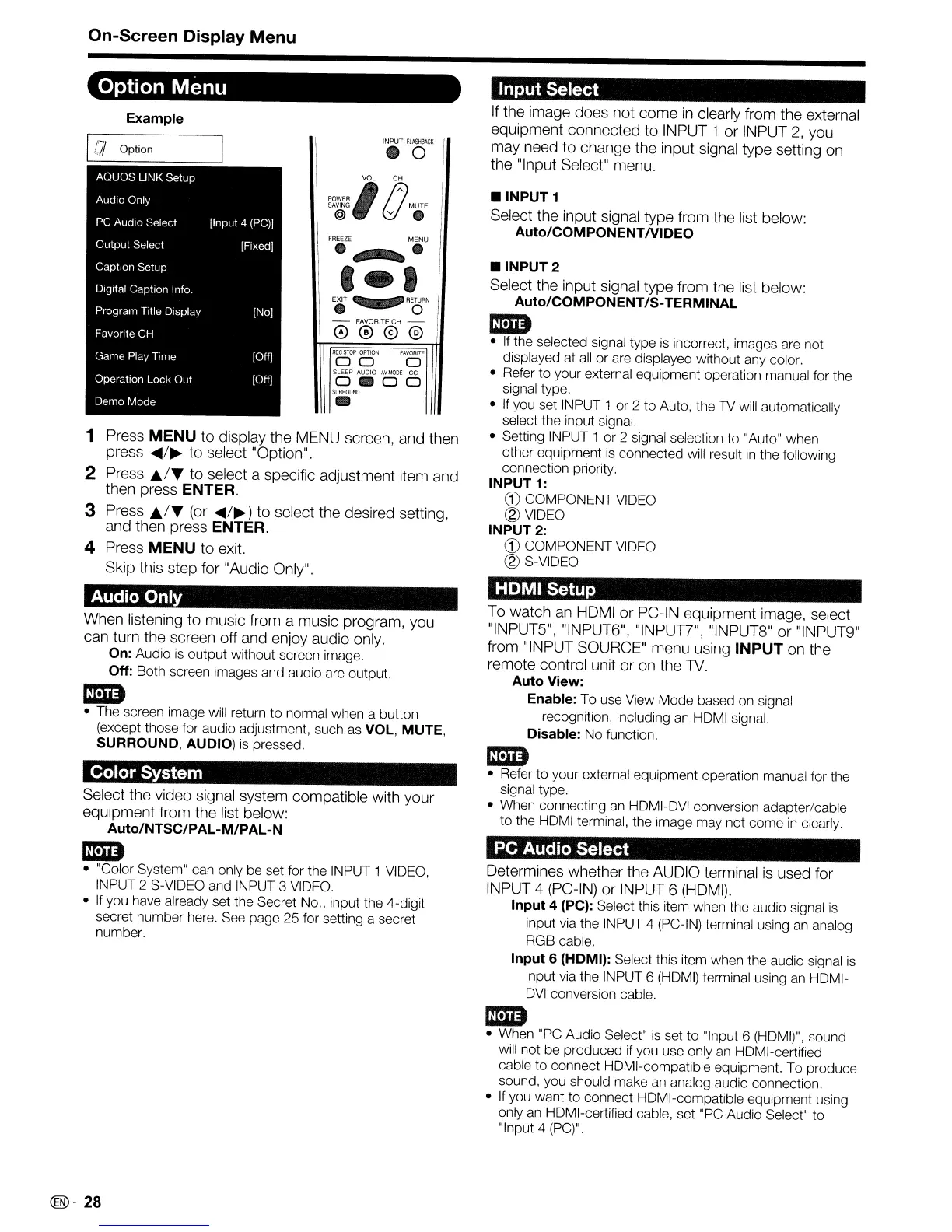
Example
AQUaS
LINK Setup
Audio Only
PC Audio Select
Output Select
Caption Setup
Digital Caption Info.
Program Title Display
Favorite CH
Game Play Time
Operation Lock Out
Demo
Mode
DI
Option
Select the video signal system compatible with your
equipment from the list below:
Auto/NTSC/PAL-M/PAL-N
miD
• "Color System" can only be set for the INPUT 1 VIDEO,
INPUT 2 S-VIDEO and INPUT 3 VIDEO.
•
If
you have already set the Secret No., input the 4-digit
secret number here. See page 25 for setting a secret
number.
When listening to music from a music program, you
can turn the screen off and enjoy audio only.
On:
Audio is output without screen image.
Off:
Both screen images and audio are output.
miD
• The screen image will return to normal when a button
(except those for audio adjustment, such as VOL, MUTE,
SURROUND, AUDIO)
is
pressed.
1 Press MENU to display the MENU screen, and then
press
.....
/~
to select "Option".
2 Press };./T to select a specific adjustment item and
then press
ENTER.
3 Press };./T (or
.....
/~)
to select the desired setting,
and then press
ENTER.
4 Press MENU to exit.
Skip this step for "Audio Only".
miD
• When "PC Audio Select"
is
set to "Input 6 (HOMI)", sound
will not be produced if you use only an HOMI-certified
cable to connect HOMI-compatible equipment. To produce
sound, you should make
an
analog audio connection.
• If you want to connect HOMI-compatible equipment using
only
an
HOMI-certified cable, set "PC Audio Select" to
"Input 4 (PC)".
@-
28



 To Next Page