PRODUCT DESCRIPTION
SKF Enlight Collect Manager – Android and iOS app
SKF Enlight Collect IMx-1 System
User Manual
Revision F
For users to be able to log in through the SKF Enlight Collect Manager app,
they must be using @ptitude Observer internal user and not Active Directory
group, authentication. Refer to the SKF @ptitude Observer user manual or
help file for further details of authentication methods.
As this requires the app to be pre-configured with the MQTT service details of the
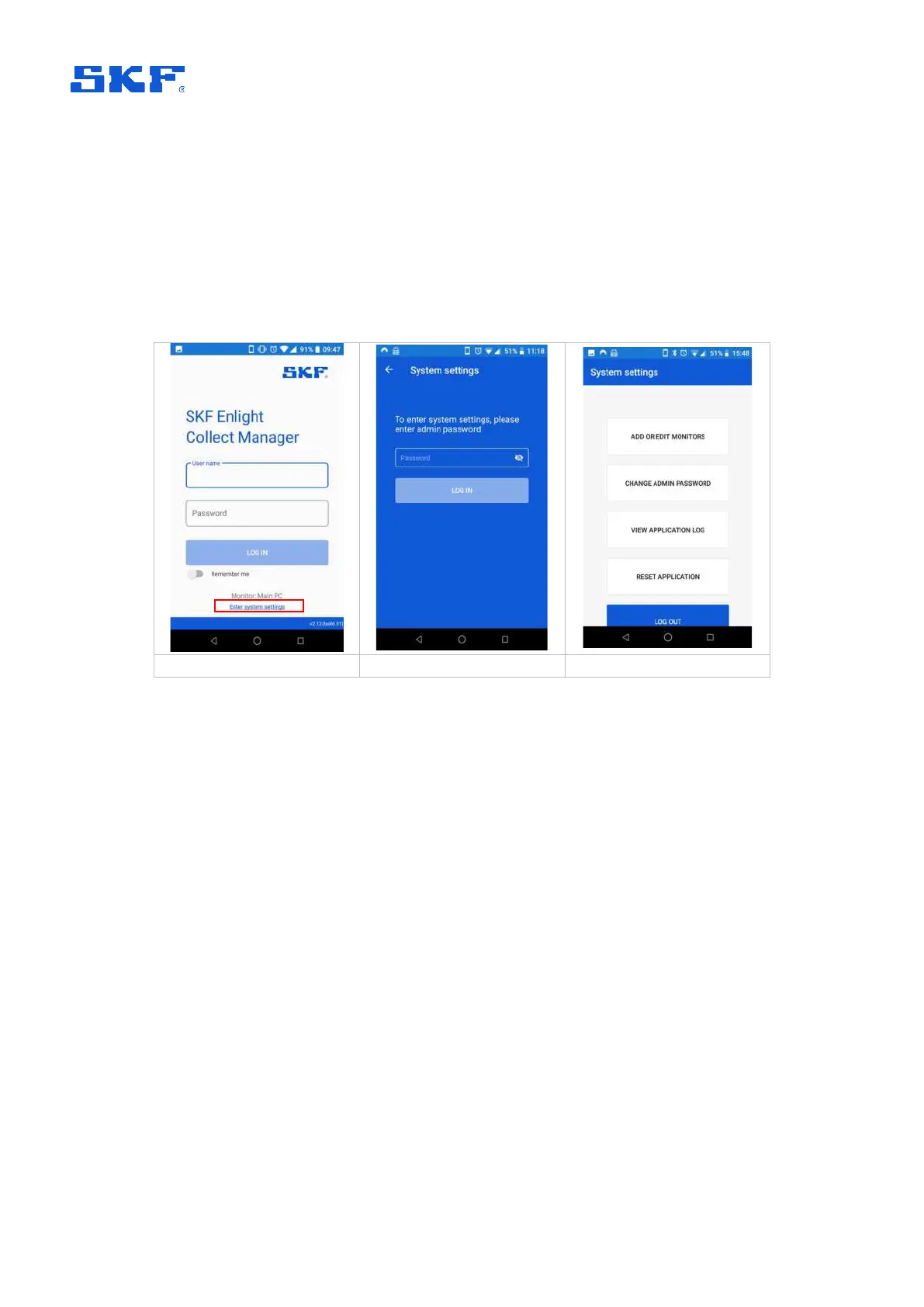
Observer instance that applies, a separate local access ‘Enter system settings’ is
available to set these details:
Figure 3 Accessing system settings
When logging in for the first time to the system settings, you can choose your
password or continue without one. This can be changed at the next screen, if
required.
Once into the system settings the first option “Add or Edit Monitors” is how the active
monitor instance can be selected or added/edited if the MQTT connection details
don’t already exist in the app:


 To Next Page