PRODUCT DESCRIPTION
SKF Enlight Collect Manager – Android and iOS app
SKF Enlight Collect IMx-1 System
User Manual
Revision F
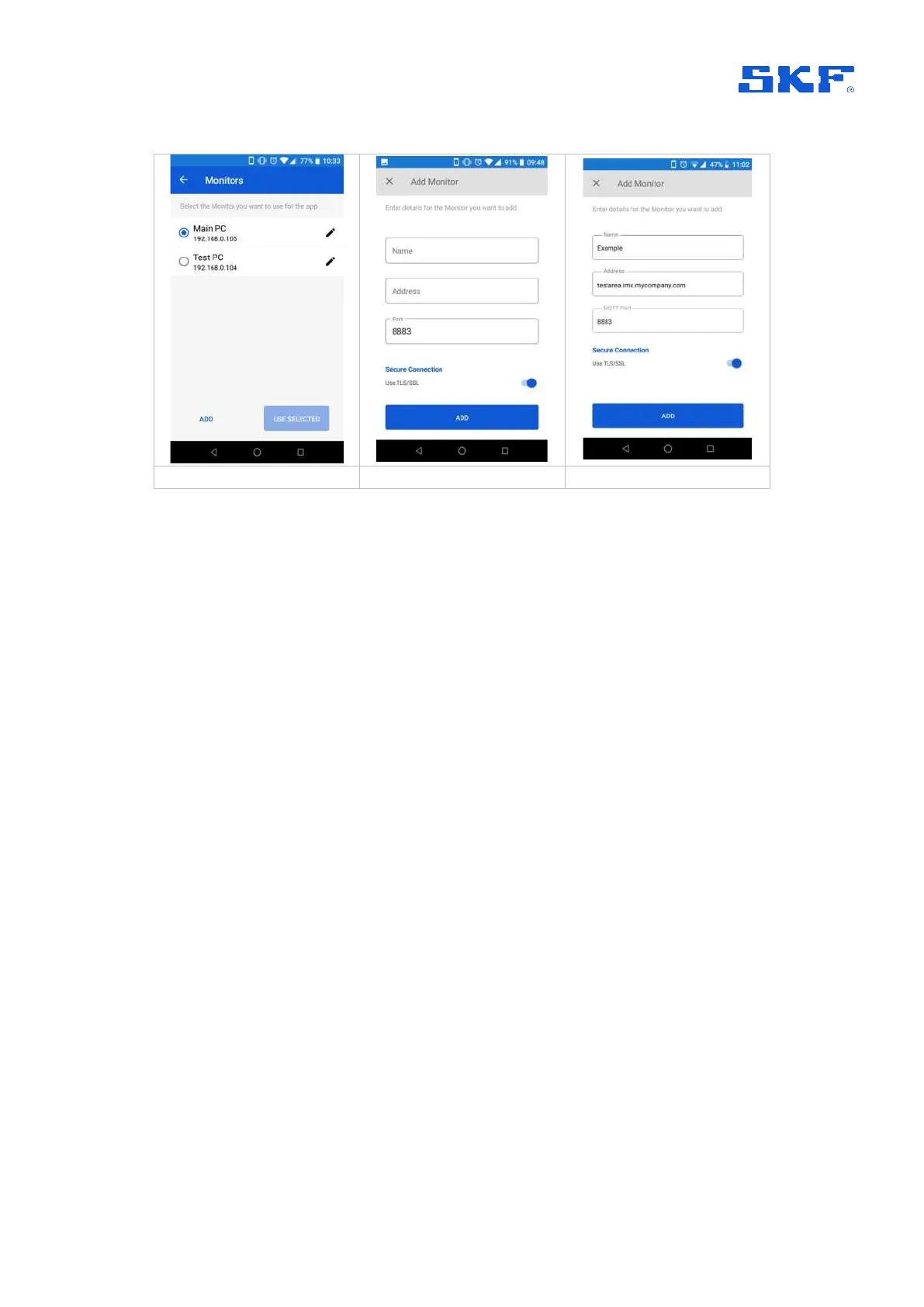
Figure 4 Access the Monitor configuration screens
As can be seen above, for each Observer Monitor instance a friendly informative
Name, an Address and a Port number are entered. As these MQTT service
address, port and secure connection settings are critical for connecting to Observer
Monitor, ensure that they correctly reflect the required instance otherwise a log-in
failure can be expected. In general, the address can be entered using domain
naming (DNS) or IP addressing noting that where communication to Monitor will be
across public networks, the address entered here should be the external facing or
public address for the MQTT service.
In addition, there is a TLS/SSL secure connection option which is on by default.
See also
Security.
Multiple connections can be configured, but only one can be active at any time.
Ensure the required connection is selected by the radio button and ‘Use Selected’
has been actioned. Note that this button is ‘greyed’ if the currently selected Monitor is
already being used.
Referring back to Figure 3a, it can be seen that when the MQTT connection details
for at least one Monitor instance have been configured, the name of the
active/selected Monitor server instance is shown on the opening screen of the app,
just above ‘Enter system settings’.
1.5.1 Security
Whilst use of Transport Layer Security (TLS) for app communications with the
gateway is automatic, for connection to @ptitude Observer software it is selectable to
be able to match the settings there. If the MQTT service is configured with ‘Use TLS’
enabled, the configuration of the monitor connection in the app must similarly have
the ‘Secure Connection’ option enabled, refer to
Figure 5 and
Figure 4 respectively.


 To Next Page