INSTALLATION AND COMMISSIONING
Generating a commissioning report
SKF Enlight Collect IMx-1 System
User Manual
Revision F
a. Bring the device close to the sensor to use NFC to wake it up, out of
flight mode.
C. After a period for Bluetooth search the ID of the sensor will be displayed.
Select it to connect and display status and other sensor information.
Note: sensors that are running firmware 3.0 or later will skip the
selection step and provide their ID through the NFC.
D. To add it as a relay node:
a. Press ‘Add As Relay’.
b. Select from the list of available gateways and choose the appropriate
relay node. To aid the selection process, in the lists of gateways and
then relay nodes associated with a selected gateway, both device
name and location text will be visible.
c. Confirm selections by pressing ‘Commission’.
E. App shows confirmation of successful commissioning or error. After exiting
this screen, the app will instruct the commissioned relay node to activate its
mesh radio and attempt to connect. If the commissioning attempt was
unsuccessful then the process can be repeated by pressing ‘Try Again’.
F. Repeat steps B to E for all relay nodes being processed.
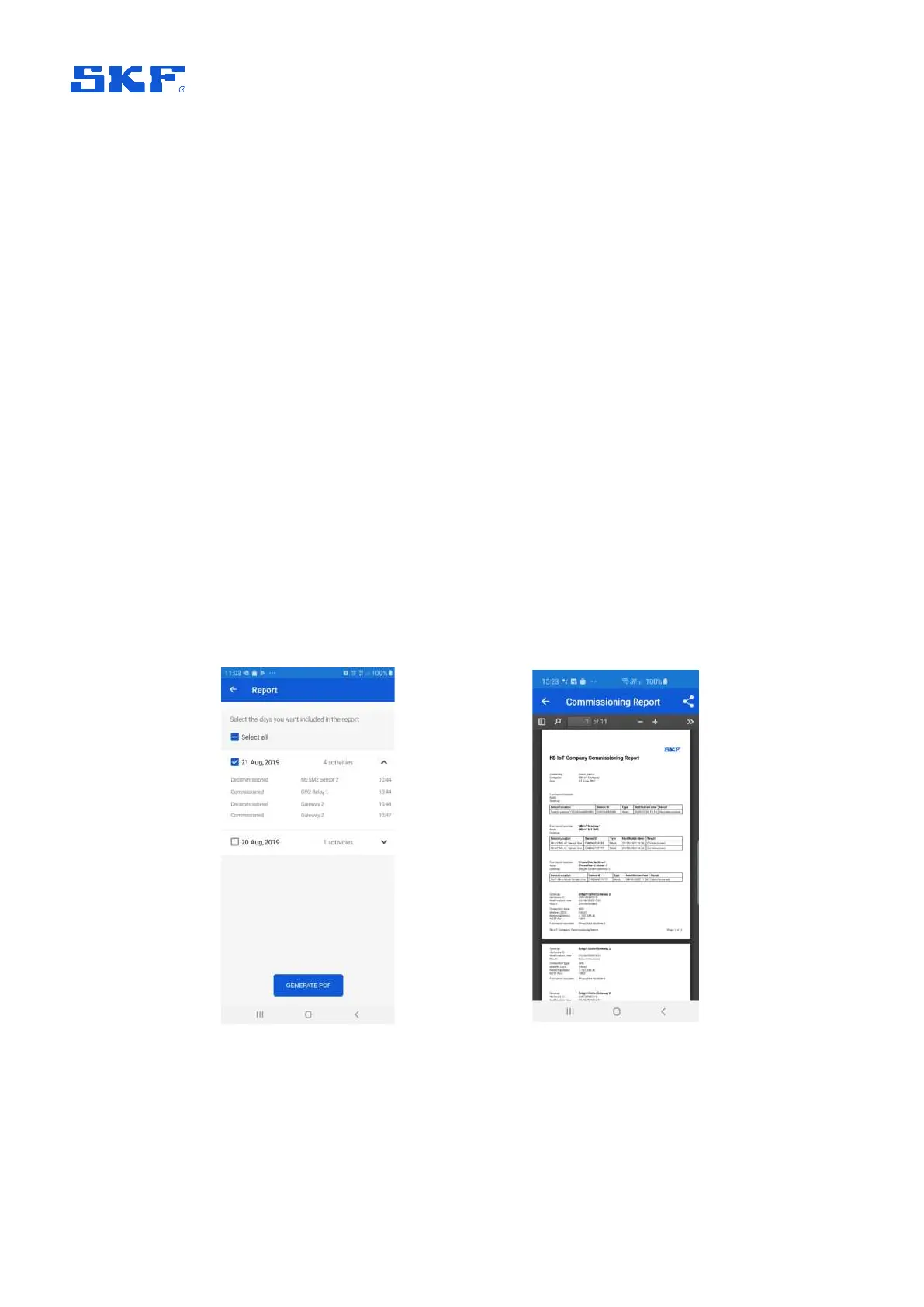
3.5 Generating a commissioning report
To generate a commissioning report, select ‘Report’ from the main menu. The data to
be included can be from one or more ‘work days’:
a) Select data for report
Figure 35 Preparing and viewing a commissioning report
The report is stored, in pdf format, to the app’s private cache directory but can be
exported using the standard device ‘Share’ functionality to e-mail, cloud storage, etc.


 To Next Page