INTEGRATION WITH SKF @PTITUDE OBSERVER
IMx-1 system configuration
SKF Enlight Collect IMx-1 System
User Manual
Revision F
@ptitude Observer. The installation and commissioning process will then associate
specific sensor and gateway devices with the locations and identities pre-configured
in @ptitude Observer. Once commissioned, the configuration in @ptitude Observer
can be pushed down to the on-line system by gateway synchronisation.
For an IMx-1 system the synchronisation process is automatic on configuration
change or when a firmware update is available in @ptitude Observer but it can also
be manually initiated.
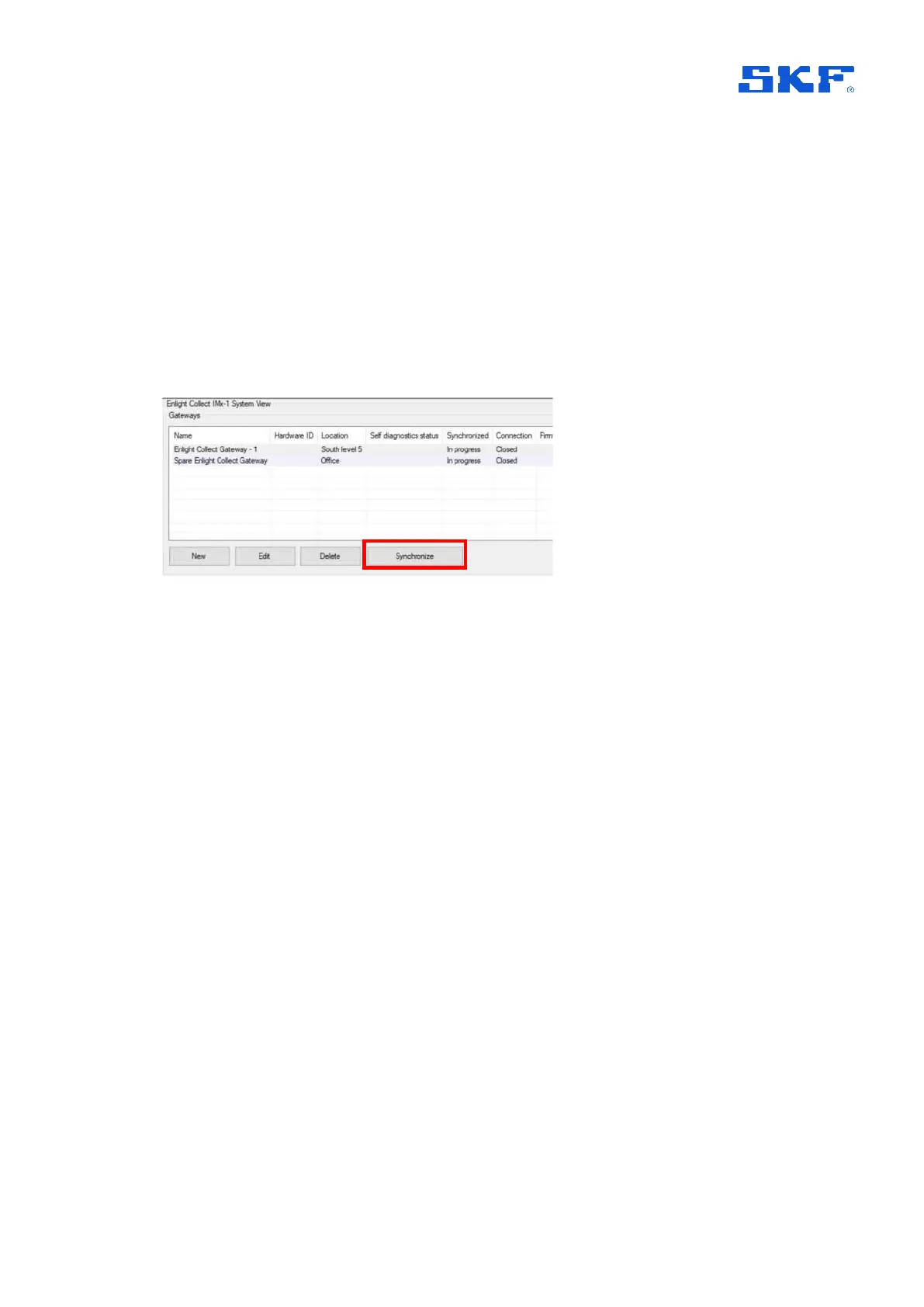
Synchronisation is implemented at a gateway level so to synchronise, select an
appropriate gateway from the table list, confirm that its Connection state is
‘Connected’ and then press Synchronize.
Figure 28 Synchronize button for configuration and firmware update
Initially this sets the gateway and sensor status to “In progress” meaning the
synchronisation process is underway. The gateway and all sensors reporting a
Hardware ID will be synchronised, any sensors not yet reporting their ID will remain
as ‘In progress’.
To ease commissioning, once any of these sensors join the system and report their
Hardware ID then synchronisation is automatic and doesn’t require the user to
manually synchronise the gateway.
2.4.4 Gateway or sensor Hardware ID
The Hardware ID is the parameter that links a specific physical device, gateway or
sensor, to a configured location in the system.
After recommissioning, the Hardware ID is cleared automatically.
If necessary, it can be cleared from the Enlight Collect IMx-1 System View.
Click on the Clear button to clear the Hardware ID.


 To Next Page