115
Using the Solar-Log™ Android App
8.7.1 Periodical data update
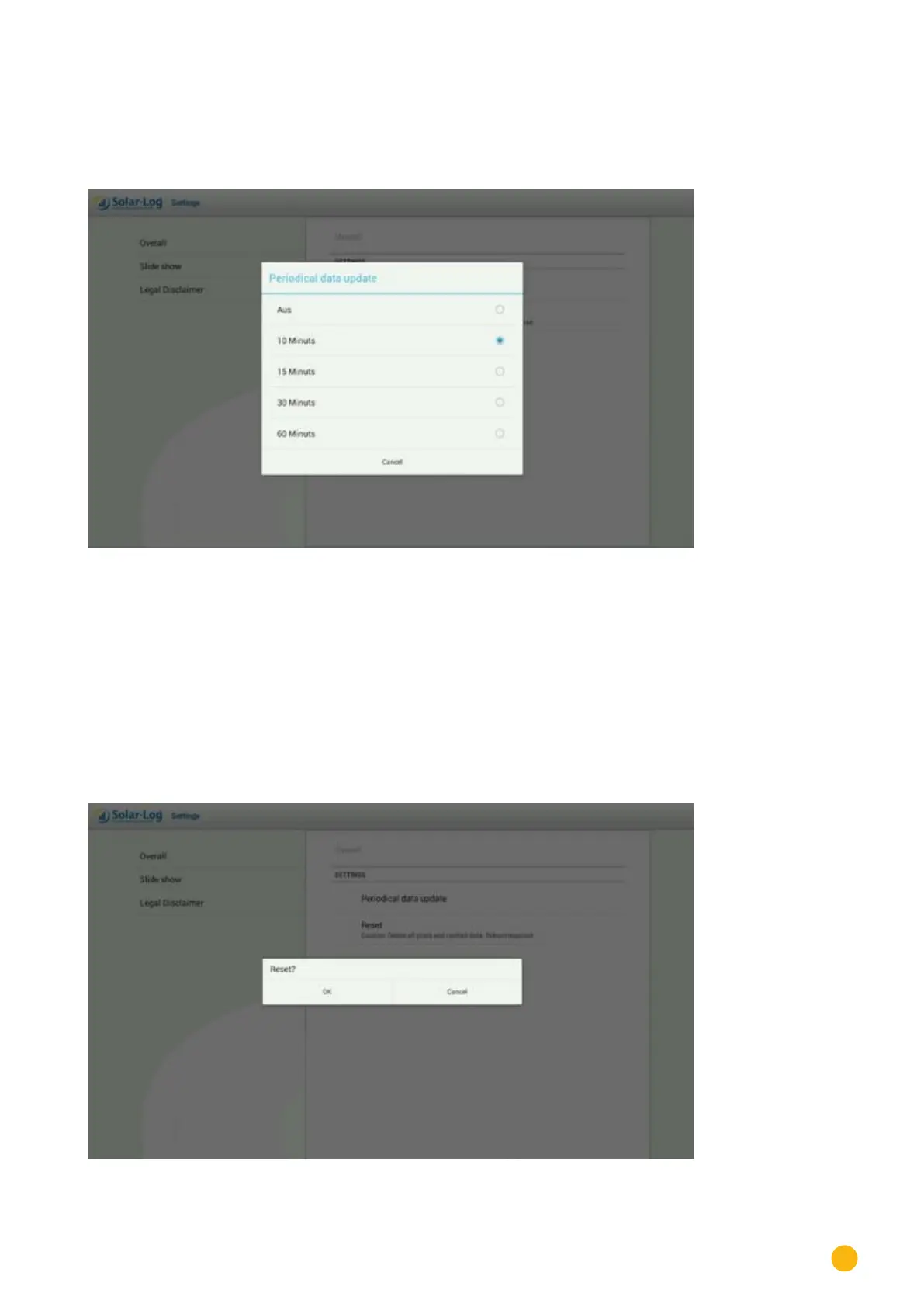
1. Under General, tap on Periodical data update
The following setting options will become visible.
Fig.: Periodical data update settings
2. Tap on the update interval to automatically update the data. The window automatically closes after the selec-
tion.
8.7.2 Reset
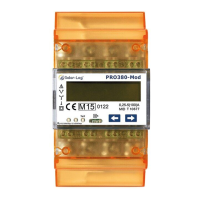
With the Reset function, you can delete all of the plants and cached data.
After tapping on
Reset, you will receive the following message:
•
Click on OK to confirm the selection and to delete the plants and cached data. (The application automatically
closes and has to be restarted.)
•
By clicking on Cancel, you return to the main menu.
Fig.: Reset function


 To Next Page