124
Using the Solar-Log™ App iPhone V3 for iPhones
9.3 Accessing Yield data
After your plant has been correctly recognized, the yield data is displayed in the plant overview.
Note!
The data is only updated when your iOS device is connected to the Internet.
9.3.1 How to navigate between dierent overviews
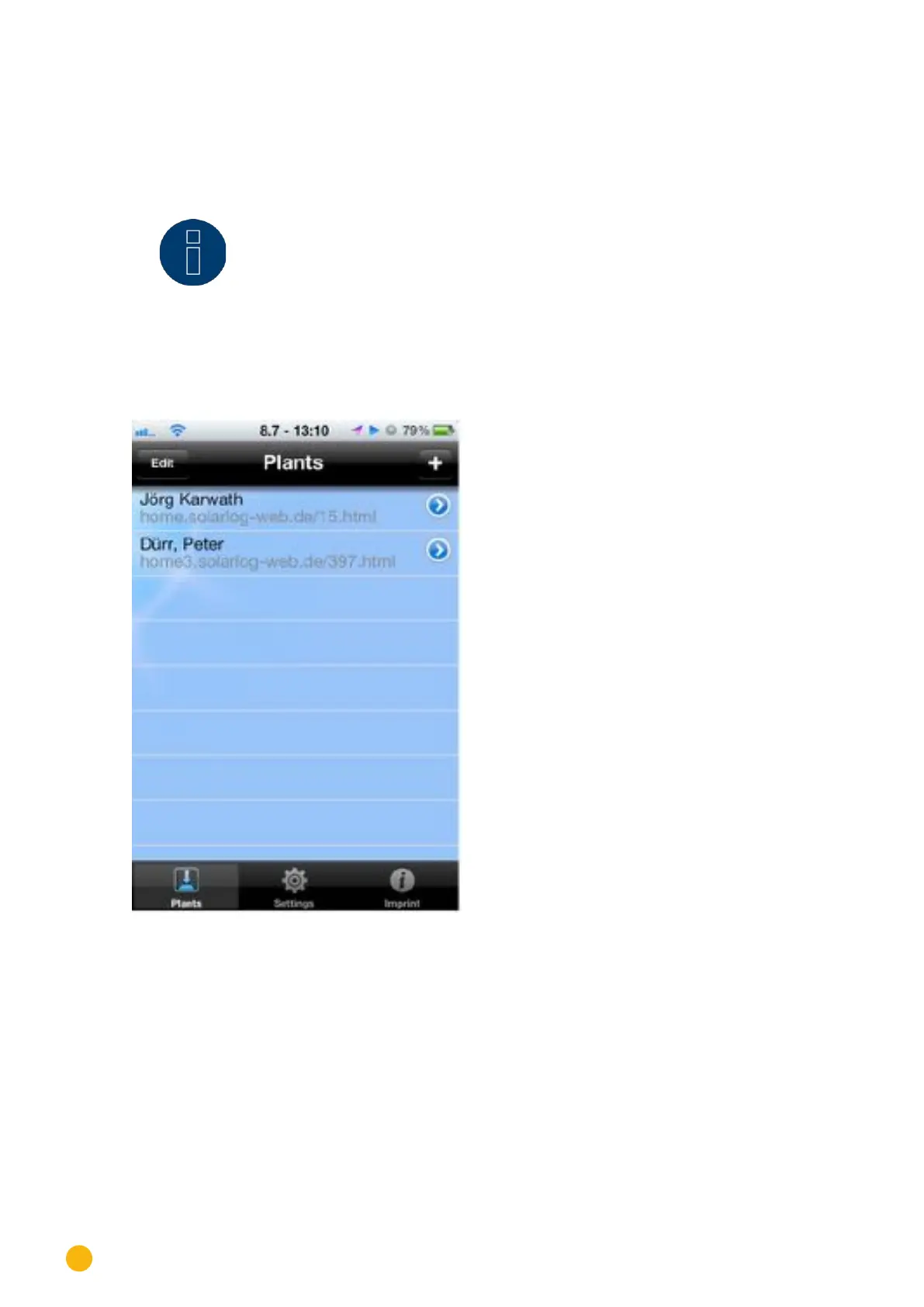
1. Start the App
Fig.: Saved plants
2. Touch the blue arrow next to the name of your plant. The current Daily Overview is displayed with
the yield values, percentage (based on the forecast) and consumption (only if a meter is connected
and activated, see the chapter "Accessing Plant Data).
3. By touching the screen, a menu appears on the top and bottom of the screen from which you can
select the desired view.


 To Next Page