Levelogger Series User Guide
Page 44
7 Data Control
(Downloading and Viewing Data)
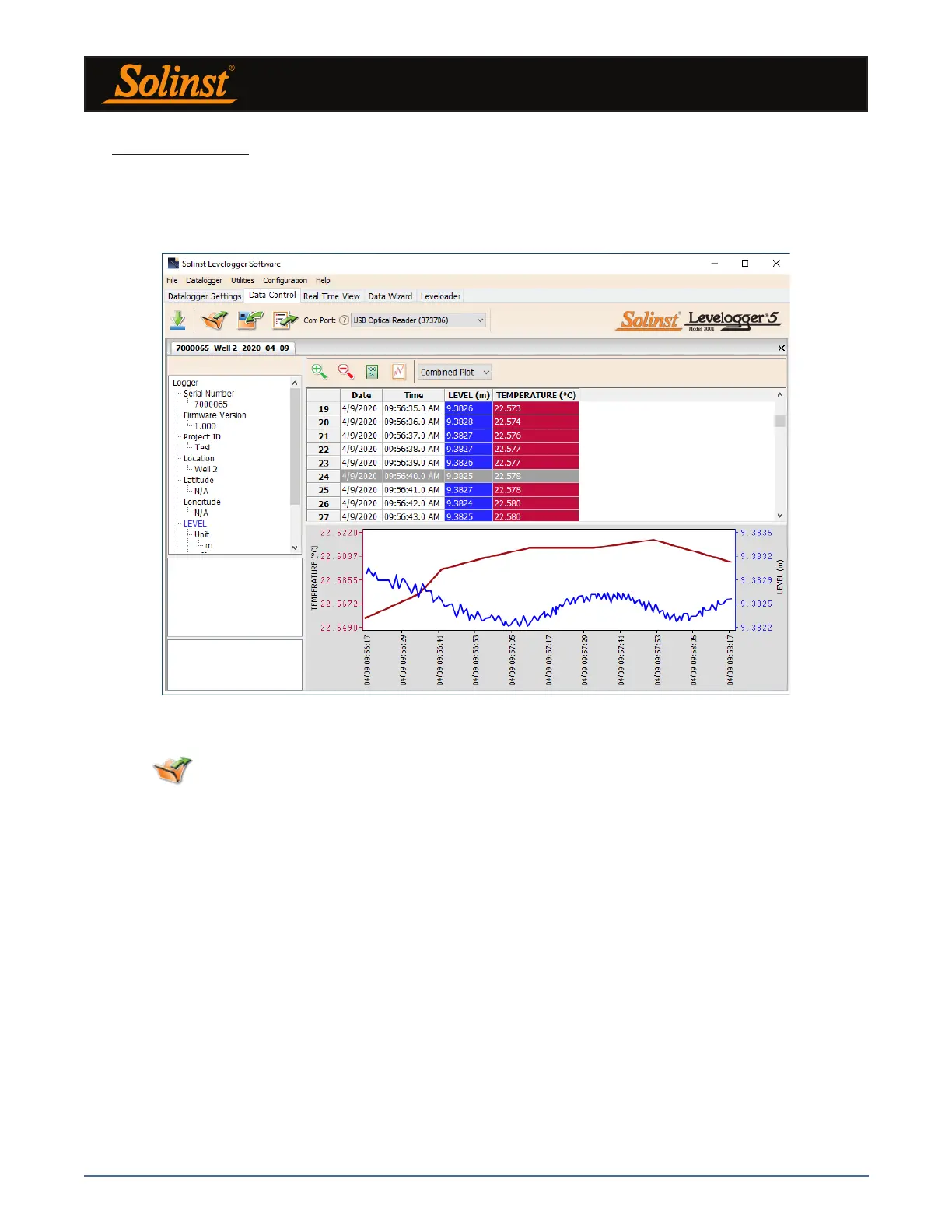
Click the Data Control tab on the Main window. From the Data Control tab you can download data from a
Levelogger, display data in tabular or graphic format, and save and export data files.
Figure 7-1 Data Control Tab
Click to open a *.xle or *.lev file. Multiple files can be opened at the same time and are available for
viewing by clicking the File Name Tab on top of the data table.
All the Levelogger settings and the channel information effective during data collection are shown on the top
left of the window.
The bottom left sections of the window are used to display information after a data compensation has been
performed. The middle section displays information from a Barologger, if a barometric compensation is
performed, and the bottom section includes information from other conversions, such as offsets or conductivity
conversions (see Section 8).
Note: When you click on a data point in the graph, the corresponding data point will be highlighted in the table. You
can also highlight a section of data in the graph. Simply left click on a row number, then hold and drag to include the
row number of interest.


 To Next Page