Levelogger Series User Guide
Page 47
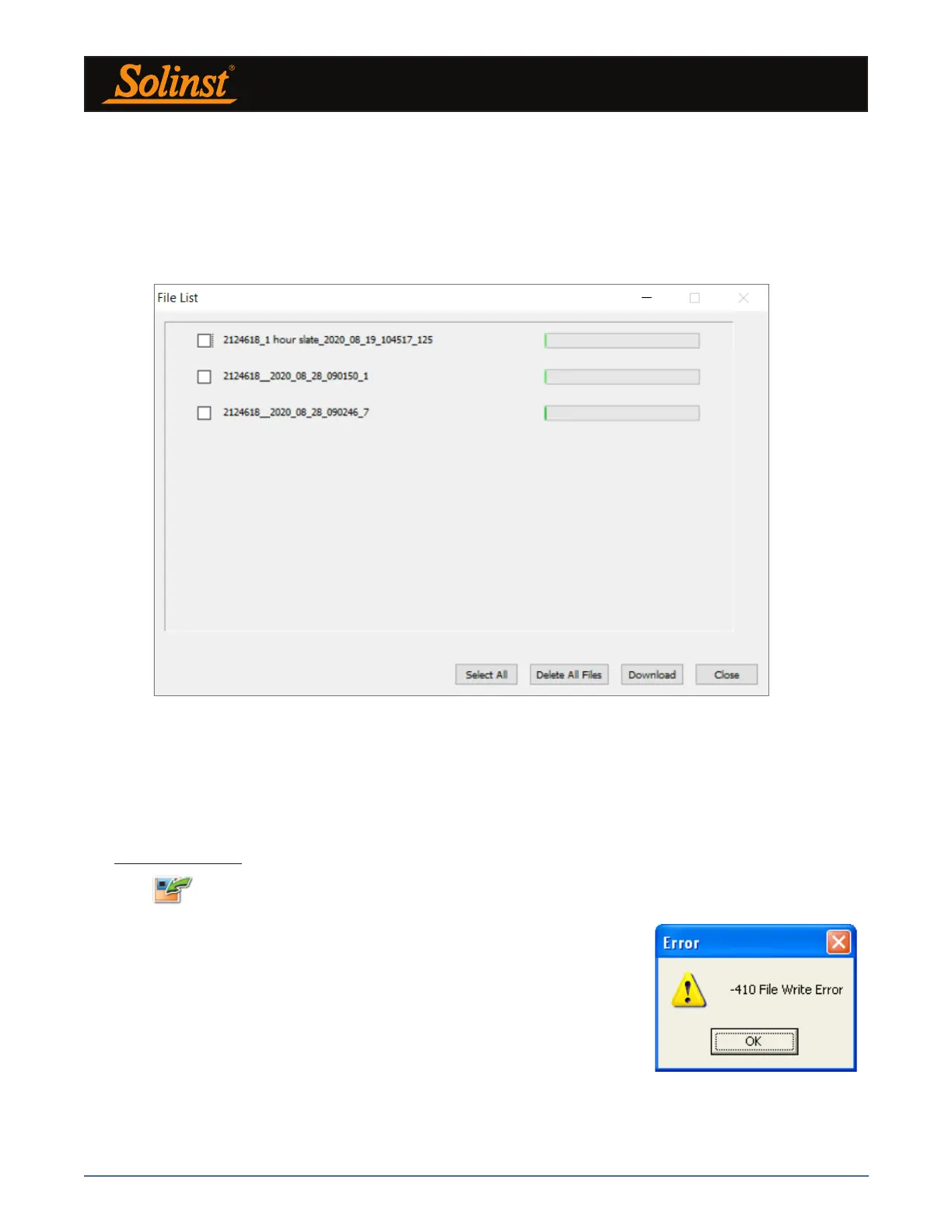
For Levelogger 5 Series dataloggers, if you select Download Files, the software will bring up a window with
a list of logging sessions currently stored in the datalogger’s memory. Select the files you want to download.
Each logging session will be saved as a separate *.xle file.
To access the full memory, select Delete All Files and you will be prompted with a “Warning All Data in the
logger will be erased! Continue?” Select Yes, or No, to proceed. (Selecting individual files for deletion, is
not an option.) This will free-up memory before starting a Levelogger 5 Series datalogger (See Section 5.8).
Figure 7-4 Download Files List
For Edge and Gold Series dataloggers, if you select Recover Previous Log, the software will try to recover
the data from the previous logging session and download the data to a *.xle file.
Once the data is downloaded from a Levelogger, it is automatically saved in a temporary file.
7.1.3 Saving Data
Click to save the data in a specific *.xle file.
The default directory for saved data is in the ‘Data’ folder:
<C:\Program\Files\Solinst\Levelogger4_5\Data>.
However, the default directory for saved files can be changed by clicking the
Configuration menu at the top of the program window, selecting ‘Application
Settings’ and inputting or navigating to a different folder destination. If an error
is experienced in saving your first data file such as depicted in Figure 7-5, you
may not have file writing privileges to the default directory. In this case, create
and set as the default file save folder, a new Levelogger data folder within the
My Documents folder and attempt the file save procedure again.
Figure 7-5 File Write Error Message


 To Next Page