Levelogger Series User Guide
Page 54
8.1.1 Basic Compensation
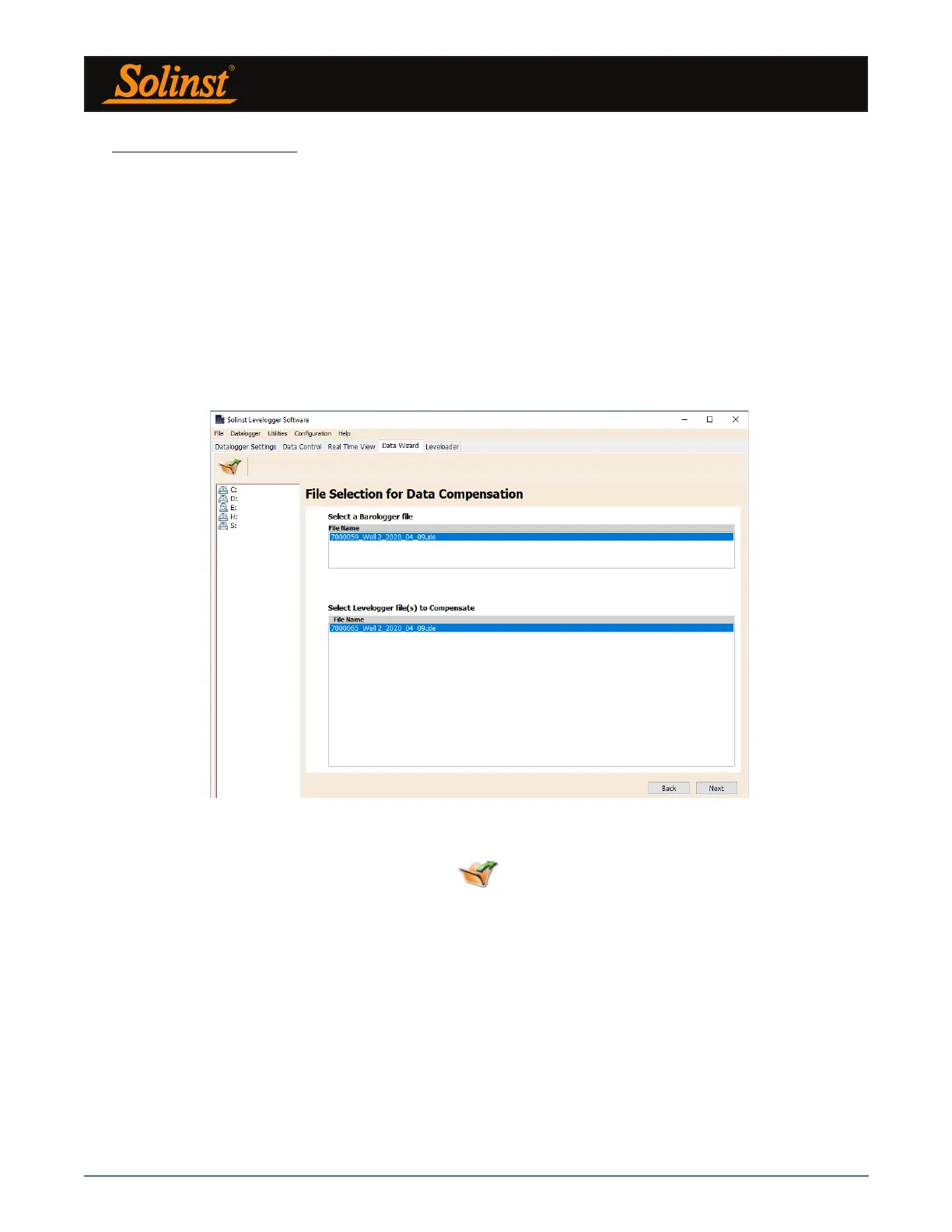
When you choose Basic compensation, the next step is to select the Barologger file you want to use for
compensation, then select the Levelogger file(s) you want to compensate. You can only select one Barologger
file to compensate multiple Levelogger files.
Note: One Barologger can be used to compensate all Leveloggers in a 30 km (20 mile) radius and/or with every
300 m (1000 ft) change in elevation.
For best accuracy, the Levelogger file(s) and Barologger file should have the same start time and
logging interval. (The Future Start option in the Datalogger Settings tab is a convenient way to start all of
your loggers at the same time.) If there is an inconsistency of the time stamp between the Barometric file and
the Levelogger file(s), a linear approximation on the barometric data will be performed.
Any files you have open in the Data Control tab will be listed.
Figure 8-2 Selecting Files for Barometric Compensation
Use the directory on the left of the window or click to open any other Levelogger data files you would
like to compensate. Ensure the files you want to compensate are highlighted in the list. Both the Barologger
file and Levelogger file(s) must be highlighted. Do this by clicking the file name. To de-select a file, click it
again. Multiple Levelogger files can be selected at once.
Note: Both a Barologger file and a Levelogger file must be selected to complete a Barometric Compensation.
Select Next to complete the compensation.
The compensated data will automatically be saved in a new *.xle file. The default file name will be the <original
Levelogger file name> with the word <compensated> added to the file name prefix. Alternatively, the user can
rename the compensated file by saving it in the Data Control tab. Do not change or delete the file extension.
All data files are saved to the default location: <C:\Program Files\Solinst\Levelogger4_5\Data>.
Note: The default directory for saved files can be changed by clicking the Configuration menu at the top of the
program window, selecting ‘Application Settings’ and inputting or navigating to a different folder destination.


 To Next Page