38
38
Recording Files
Index
Table of
Contents
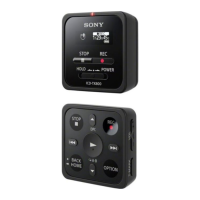
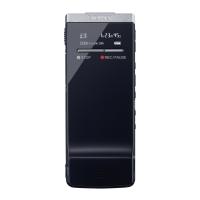
ModelName: ICD‑TX50
PartNumber: 4‑300‑042‑11(1)
Changing the Recording Settings
Selecting the recording destination folder
ST
OP
BACK/HOME
/ENT
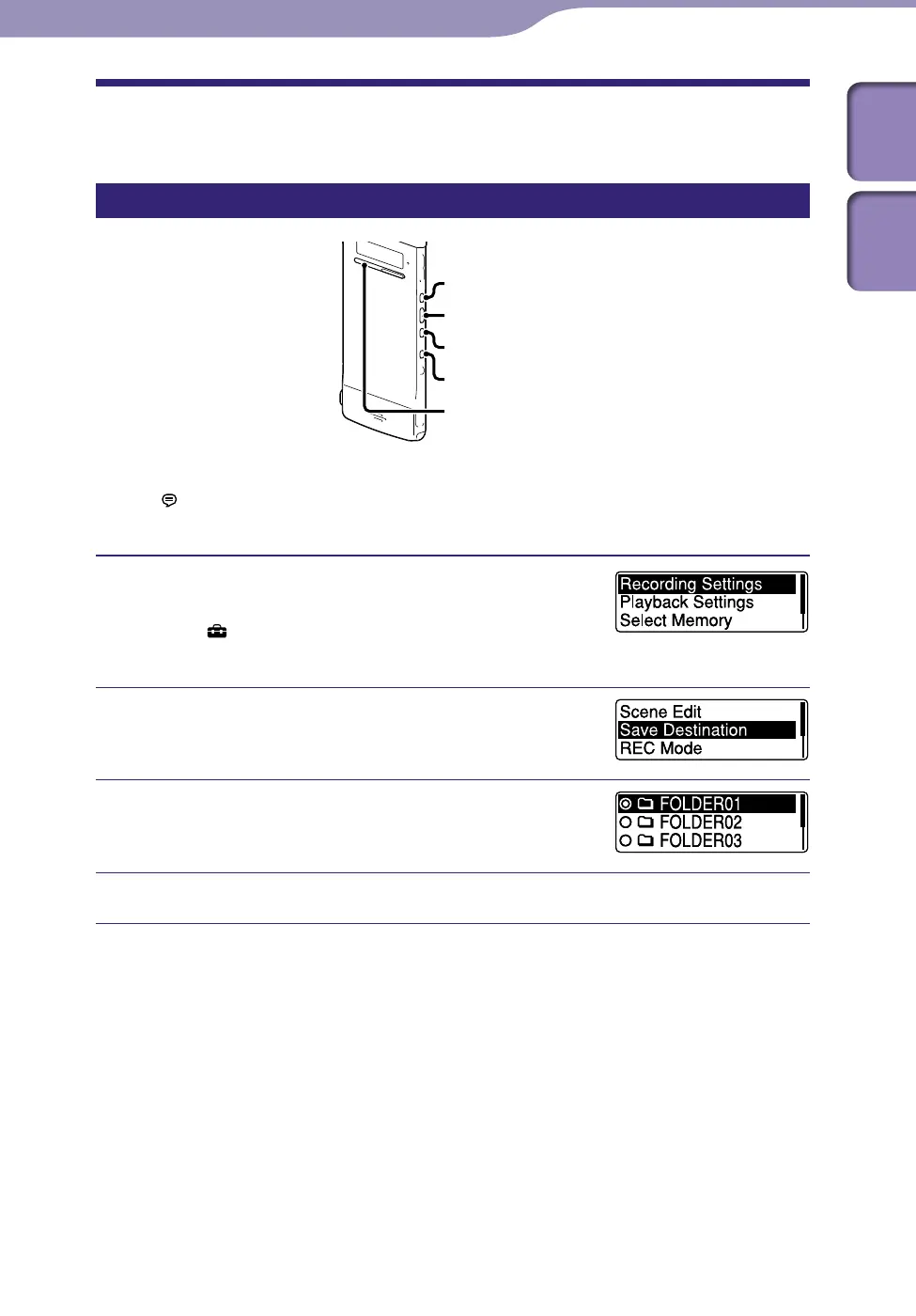
You can set the folder in which a recording file is saved. You can select a folder
in the “
Recording Files” category each for the built‑in memory and microSD
card.
In the stop mode, press and hold BACK/
HOME to display the Home menu, then
select “
Settings”
”Recording Settings,”
and then press /ENT.
Press or to select “Save
Destination,” and then press /ENT.
Press or to select the desired
destination folder, and then press /ENT.
Press STOP to exit the menu mode.
Hint
If the specified destination folder is filled with the maximum number of files when you
start recording, the destination folder is automatically switched to another available folder
and the file will be recorded in that folder.
If this occurs, a message notifying you that the destination folder has been changed will be
displayed when you stop recording.


 To Next Page