EasyManua.ls Logo

Sony SLV-SE620 - Setting the recording duration time; Timer Settings Management; Stereo and Bilingual Recording

Sony SLV-SE620
96 pages
Print Icon
To Next Page IconTo Next Page
To Previous Page IconTo Previous Page
Loading...
ag
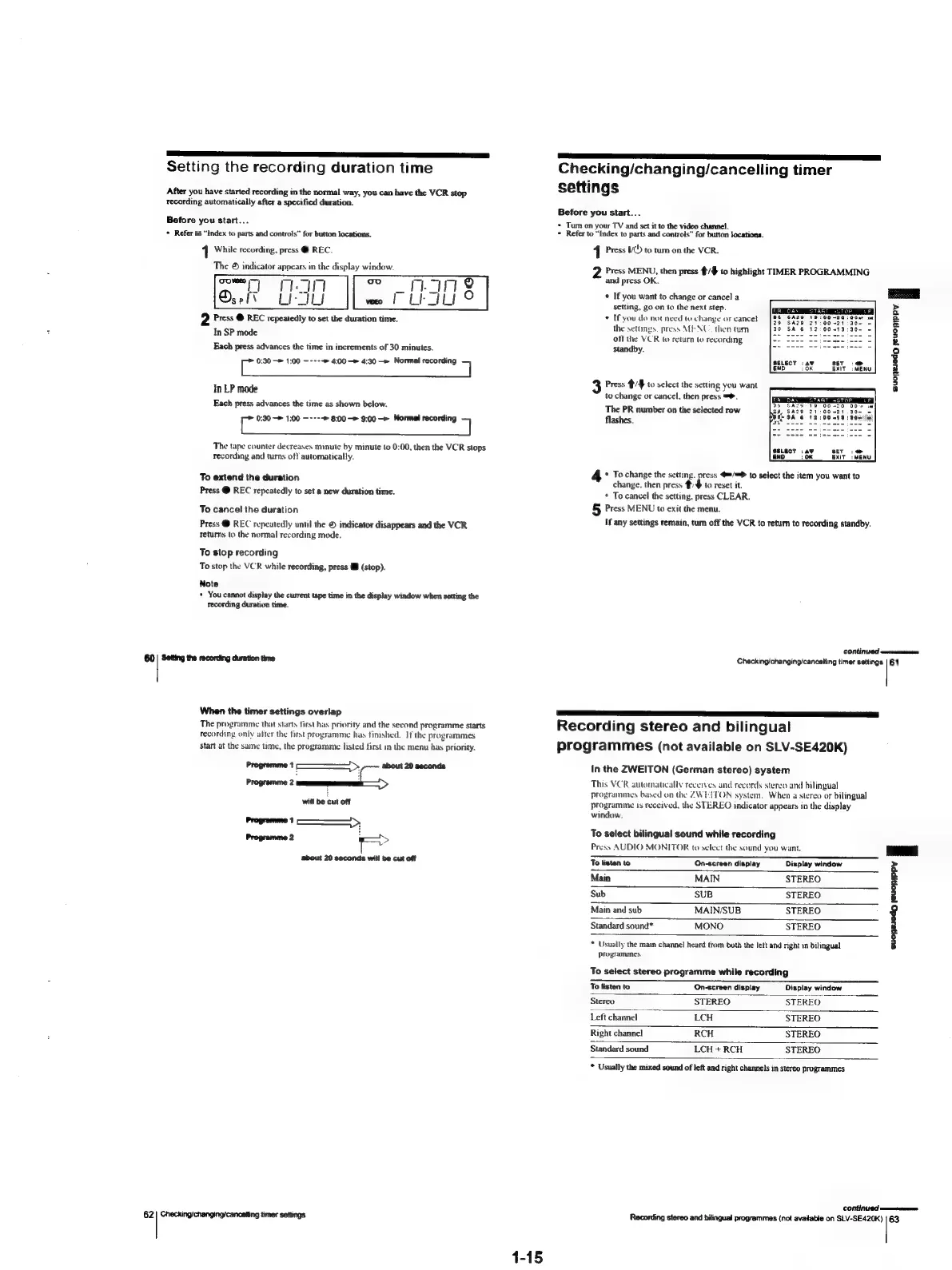
Setting
the
recording
duration
time
After
you
have
started
recording
in
the
normal
way,
you
can
have
the
VCR
stop
recording
automatically
after
a
specified
duration.
Before
you
start...
*
Refer
to
“Index
to
parts
and
controls”
for
button
locations.
1
While
recording,
press
@
REC.
The
©
indicator
appears
in
the
display
window.
DED
1;
7)
a
FTA
Os
efi
Le
Ju
2
Press
@
REC
repeatedly
to
set
the
duration
time.
In
SP
mode
Each
press
advances
the
time
in
increments
of
30
minutes.
0:30
—*
1:00
—----©
4:00
—»
4:30
—»
Normal
recording
7
In
LP
mode
Each
press
advances
the
time
as
shown
below.
is
0:30
1:00
—----»
8:00
9:00
Normal
recording
a
The
tape
counter
decreases
minute
by
minute
to
0:00,
then
the
VCR
stops
recording
and
turns
off
automatically.
To
extend
the
duration
Press
@
REC
repeatedly
to
set
a
new
duration
time.
To
cancel
the
duration
Press
@
REC
repeatedly
until
the
©
indicator
disappears
and
the
VCR
returns
to
the
normal
recording
mode.
To
stop
recording
To
stop
the
VCR
while
recording,
press
&
(stop).
Note
+
You
cannot
display
the
current
tape
time
in
the
display
window
when
setting
the
recording
duration
time.
60
|
Setting
the
recording
duration
time
When
the
timer
settings
overlap
The
programme
that
starts
first
has
priority
and
the
second
programme
starts
recording
only
after
the
first
programme
has
finished.
If
the
programmes
start
at
the
same
time,
the
programme
listed
first
in
the
menu
has
priority.
Programme
about
20
seconds
i
ae
EPR
wil
be
cut
off
Programme
1
Programme
2
about
20
seconds
will
be
cut
off
62
|
Checking/changing/cancetting
timer
settings
a
TS
YT
Checking/changing/cancelling
timer
settings
Before
you
start...
+
Tum
on
your
TV
and
set
it
to
the
video
channel.
+
Refer
to
“Index
to
parts
and
controls”
for
button
Jocations.
1
Press
VC)
to
tum
on
the
VCR.
Press
MENU,
then
press
to
highlight
TIMER
PROGRAMMING
and
press
OK.
*
If
you
want
to
change
or
cancel
a
am
setting,
go
on
to
the
next
step.
TR
DAY
START
ASTOR
VP
=
*
If
you
do
not
need
to
change
or
cancel
SASS
AUR
COG
2
Os
20x
ee
=
the
settings.
press
MENU.
then
tum
SA
6
12
9
a
==
s
off
the
VCR
to
return
to
recording,
-
--
»
standby.
eek
°
SELECT
:a¥
SET
3
END.
OK
EXIT
3
cy
Press
/#
to
select
the
setting
you
want
3
to
change
or
cancel,
then
press
=.
The
PR
number
on
the
selected
row
flashes.
SET
:@
EXIT:
MENU
*
To
change
the
setting.
press
4=/>
to
select
the
item
you
want
to
change.
then
press
#/$
to
reset
it.
*
To
cancel
the
setting,
press
CLEAR.
5}
Press
MENU
to
exit
the
menu.
Hf
any
settings
remain,
tum
off
the
VCR
to
retum
to
recording
standby.
CONKIMUOC
ewwernrasmananies
Checking/changing/canceliing
timer
settings
|
61
SSS
a
ETE
EET)
Recording
stereo
and
bilingual
programmes
(not
available
on
SLV-SE420K)
In
the
ZWEITON
(German
stereo)
system
This
VCR
automatically
receives
and
records
stereo
and
bilingual
programmes
based
on
the
ZWEITON
system.
When
a
sterco
or
bilingual
programme
ts
received,
the
STEREO
indicator
appears
in
the
display
window.
To
select
bilingual
sound
while
recording
Press
AUDIO
MONITOR
to
select
the
sound
you
want.
ee
To
listen
to
On-screen
display
Display
window
>
Main
MAIN
STEREO
é
Sub
SUB
STEREO
Hl
Main
and sub
MAIN/SUB
STEREO
Standard
sound*
MONO
STEREO
H
*
Usually
the
main
channel
heard
trom
both
the
left
and
right
in
bilingual
3
Programmes
To
select
stereo
programme
while
recording
a
Te
ten
to
On-screen
display
Display
window
Stereo
STEREO
STEREO.
Left
channel
LCH
STEREO
Right
channel
RCH
STEREO
Standard
sound
LCH
+
RCH
STEREO
*
Usually
the
mixed
sound
of
left
and
right
channels
in
stereo
programmes
Continued
wae
Recording
stereo
and
bilingual
programmes
(not
avaitable
on
SLV-SE420K)
|
63
1-15

Table of Contents

Related product manuals