EasyManua.ls Logo

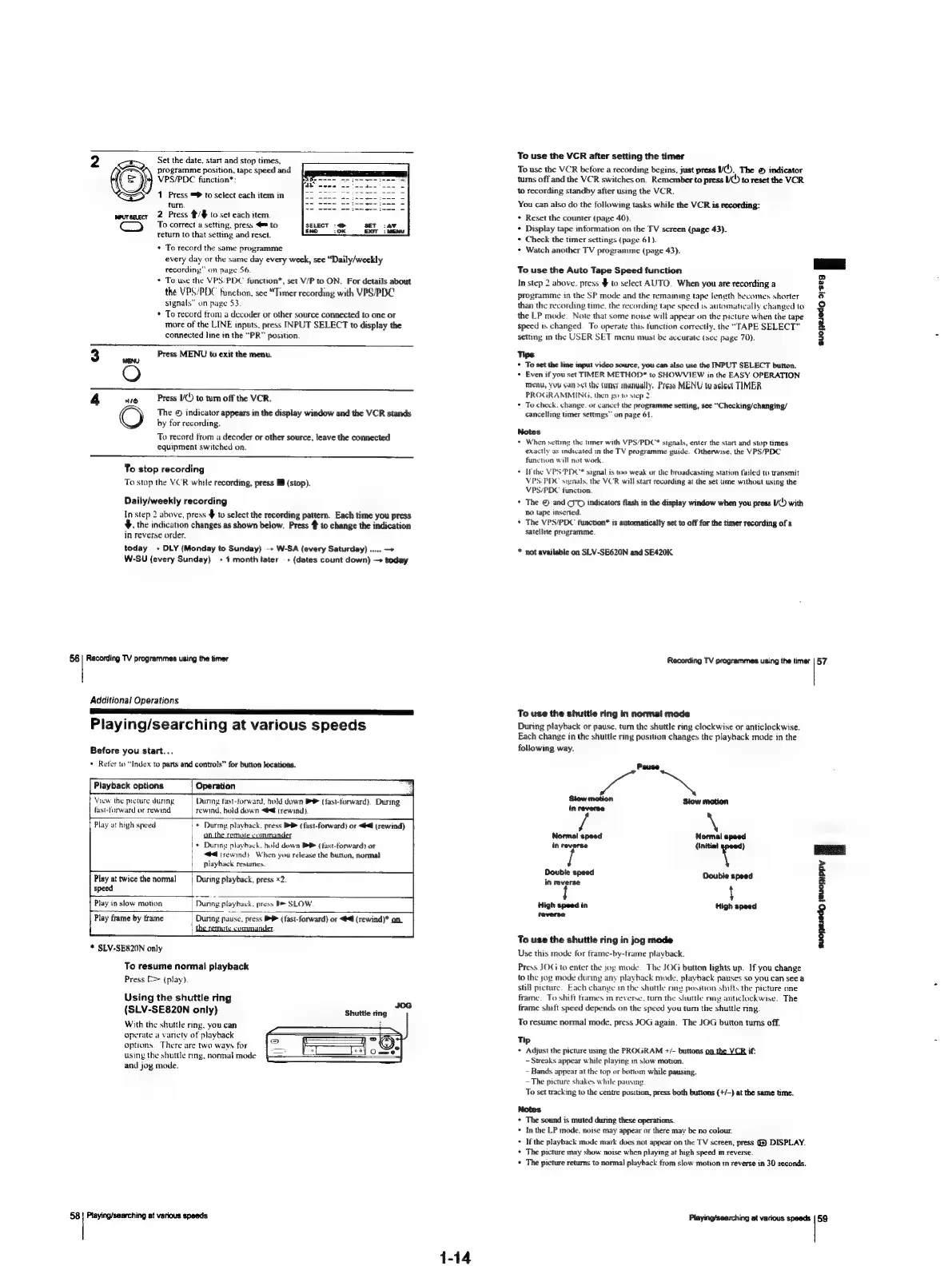
Sony SLV-SE620 - Playing;searching at various speeds; Using the shuttle ring

Sony SLV-SE620
96 pages
Print Icon
To Next Page IconTo Next Page
To Previous Page IconTo Previous Page
Loading...
Set
the
date,
start
and
stop
times,
fj
o—~
programme
position,
tape
speed
and
(=)
VPS/PDC
function*:
Or
a
INPUT
SELECT
Cc)
1
Press
=
to
select
each
item
in
tum.
2
Press
#/#
to
set
each
item.
To
correct
a
setting,
press
4*
to
Tetum
to
that
setting
and
reset.
+
To
record
the
same
programme
every
day
or
the
same
day
every
week,
sce
“Daily/weekly
recording”
on
page
56.
*
To
use
the
VPS’PDC
function*,
set
V/P
to
ON.
For
details
about
/PBC
function,
see
“Timer
recording
with
VPS/PDC
on
page
53.
To
record
from
a
decoder
or
other
source
connected
to
one
or
more
of
the
LINE
inputs,
press
INPUT
SELECT
to
display
the
connected
line
in
the
“PR”
position.
Press
MENU
to
exit
the
menu.
aro
Press
)
to
tum
off
the
VCR.
The
©
indicator
appears
in
the
display
window
and
the
VCR
stands
by
for
recording.
To
record
from
a
decoder
or
other
source,
teave
the
connected
equipment
switched
on.
To
stop
recording
To
stop
the
VCR
while
recording,
press
I
(stop).
Daily/weekly
recording
In
step
2
above,
press
$
to
select
the
recording
pattern.
Each
time
you
press
$,
the
indication
changes
as
shown
below.
Press
Po
change
the
indication
in
reverse
order.
today
»
DLY
(Monday
to
Sunday)
W-SA
(every
Saturday)
.....
W-SU
{every
Sunday)
+
1
month
later
+
(dates
count
down)
—»
today
56
|
Recording
TV
programmes
using
the
timer
Additional
Operations
SS
EE
ee
Playing/searching
at
various
speeds
Before
you
start...
*
Refer
to
“Index
to
parts
and
controls”
for
button
locations.
Playback
options
View
the
picture
during
fast-forward
or
rewind
Operation
During
fast-forward,
hold
down
(fast-forward).
During
rewind,
hold
down
@
(rewind).
Play
at
high
speed
+
Durmy
playback,
press
D>
(fast-forward)
or
<@
(rewind)
oon
the
remote
commander
*
Dumnng
playback.
hold
down
BP
(fast-forward)
or
44
(rewind).
When
you
release
the
button,
normal
piayback
resumes.
Play
at
twice
the
normal
speed
During
playback,
press
<2.
Play
in
slow
motion
During
playback,
press
Be
SLOW
Play
frame
by
frame
"
SLV-SE820N
only
Dunng
pause
press
BP
(fast-forward)
or
<4
(rewind)*
on
To
resume
normal
playback
Press
[=>
(play).
Using
the
shuttle
ring
106
(SLV-SE820N
only)
Shuttle
ring
With
the
shuttle
ring,
you
can
operate
a
variety
of
playback
options.
There
are
two
ways
for
using
the
shuttle
ring,
normal
mode
and
jog
mode.
58}
Playing/searching
at
various
speeds
1-14
To
use
the
VCR
after
setting
the
timer
To
use
the
VCR
before
a
recording
begins,
just
press
UC).
The
©
indicator
tums
off
and
the
VCR
switches
on.
Remember
to
press
UC
to
reset
the
VCR
to
recording
standby
after
using
the
VCR.
You
can
also
do
the
following
tasks
while
the
VCR
is
recording:
+
Reset
the
counter
(page
40).
¢
Display
tape
information
on
the
TV
screen
(page
43).
*
Check
the
timer
settings
(page
61).
+
Watch
another
TV
programme
(page
43).
To
use
the
Auto
Tape
Speed
function
In
step
2
above.
press
$
to
select
AUTO.
When
you
are
recording
a
programme
in
the
SP
mode
and
the
remaining
tape
Jength
becomes
shorter
than
the
recording
time,
the
recording
tape
speed
is
automatically
changed
to
the
LP
mode.
Note
that
some
noise
will
appear
on
the
picture
when
the
tape
speed
1s
changed.
To
operate
this
function
correctly,
the
“TAPE
SELECT”
setting
in
the
USER
SET
menu
must
be
accurate
(see
page
70).
Tips
*
To
set
the
line
input
video
source,
you
can
also
use
the
INPUT
SELECT
button.
+
Even
if
you
set
TIMER
METHOD*
to
SHOWVIEW
in
the
EASY
OPERATION
Menu,
you
san
svt
thy
Gunesr
manually,
Press
MENU
to
select
TIMER
PROGRAMMING.
then
go
to
step
2
*
To
check,
change,
or
cance!
the
programme
setting,
see
“Checking/changing/
cancelling
timer
settings”
on
page
61.
Notes
+
When
setung
the
tmer
with
VPS/PDC*
signals,
enter
the
start
and
stop
times
exactly
as
indicated
in
the
TV
programme
guide.
Otherwise,
the
VPS/PDC
funcnion
will
not
work.
Ifthe
VPS‘PDC*
signal
is
oo
weak
or
the
broadcasting
station
failed
to
transmit
VPS/PDC
signals.
the
VCR
will
start
recording
at
the
set
time
without
using
the
VPS/PDC
function.
*
The
©
and
OO
indicators
flash
in
the
display
window
when
you
preas
U()
with
No
tape
inserted.
The
VPS/PDC
function*
is
automatically
set
to
off
for
the
timer
recording
of
a
satellite
programme.
not
available
on
SLV-SE620N
and
SE420K
suopeiedg
2/seg
i
Recording
TV
programmes
using
the
timer
|
57
To
use
the
shuttle
ring
in
normal
mode
During
playback
or
pause.
tum
the
shuttle
ring
clockwise
or
anticlockwise.
Each
change
in
the
shuttle
ring
position
changes
the
playback
mode
in
the
following
way.
a
Stow
motion
Stow
motion
in
reverse
Normal
speed
Normal
speed
in
reverse
(initial
on
Double
speed
Double
speed
in
reverse
'
High
speed
in
High
speed
feverse
To
use
the
shuttle
ring
in
jog
mode
Use
this
mode
for
frame-by-trame
playback.
Press
JOG
to
enter
the
jog
mode.
The
JOG
button
lights
up.
If
you
change
to
the
jog
mode
during
any
playback
mode.
playback
pauses
so
you
can
see
a
still
picture.
Each
change
in
the
shuttle
ring
position
shifts
the
picture
one
frame.
To
shift
frames
in
reverse,
turn
the
shuttle
mng
anticlockwise.
The
frame
shift
speed
depends
on
the
speed
you
tum
the
shuttle
ring.
To
resume
normal
mode.
press
JOG
again.
The
JOG
button
tums
off.
Tip
+
Adjust
the
picture
using
the
PROGRAM
+/-
buttons
on
the
VCR
if:
-
Streaks
appear
while
playing
in
slow
motion.
-
Bands
appear
at
the
top
or
bottom
while
pausing.
~The
picture
shakes
while
pausing
To
set
tracking
to
the
centre
position,
press
both
buttons
(+/-)
at
the
same
time.
Notes
+
The
sound
is
muted
during
these
operations.
*
Inthe
LP
mode.
noise
may
appear
or
there
may
be
no
colour.
+
Ifthe
playback
mode
mark
does
not
appear
on
the
TV
screen,
press
9}
DISPLAY.
+
The
picture
may
show
noise
when
playing
at
high
speed
in
reverse.
*
The
picture
returns
to
normal
playback
from
slow
motion
in
reverse
in
30
seconds.
suopeiedg
seuopippy
F
Playing/searching
at
various
speeds
|
59

Table of Contents

Related product manuals