EasyManua.ls Logo

Sony SLV-SE620 - Editing; Basic Editing Ce Eeeceecsenenccscenneceeeccesscceesccceeceseccssccassccesesasssessacncess; Audio Dubbing (SLV-SE820 N Only) Tecescescasscccrecccesssaceccescnacees

Sony SLV-SE620
96 pages
Print Icon
To Next Page IconTo Next Page
To Previous Page IconTo Previous Page
Loading...
Editing
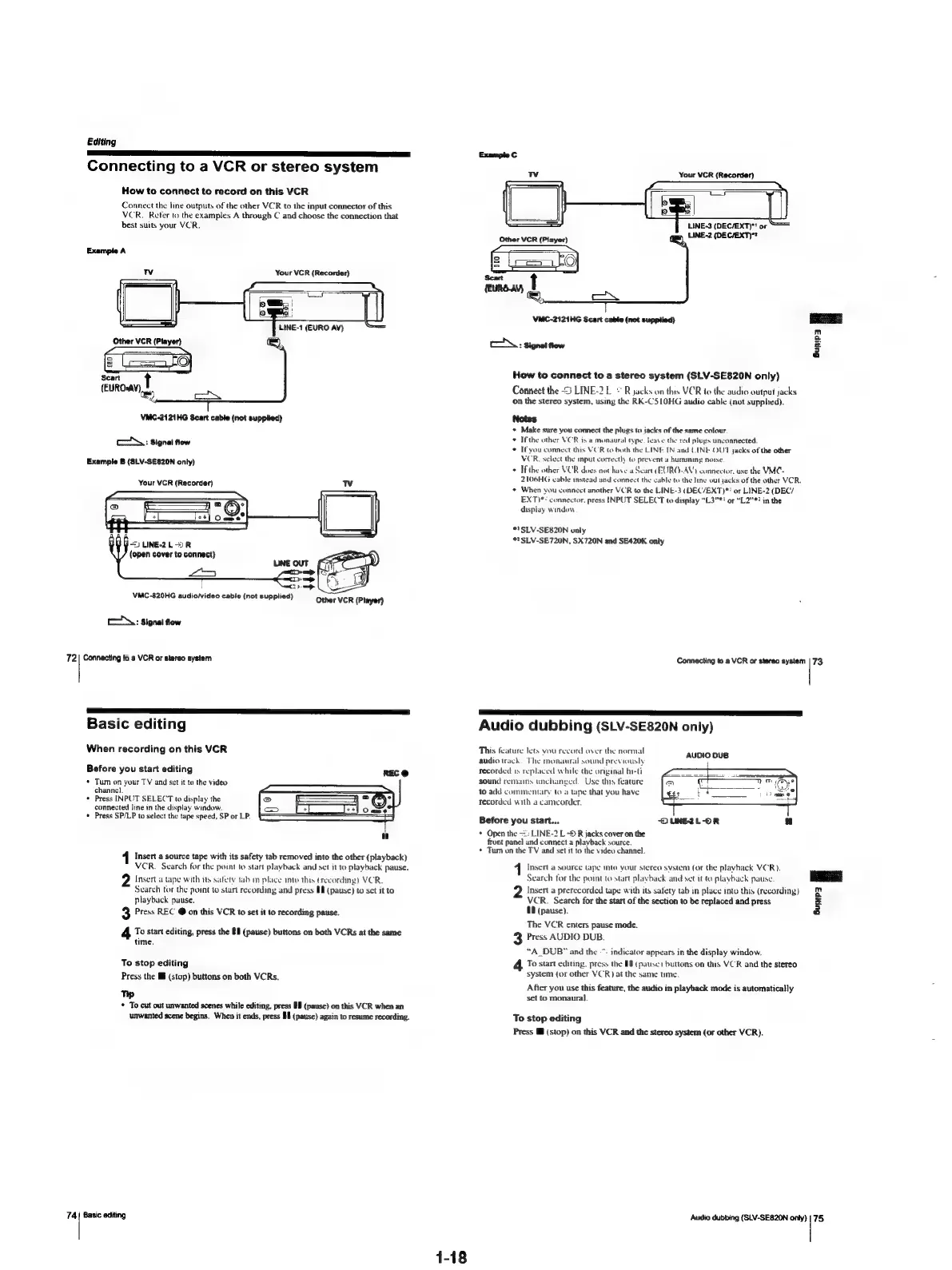
Connecting
to
a
VCR
or
stereo
system
How
to
connect
to
record
on
this
VCR
Connect
the
line
outputs
of
the
other
VCR
to
the
input
connector
of
this
VCR.
Reter
to
the
examples
A
through
C
and
choose
the
connection
that
best
suits
your
VCR.
WV
Your
VCR
{Recorder}
LINE-1
(EURO
AV}
Other
VCR
(Player)
Pag
EEE,
2
Leto
t
——
Scart
(EUROWAV)
0,
VMC-2121HG
Scart
cable
(not
supplied)
To:
Signal
flow
Example
B
(SLV-SE820N
only)
Your
VCR
(Recorder)
WV
DU
LINE-2L-)R
(open
cover
to
connect}
ones]
VMC-820HG
audio/video
cable
(not
supplied)
Other
VCR
(Player)
coh:
Signal
flow
72
|
Connecting
to
a
VCR
or
stereo
system
Basic
editing
When
recording
on
this
VCR
Before
you
start
editing
*
Turn
on
your
TV
and
set
it
to
the
video
channc)
¢
Press
INPUT
SELECT
to
display
the
connected
line
in
the
display
window.
*
Press
SP/LP
to
select
the
tape
speed,
SP
or
LP.
1
Insert
a
source
tape
with
its
safety
tab
removed
into
the
other
(playback)
VCR.
Search
for
the
point
to
start
playback
and
set
it
to
playback
pause.
Insert
a
tape
with
its
safety
tab
in
place
into
this
recording)
VCR.
Search
tor
the
point
to
start
recording
and
press
@f
(pause)
to
set
it
to
playback
pause.
3
Press
REC
@
on
this
VCR
to
set
it
to
recording
pause.
To
start
editing,
press
the
89
(pause)
buttons
on
both
VCRs
at
the
same
time.
To
stop
editing
Press
the
(stop)
buttons
on
both
VCRs.
Tip
*
To
cut
out
unwanted
scenes
while
editing,
press
#8
(pause)
on
this
VCR
when
an
unwanted
scene
begins.
When
it
ends,
press
Bf
(pause)
again
to
resume
recording.
74
|
Basic
editing
1-18
Vv
Your
VCR
(Recorder)
LINE-3
(DEC/EXT)*'
or
LINE-2
(DEC/EXT)"?
Other
VCR
(Player)
Scart
(BURS-AV)
VMC-2121HG
Scart
cable
(not
supplied)
c\.:
signal
tow
How
to
connect
to
a
stereo
system
(SLV-SE820N
only)
Connect
the
2
LINE-2L
°
R
jacks
on
this
VER
to
the
audio
output
jacks
on
the
stereo
system,
using
the
RK-C510HG
audio
cable
(not
supplied).
Notes
+
Make
sure
you
connect
the
plugs
to
jacks
of
the
same
colour.
©
Ifthe
other
VCR
is
a
monaural
type.
eave
the red
plugs
unconnected.
If
you
connect
duis
VCR
to
both
the
LINE
IN
and
LENE
OUT
jacks
of
the
other
VCR.
select
the
input
correctly
to
prevent
a
humming
noise.
If
the
other
VOR
does
not
have
a
Seart
(EURO-AV)
connector.
use
the
VMC-
2106HG
cable
instead
and
connect
the
cable
to
the
line
out
jacks
of
the
other
VCR.
¢
When
you
connect
another
VCR
to
the
LINE-3
(DEC/EXT)"!
or
LINE-2
(DEC/
EXT)**
connector.
press
INPUT
SELECT
to
display
“L3"*!
or
“L2"*?
in
the
display
window
.
©
SLV-SE820N
only
*?
SLV-SE720N,
SX720N
and
SE420K
only
Bunip3
Connecting
to
a
VCR
or
stereo
aysiem
|
73,
a
*F
___e
Audio
dubbing
(SLV-SE820N
only)
This
feature
lets
vou
record
over
the
normal
audio
track.
The
monaural
sound
previously
recorded
1s
replaced
while
the
onginal
bs-ti
sound
remains
unchanged.
Use
this
feature
to
add
commentary
to
a
tape
that
you
have
recorded
with
a
camcorder.
AUDIO
DUB
Before
you
start...
*
Open
the
=:
LINE-2
L
R
jacks
cover
on
the
front
panel
und
connect
a
playback
source.
*
Tum
on
the
TV
and
set
it
to
the
video
channel.
DLINEZL-OR
"
Insert
a
source
tape
into
your
stereo
system
(or
the
plavhack
VCR).
Search
tor
the
point
to
start
playback
and
set
it
to
playback
pause
2
Insert
a
prerecorded
tape
with
its
safety
tab
in
place
into
this
(recording)
VCR.
Search
for
the
start
of
the
section
to
be
replaced
and
press
18
(pause).
The
VCR
enters
pause
mode.
3
Press
AUDIO
DUB.
“A_DUB"
and
the
~:
indicator
appears
in
the
display
window,
To
start
editing.
press
the
HB
(pause)
buttons
on
this
VCR
and
the
stereo
system
(or
other
VCR}
at
the
same
time.
After
you
use
this
feature,
the
audio
in
playback
mode
is
automatically
set
to
monaural.
To
stop
editing
Press
M
(stop)
on
this
VCR
and
the
stereo
system
(or
other
VCR).
m
a
=
é
Audio
dubbing
(SLV-SE820N
only)
|
75

Table of Contents

Related product manuals