Recording
using
the
receiver
You
can record from a video/audio component
using the receiver. Refer to the operating
instructions supplied with your recording
component.
1
Rlcording
ontg
a
MiniQisc
or.
.
audig
tape
You
can record onto a MiniDisc or audio tape
using the receiver. See the operating
instructions supplied with your MD deck or
tape deck.
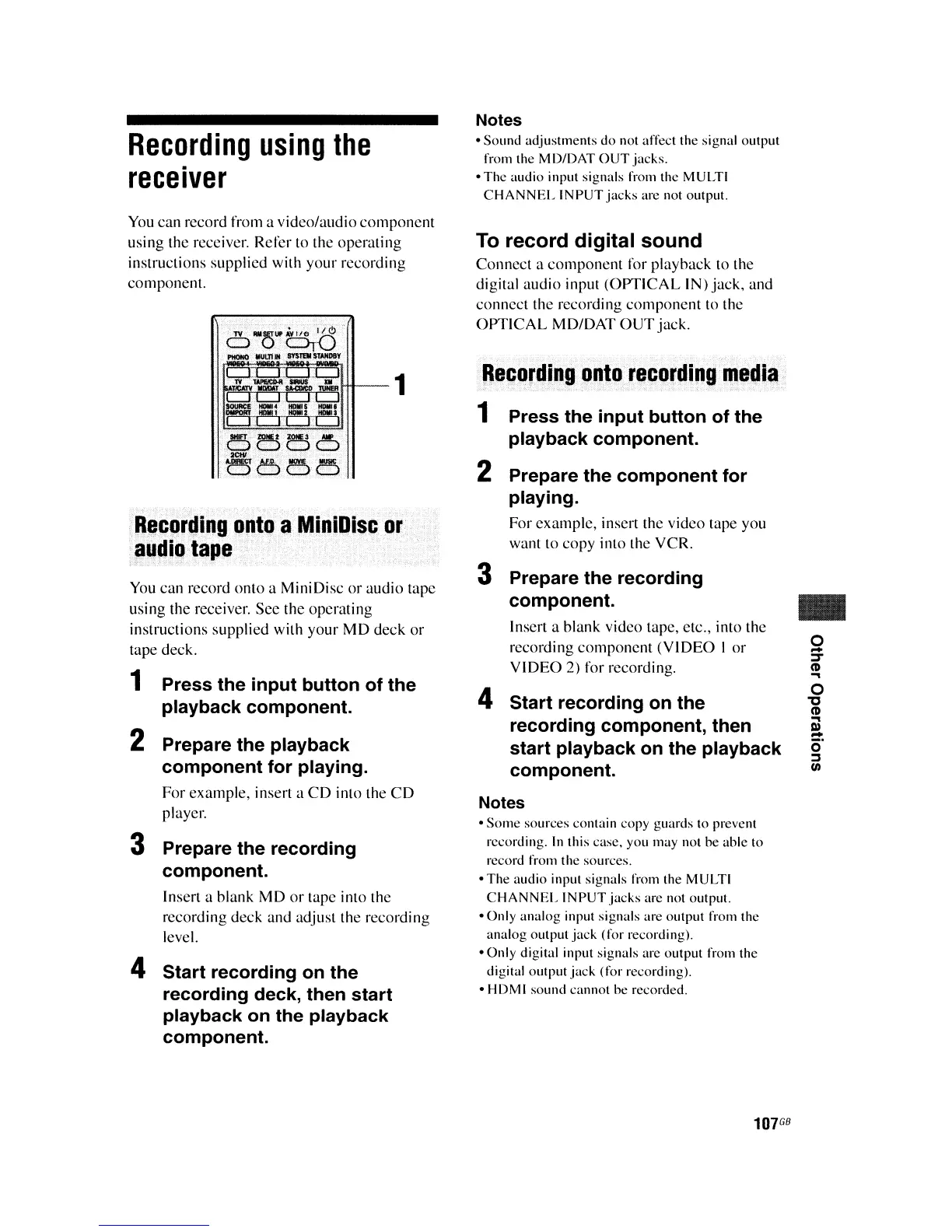
1 Press the input button of the
playback component.
2 Prepare the playback
component for playing.
For example, insert a
CD
into the
CD
player.
3 Prepare the recording
component.
Insert a blank MD or tape into the
recording deck and adjust the recording
level.
4 Start recording on the
recording deck, then start
playback on the playback
component.
Notes
• Sound adjustments do not affect the signal output
from the MD/DAT
OUT
jacks.
• The audio input signals from the MULTI
CHANNEL
INPUT
jacks
are not output.
To
record
digital
sound
Connect a component for playback to the
digital audio input (OPTICAL IN) jack, and
connect the recording component to the
OPTICAL
MD/DAT
OUT
jack.
Re~ordJng
gnto
recording
media
1 Press the input button of the
playback component.
2 Prepare the component for
playing.
For example, insert the video tape you
want to copy into the VCR.
3 Prepare the recording
component.
Insert a blank video tape, etc., into the
recording component (VIDEO I or
VIDEO 2) for recording.
4 Start recording on the
recording component, then
start playback on the playback
component.
Notes
•
Some
sources contain copy guards to prevent
recording.
In
this case. you may not be able to
record from the sources.
• The audio input signals from the MULTI
CHANNEL
INPUT
jacks
are not output.
·Only
analog input signals are output from the
analog output
jack
(for recording).
• Only digital input signals are output from the
digital output
jack
(for recording).
• HDMI sound cannot be recorded.
..
Q
':S'
CD
...
o
'0
CD
...
III
-
o'
:::J
1/1
107
GB



 To Next Page