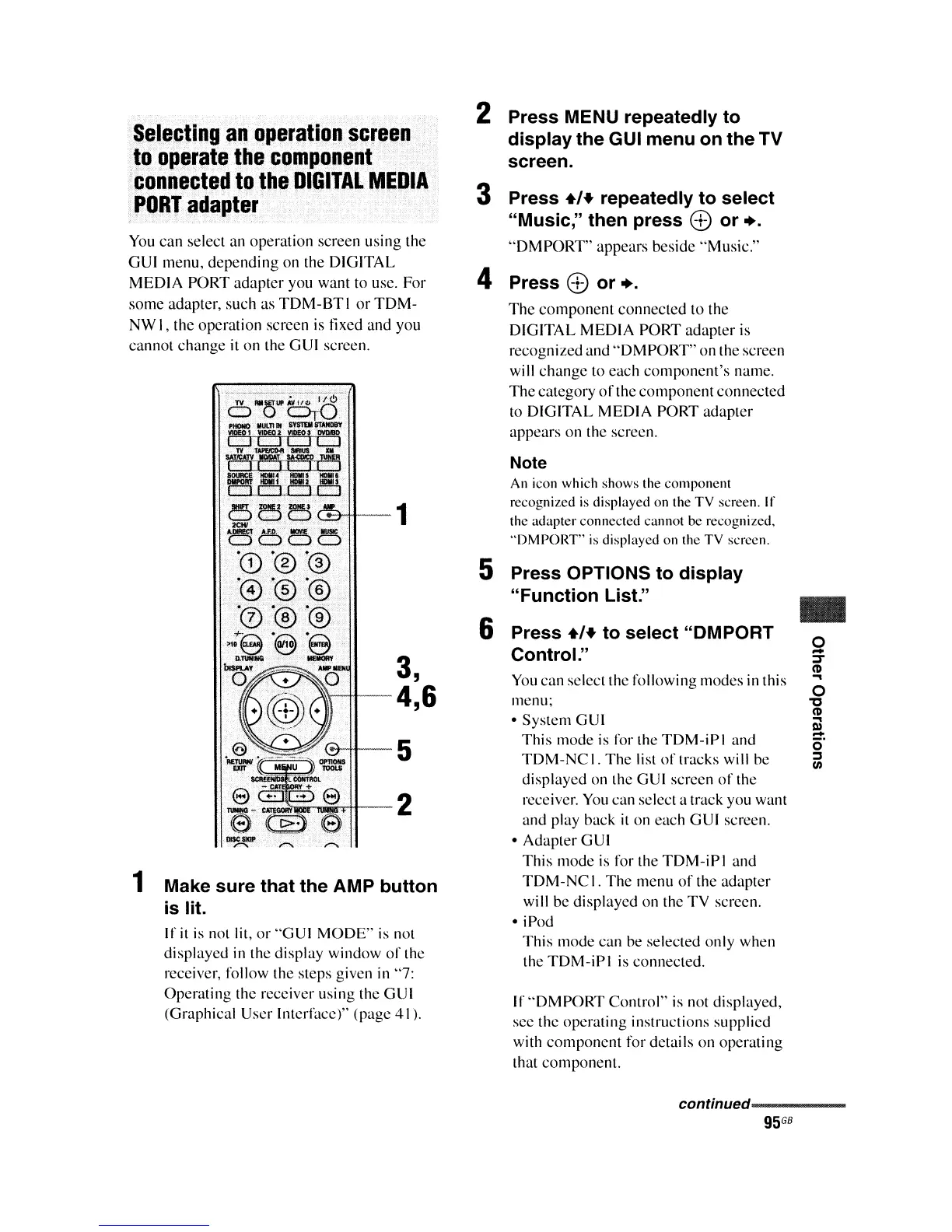
2 Press MENU repeatedly to
display the GUI menu on the TV
screen.
3 Press
.,+
repeatedly to select
"Music," then press
c±>
or +.
"OM
PORT" appears beside "Music."
4 Press
c±>
or +.
The
component
connected to the
DIGITAL MEDIA
PORT
adapter is
re<.:ognized and
"OM
PORT" on the screen
will
change
to each
component's
name.
The
category
of
the
component
connected
to DIGITAL MEDIA PORT adapter
appears on the screen.
Selecting
an
operation
screen
to
operate
the
component
connected
to
the
DIGITAL
MEDIA
PORT
adapter
You
can select an operation screen using the
GUlmenu,
depending
on the DIGITAL
MEDIA
PORT
adapter
you want to use. For
some adapter, such as
TDM-BT
I
or
TDM-
NW I, the operation screen is tixed and you
cannot
change
it
on the GUI screen.
{*-HI--
5
2
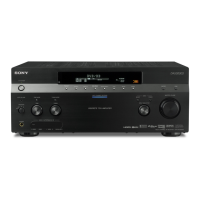
1 Make sure that the AMP button
is lit.
If
it
is not lit,
or
"GUI
MODE"
is not
displayed in the display window
of
the
receiver, follow the steps given in "7:
Operating the receiver using the GUI
(Graphical User Interface)" (page
41
).
Note
An
icon which shows the component
recognized is displayed on the TV screen. If
the adapter connected cannot be recognized.
"DMPORT"
is displayed on the TV scrccn.
5 Press OPTIONS to display
"Function List."
6 Press
.,+
to select "DMPORT
Control."
You
can select the following modes in this
menu;
• System GUI
This
mode
is
for the
TDM-iP
I and
TDM-NCt.
The
list
of
tracks will be
displayed on the GUI screen
of
the
receiver.
You
can select a track you want
and play back
it
on each GUI screen.
• Adapter GUI
This mode
is
for the
TDM-iPI
and
TDM-NC
I.
The
menu
of
the adapter
will be displayed on the
TV
screen.
• iPod
This
mode can he selected only when
the
TDM-iPI
is connected.
If
"DMPORT
Control"
is not displayed,
see the operating instructions supplied
with
component
for details on operating
that component.
..
o
-
:::T
CD
...
o
"lJ
CD
m
-
cr
:::J
III
continued----_
95
GB



 To Next Page